A Gantt chart report is a project report built around the Gantt chart: it shows the schedule, then says what the schedule means. A useful one answers four questions on its first page. How far along is the project against plan? Which tasks decide the end date? What's late? And when will it actually finish? Below is a real example, page by page, made from an 11-task sample plan, followed by the two ways to make your own.
The example was generated by CleanChart's report engine, so we'll be upfront about that: we make CleanChart, so weigh our ranking accordingly. The structure it follows works whichever tool you use, and the comparison further down covers Microsoft Project and Excel too.
What Is a Gantt Chart Report?
A Gantt chart on its own is a picture: one bar per task on a time axis. A Gantt chart report adds the reading of that picture. It names the tasks that move the end date, the weeks where too much runs in parallel, the work that's behind, and what to do about each of those. It's the document a project manager sends before a steering meeting, so people can decide something instead of squinting at bars.
There are three common kinds, and they differ in what your data has to contain:
- Plan review, before or early in the project: is the plan realistic? It needs only task names and dates.
- Status report, during the project: are we on track? It needs progress (percent complete) or a status per task.
- Critical path review, at any point: which tasks can't slip? It needs dependencies between tasks.
Most real reports mix them. Once a plan has dates, dependencies and progress, a single document can cover all three.
What Should a Gantt Chart Report Include?
Every section should answer a question a stakeholder actually asks, and each one depends on a column your project file may or may not have:
| Section | Question it answers | Columns it needs |
|---|---|---|
| One-page brief | Where do we stand, and what needs a decision? | Task, start, end |
| Timeline and phases | What happens when, and how long is each phase? | Task, start, end (phase optional) |
| Critical path and slack | Which tasks decide the end date? | A dependency column |
| Workload and risk | Which weeks are overloaded, and who carries the most? | Dates; an owner column for the per-person view |
| Progress and outlook | Are we behind, what's overdue, when will we finish? | Progress or status |
| Findings and recommendations | What should we do next? | Whatever the sections above found |
| Appendix | Where do these numbers come from? | The full task table, data notes and method |
The first page matters most. A lot of readers won't get past it, so it has to carry the status, the three or four numbers that matter, and the top findings with a recommendation each. Everything after page 1 is evidence for page 1.
Gantt Chart Report Example: An 11-Task Website Relaunch
Here's a complete example. The input is a sample plan for a website relaunch: 11 tasks in 4 phases with start and end dates, dependencies, percent complete and an owner per task. You can download the sample plan (CSV) and the full 8-page report (PDF). All names and numbers are sample data, and the report date is 8 October 2026.
Page 1: the brief
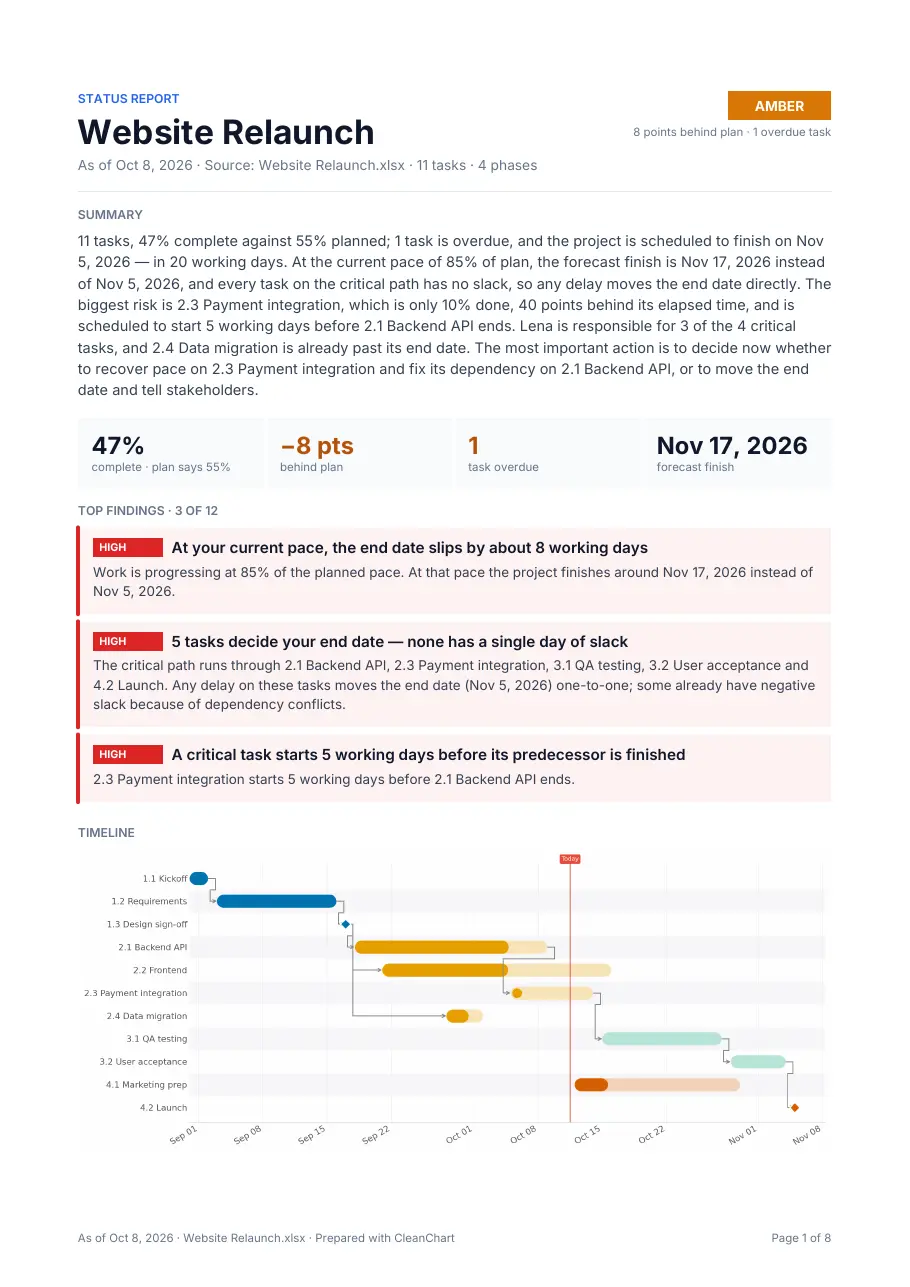
The status light is Amber because the project is 8 points behind plan and one task is overdue. The four tiles show percent complete, the gap to plan, the overdue count and the forecast finish. Under them sit the three findings that need a decision first.
Page 3: the critical path
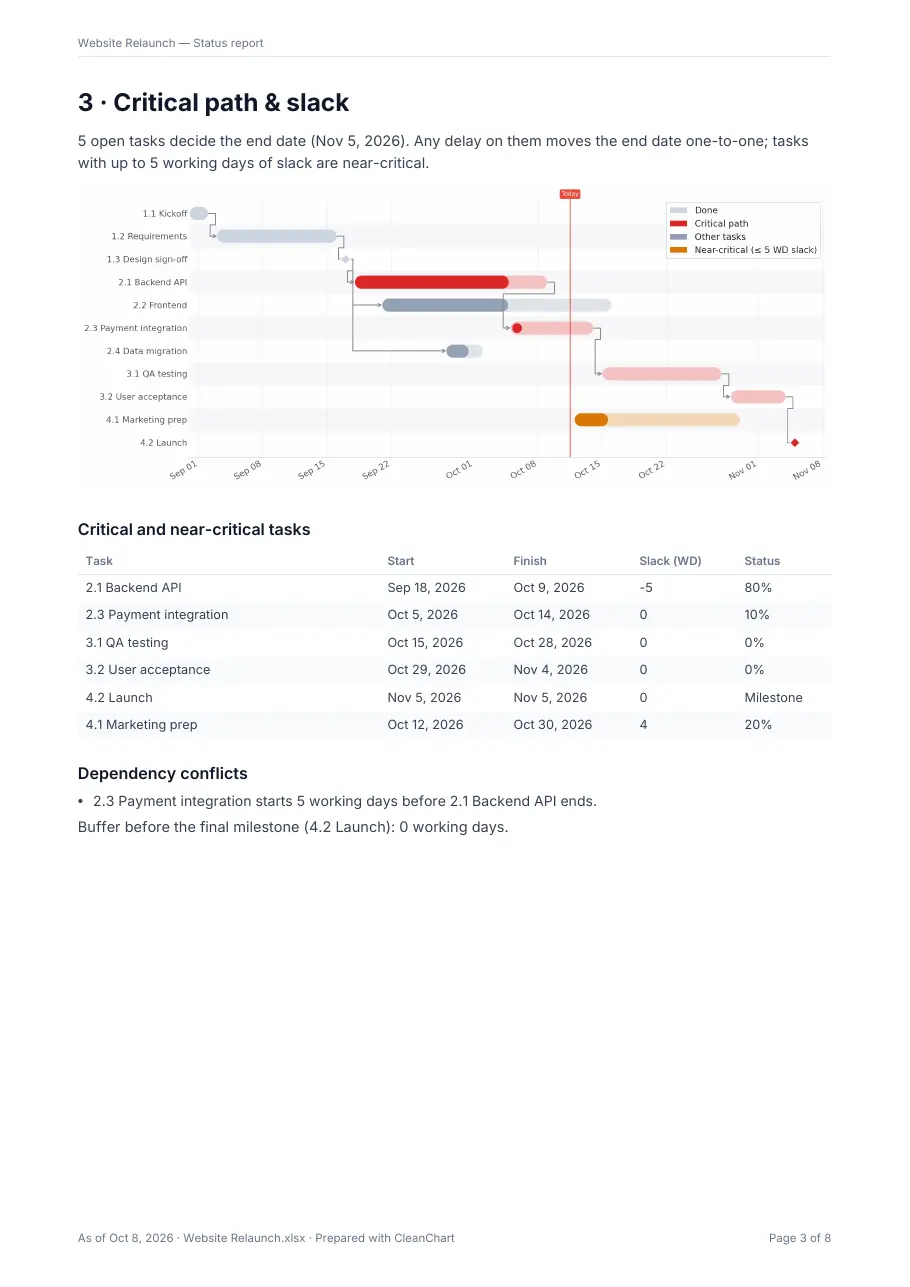
What the report found
The engine returned 12 findings, each with a recommendation. The four rated high were:
- "At your current pace, the end date slips by about 8 working days." Recommendation: decide now whether to recover the pace or move the end date, and communicate the forecast.
- "5 tasks decide your end date, none has a single day of slack." Recommendation: track these first in every status meeting and protect them from scope changes.
- "A critical task starts 5 working days before its predecessor is finished." Either the dependency isn't finish-to-start or the start date is too early; the plan can't hold both.
- "1 task on the critical path is behind plan by up to 40 points." These tasks move the end date one to one, so they come before work that has slack.
The medium findings are the ones a manual review tends to miss: one person owns 75% of the tasks that decide the end date, there's no buffer before the final milestone, and one week has 4 tasks running in parallel, 1.7 times the average. None of that is visible from the Gantt chart alone, and that's the whole argument for writing the report.
How Do You Make a Gantt Chart Report From a Task List?
If your plan lives in a spreadsheet, a CSV or a project-tool export, these are the steps in CleanChart:
- Export the task list with one row per task: name, start date, end date (or a duration). Add a dependency column, a percent-complete or status column and an owner column if you have them, because each one adds a section to the report.
- Upload it to the Excel to Gantt chart converter (or the CSV one) and check the column mapping. Map the dependency column in the editor if you want the critical path.
- Open the report preview. It's free and shows your own numbers: how many findings there are, the key figures, and which sections a missing column would add.
- Get the PDF. One report costs $2.99, and reports are included in the 24-hour pass and the monthly plan. A one-time report can be regenerated up to 3 times and downloaded from its link for 24 hours.
Two limits worth knowing. You'll need at least 5 tasks with calendar dates and no more than 2,000 rows. And a plan written in relative time (Week 1, Sprint 3) doesn't get a report offer, because there's no calendar to measure "today" against.
The written summary on page 1 is produced by the Claude API from the computed findings, never from your raw rows. Owner names are replaced with placeholders such as "Owner A" before that call and appear only in your PDF.
Can You Make One in Microsoft Project or Excel Instead?
Yes, and if you already plan in Microsoft Project, its built-in reports are the obvious first stop. Here's how the three routes compare:
| Microsoft Project | Excel (by hand) | CleanChart | |
|---|---|---|---|
| Starting point | A plan maintained in Project | Any task list | An uploaded task list (Excel, CSV, JSON and more) |
| Report content | Dashboards such as Project Overview: phases, milestones, late tasks | Whatever you build: charts, pivots, your own text | Brief, critical path, workload, progress, ranked findings with recommendations |
| Written analysis | No, you write it | No, you write it | Yes, generated from the findings |
| Updates | Live as the plan changes | Manual | Upload the new file each time |
| Output | Report views inside Project | Workbook | PDF in English, not an editable document |
| Cost | Requires a Project license | Your time | $2.99 per report, or a pass or plan |
Microsoft's own guide shows how its Project Overview report combines charts and tables of phases, milestones and late tasks, and how to filter it to critical tasks. That's a good fit if your team lives in Project. Excel gives you full control but you'll write every sentence yourself. CleanChart sits in between: you don't maintain the plan in it, but it turns an export into a finished document with the analysis written down.
Frequently Asked Questions
What's the difference between a Gantt chart and a Gantt chart report?
A Gantt chart shows tasks as bars on a timeline. A Gantt chart report wraps that chart in analysis: status against plan, the critical path, workload, overdue tasks, a forecast finish and recommendations, usually with a one-page summary on top.
What columns does a project file need for a status report?
Task name, start date and end date (or a duration) give you a plan review. For a status report, add a percent-complete or status column. A dependency column adds the critical path, and an owner column adds workload by person.
Can a Gantt chart report show the critical path?
Yes, when the file has a dependency column. CleanChart matches each dependency to a task by name, by an ID column or by row number. Dependencies with a type or lag, such as SS or +2d, are treated as finish-to-start, and references it can't match are listed in the data notes.
How much does a Gantt chart report cost in CleanChart?
The preview is free. One report costs $2.99, and reports are included in the 24-hour pass and the monthly plan. The Gantt chart itself stays free with a watermark.
Can I edit the report in Word or PowerPoint?
No. The report is a PDF in English. You can regenerate a one-time report up to 3 times if you'd like different wording, and the Gantt chart exports separately for your own slides: as a watermarked PNG for free, or as a clean PNG or SVG on a paid plan.
Related CleanChart Resources
Tools
- Excel to Gantt Chart Converter – Upload a task list and open the report preview
- CSV to Gantt Chart Converter – The same flow for CSV exports
- Gantt Chart Maker – Build the chart from any data
- How CleanChart reports work – Project and data reports side by side
Related Blog Posts
- How to Create a Gantt Chart: Step-by-Step – The chart before the report
- How to Turn a CSV Into a Gantt Chart – Including what the report engine says about a five-row file
- How to Turn a Jira Export Into a Gantt Chart – Jira's Status and Assignee columns feed the status report
- Project Management Charts – Which chart fits which project question
External Resources
- Microsoft Support: Create a Project report – Built-in dashboards in Microsoft Project
- Wikipedia: Gantt chart – History and conventions of the chart itself
- Wikipedia: Critical path method – How slack and the critical path are calculated