A Gantt chart turns a project plan into a visual timeline — showing every task, its duration, and how tasks overlap or depend on each other. It's the most widely used project management visualization in the world.
Originally developed by Henry Gantt in the 1910s, the Gantt chart has become standard in construction, software development, event planning, and virtually every industry where work needs to be scheduled and tracked. Today, you can build one in minutes — no project management software subscription required.
In this guide, you'll learn exactly how to create a Gantt chart from scratch, what data you need, which format to use, and how to avoid common mistakes.
Updated October 1, 2026 (usage data refreshed): our separate "Gantt chart maker", "Gantt chart creator" and "disposable Gantt chart" guides now live in this one page, together with a usage-data section (n = 2,689 sessions) and app screenshots of the upload-to-chart flow.
Just want the tool? Open the free Gantt chart maker, upload a task list with start and end dates, and export the timeline as an image. The rest of this guide explains what to put in that task list and how to make the result readable.
What Is a Gantt Chart?
A Gantt chart is a horizontal bar chart that displays a project schedule. Each task is shown as a horizontal bar, positioned on a timeline according to its start date, with the bar's length representing the task's duration. When tasks run in parallel, their bars overlap horizontally.
The key elements of a Gantt chart are:
- Task list — Rows on the left listing each task or activity
- Timeline axis — Horizontal axis showing dates (days, weeks, months, or quarters)
- Task bars — Horizontal bars spanning each task's start-to-end duration
- Milestones — Key dates or deliverables, often shown as diamond markers
- Dependencies — Arrows showing which tasks must finish before others can start
At a glance, a Gantt chart answers three critical questions: What needs to be done? By when? And what's happening at the same time?
When Should You Use a Gantt Chart?
Use a Gantt chart when you need to plan, schedule, and communicate a sequence of tasks with defined start and end dates.
Gantt charts are the right choice when:
- Your project has multiple tasks that span different time periods
- Some tasks depend on others (Task B can't start until Task A finishes)
- You need to show stakeholders the project timeline at a glance
- You want to track progress against the original schedule
- You're coordinating work across multiple team members or departments
When Gantt charts are NOT the right choice
- Budget/cost breakdown — Use a waterfall chart for cost flows or a bar chart for budget allocation
- Showing proportions — Use a pie chart or donut chart
- Tracking KPIs over time — Use a line chart or combo chart
- Simple task lists — If tasks don't have time constraints, a simple checklist is cleaner
For a full overview of when to use each chart type, see our guide to chart types.
What Data Do You Need for a Gantt Chart?
Every Gantt chart requires at minimum three columns of data:
| Column | Description | Example |
|---|---|---|
| Task name | The name or label for each activity | "Design mockups", "User testing" |
| Start date | When the task begins | 2026-03-01 |
| End date (or duration) | When the task finishes — or how many days it takes | 2026-03-14 (or 14 days) |
Optional but useful columns:
- Assigned to — Team member or department responsible
- Progress % — How much of the task is complete (used for progress bars)
- Dependencies — Which task ID this task depends on
- Category/phase — Used for color-coding task groups
Sample Gantt chart data (CSV format)
Task,Start,End,Phase
Requirements gathering,2026-03-01,2026-03-07,Planning
System architecture,2026-03-05,2026-03-14,Planning
UI/UX design,2026-03-10,2026-03-24,Design
Backend development,2026-03-15,2026-04-11,Development
Frontend development,2026-03-25,2026-04-18,Development
Integration testing,2026-04-12,2026-04-25,Testing
User acceptance testing,2026-04-20,2026-04-30,Testing
Bug fixes,2026-04-26,2026-05-03,Testing
Deployment,2026-05-04,2026-05-07,Launch
Notice that some tasks overlap in time — for example, "Backend development" and "Frontend development" run in parallel. That's exactly what a Gantt chart makes visually clear.
Step-by-Step: Create a Gantt Chart Online
Here's how to create a professional Gantt chart using CleanChart's Gantt chart maker.
Step 1: Prepare your task data
Collect your tasks, start dates, and end dates in a spreadsheet or text file. Keep the format consistent:
- Dates in YYYY-MM-DD format work most reliably across tools
- One task per row
- Use a clear, short task name (max 30-40 characters for readability)
You can export from your existing project management tool as a CSV, or build the list from scratch. If your data is in JSON format, use our JSON to Gantt chart converter.
Step 2: Upload your data
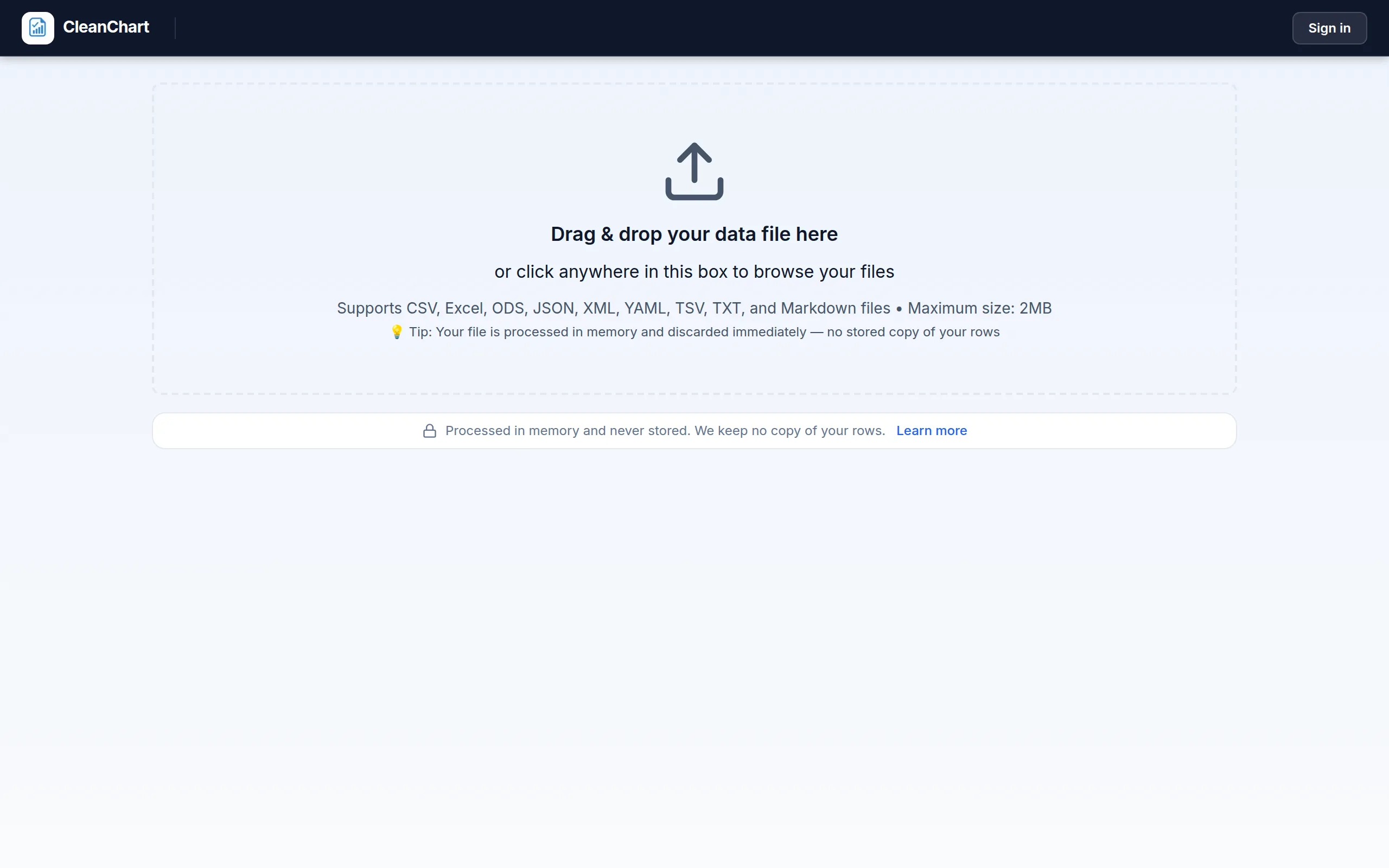
Go to CleanChart's Gantt chart maker and paste your CSV data or upload your file. CleanChart automatically detects date columns and task names. You can also convert directly from:
- CSV to Gantt chart
- Excel to Gantt chart
- Google Sheets to Gantt chart
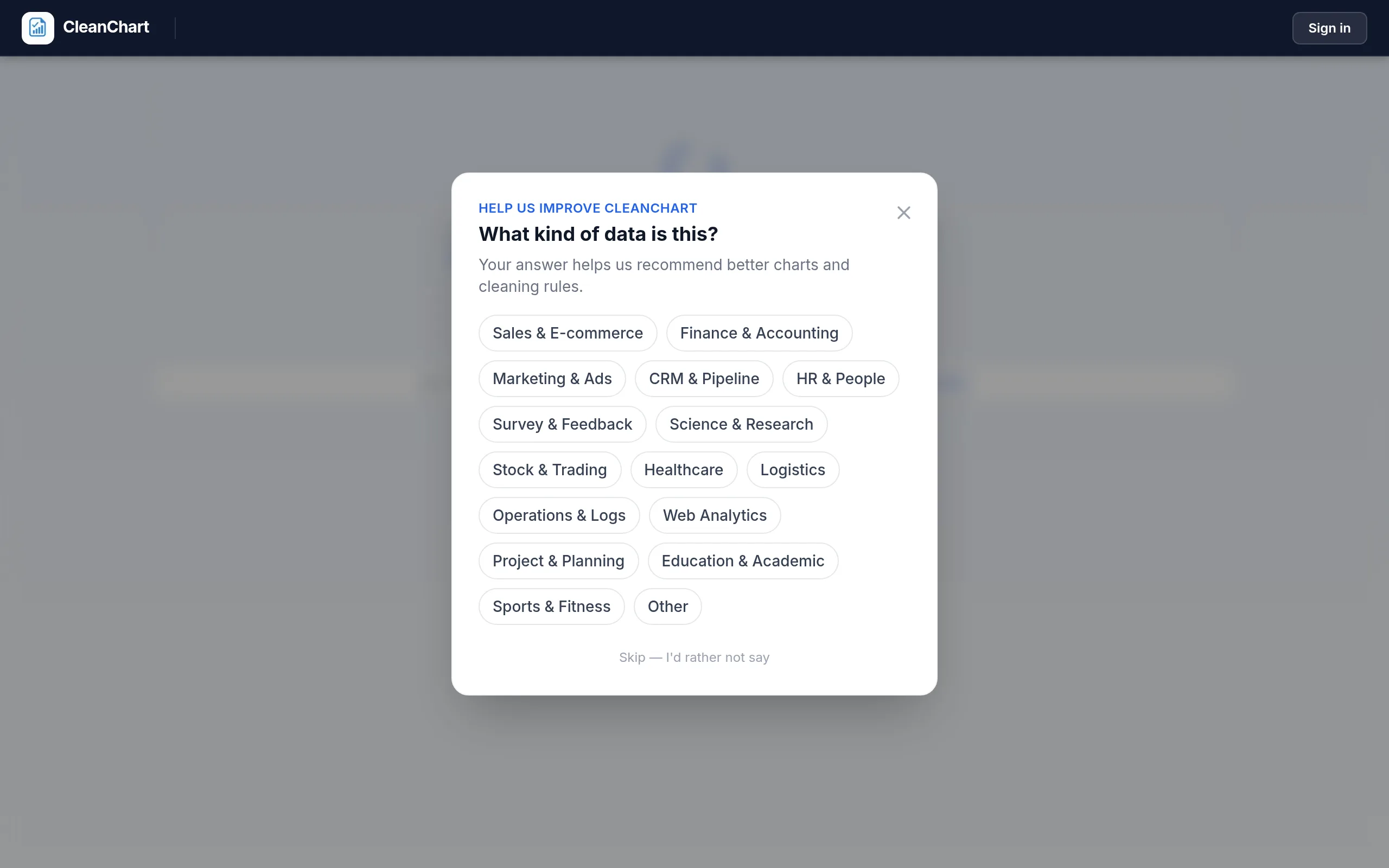
CleanChart asks what kind of data you uploaded so it can tune its chart recommendation. For a task list, picking "Project & Planning" is what points it at the Gantt chart type.
Step 3: Map your columns
Tell CleanChart which column contains the task name, which contains the start date, and which contains the end date. If you have a phase or category column, map it to the color grouping — this makes different project phases instantly distinguishable.
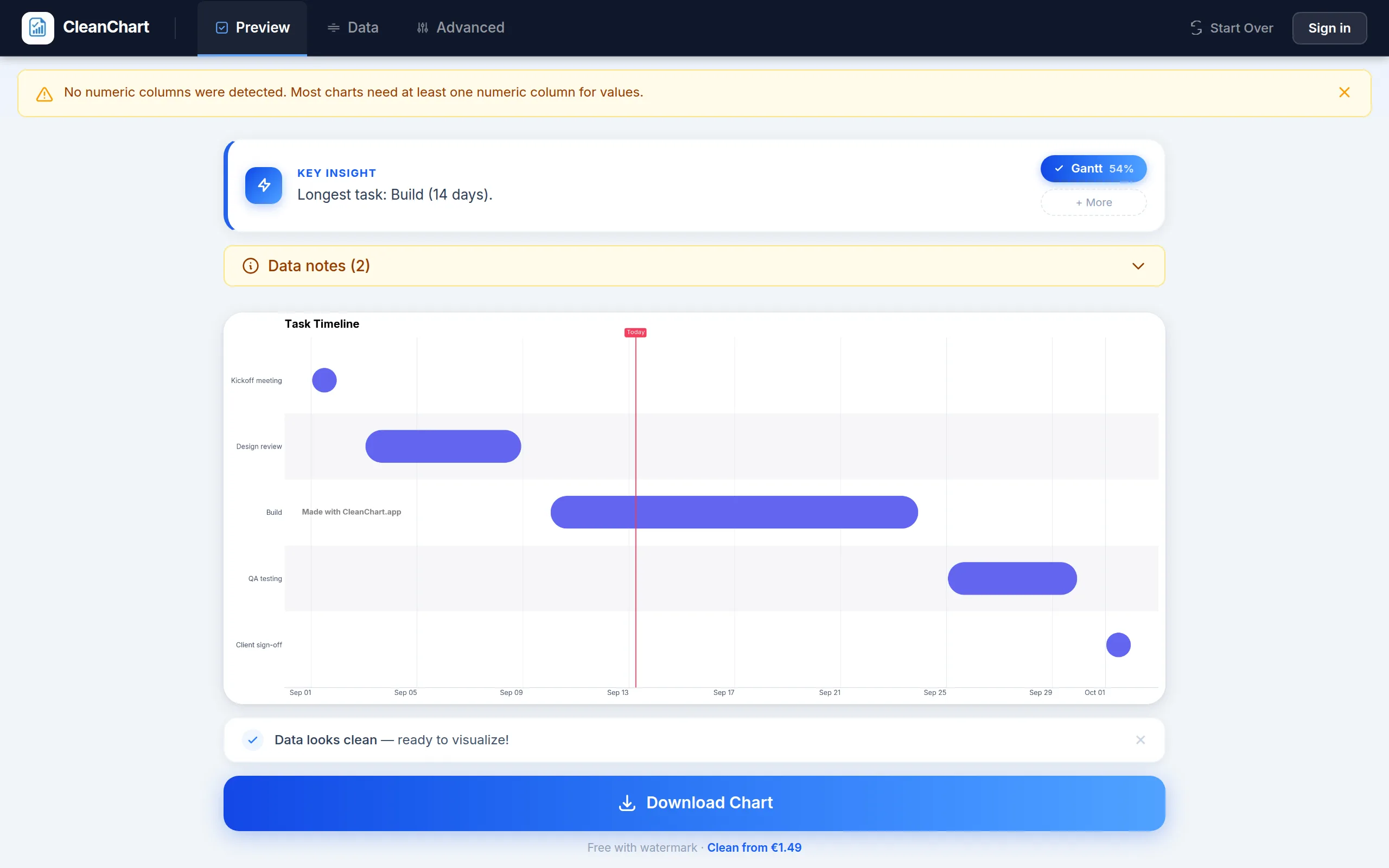
Step 4: Configure the timeline
Choose the right timeline granularity for your project:
- Days — Best for short projects (1–4 weeks)
- Weeks — Best for medium projects (1–3 months)
- Months — Best for long projects (3+ months)
- Quarters — Best for annual roadmaps and strategic planning
Step 5: Customize colors and labels
Color-code tasks by phase or team. For color selection principles, see our guide on color in data visualization. Use distinct, non-adjacent hues for each phase so color-blind viewers can still distinguish categories — see our guide to accessible chart colors for specific palette recommendations.
Step 6: Export and share
Export your Gantt chart as a PNG for presentations, SVG for web use, or PDF for printed documents. For PowerPoint-ready exports, see our guide on exporting charts to PowerPoint.
How Long Does It Take? What CleanChart's Usage Data Shows
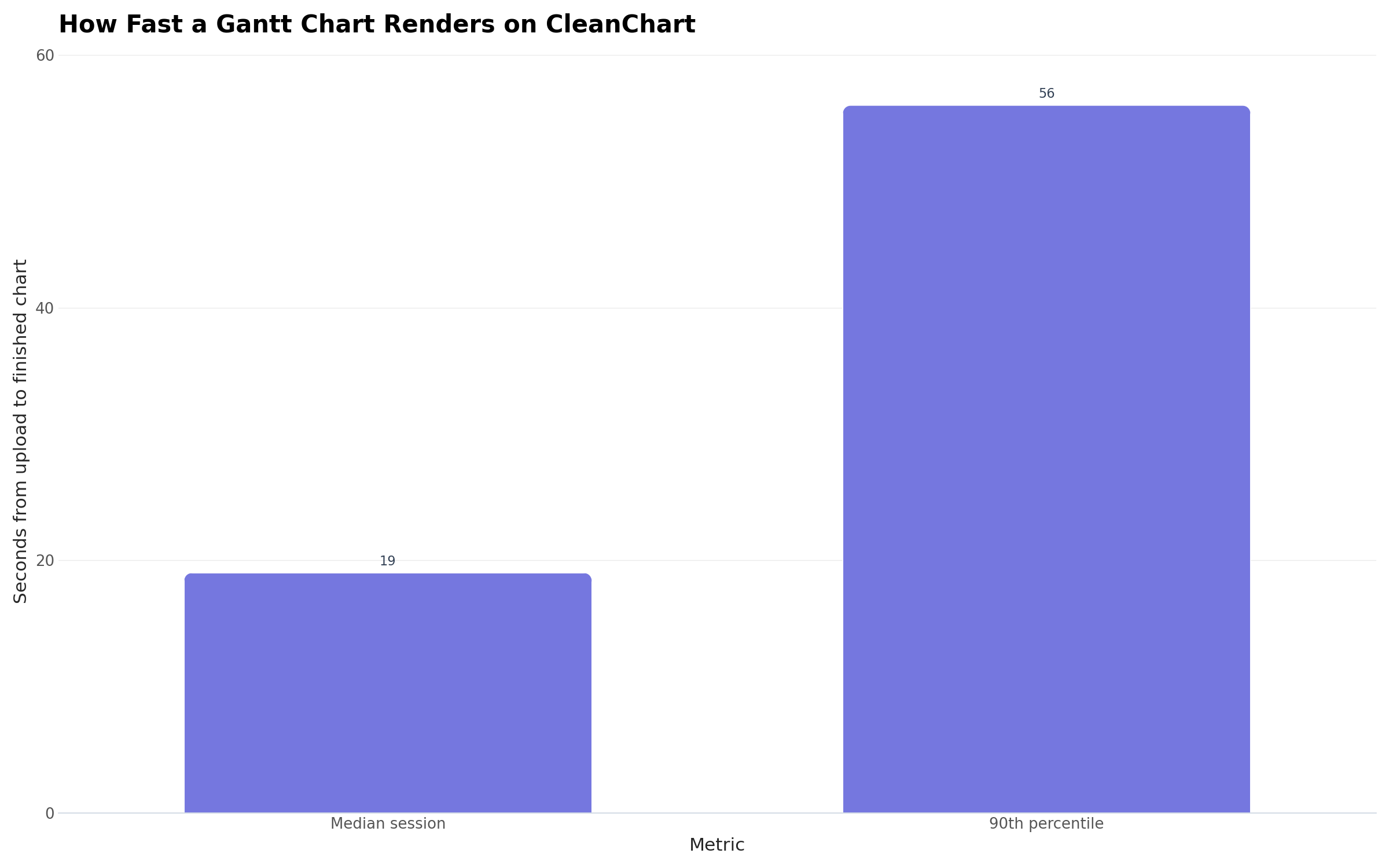
Most Gantt charts are built for one meeting, one report or one slide, not maintained as a live schedule. CleanChart's own usage data shows how common that is, and how fast the upload-to-chart path above runs, across 2,689 sessions with a recorded chart type.
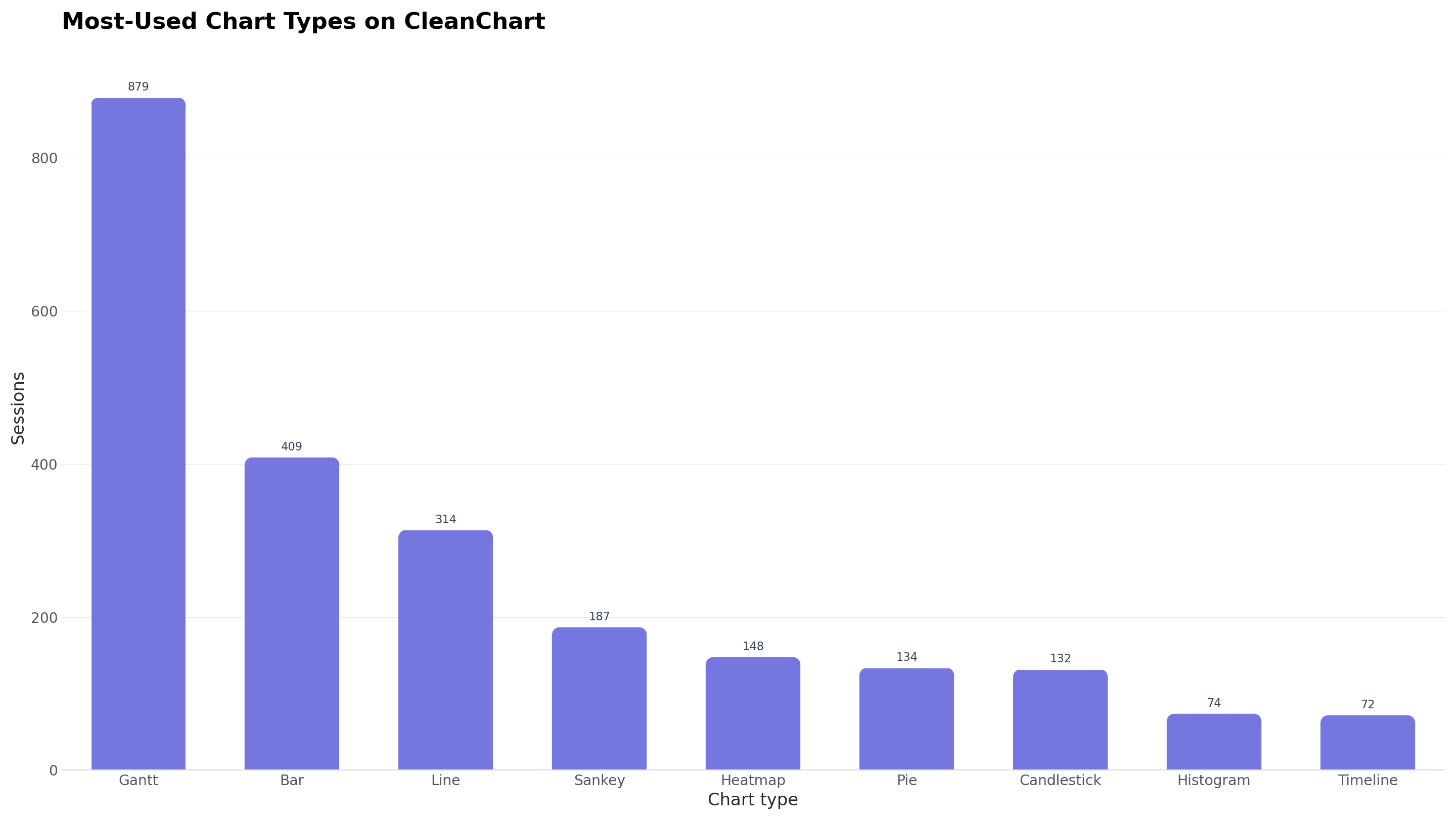
Volume alone doesn't say whether people build a quick chart or maintain a living schedule. Speed is the better signal: nobody sets up a recurring workflow just to answer one question.
One more data point worth stating plainly: of the Gantt-chart sessions that ended in a download (n = 99, CleanChart usage data, May 12–Sep 13, 2026), every single one was exported as a PNG, none as SVG. People who build a Gantt chart from a task list want a flat image for a slide or a report, not an editable vector file.
Gantt Chart Examples by Industry
Software development sprint
| Task | Start | End | Phase |
|---|---|---|---|
| Sprint planning | Mar 1 | Mar 1 | Planning |
| Feature: User auth | Mar 2 | Mar 8 | Development |
| Feature: Dashboard | Mar 4 | Mar 12 | Development |
| Code review | Mar 12 | Mar 14 | QA |
| QA testing | Mar 13 | Mar 16 | QA |
| Sprint demo | Mar 17 | Mar 17 | Review |
Event planning Gantt chart
| Task | Start | End | Phase |
|---|---|---|---|
| Venue selection | Jan 1 | Jan 15 | Venue |
| Catering booking | Jan 10 | Jan 31 | Vendors |
| Speaker outreach | Jan 5 | Feb 14 | Content |
| Marketing campaign | Feb 1 | Mar 15 | Marketing |
| Registration opens | Feb 1 | Mar 20 | Registration |
| Final logistics check | Mar 18 | Mar 20 | Operations |
| Event day | Mar 21 | Mar 21 | Event |
Construction project Gantt chart
| Task | Start | End | Phase |
|---|---|---|---|
| Site preparation | Apr 1 | Apr 14 | Foundation |
| Foundation | Apr 10 | May 2 | Foundation |
| Framing | May 1 | May 28 | Structure |
| Roofing | May 20 | Jun 7 | Structure |
| Electrical rough-in | Jun 1 | Jun 21 | MEP |
| Plumbing rough-in | Jun 1 | Jun 21 | MEP |
| Drywall | Jun 22 | Jul 12 | Interior |
| Final inspection | Jul 28 | Jul 31 | Closeout |
Gantt Chart Best Practices
1. Keep task names short and action-oriented
Task names should be scannable at a glance. Use verb-noun format: "Write requirements," "Review design," "Deploy to production." Avoid long descriptions — save those for the project plan document.
2. Group tasks into phases
Color-code tasks by project phase (Planning, Design, Development, Testing, Launch). This makes the overall project structure immediately clear. Aim for 3–6 distinct phases for readability.
3. Show only the necessary level of detail
A Gantt chart for stakeholders showing the overall project trajectory is different from one for the development team showing individual daily tasks. Build separate charts for different audiences. For executive audiences, aggregate to weekly or monthly granularity.
4. Build in buffer time
Real projects always run over. Add 10–20% buffer before critical milestones. This is especially important for dependency chains — if the first task in a chain slips, every subsequent task slips too.
5. Limit to 15–20 tasks per chart
More than 20 tasks becomes hard to read in most presentation formats. Break large projects into sub-project Gantt charts if needed. For very complex projects, consider combining multiple chart types in your report.
6. Update it regularly
A static Gantt chart is a plan. A living Gantt chart is a tool. Update task bars as work progresses to keep stakeholders aligned. Use progress percentage bars to show how much of each task is complete.
Common Gantt Chart Mistakes to Avoid
Mistake #1: Too many tasks in one chart
Problem: A Gantt chart with 50+ tasks is unreadable, especially in a presentation slide or printed page.
Fix: Create a summary Gantt with rolled-up phases for executives, and detailed Gantt charts per phase for team members.
Mistake #2: Ignoring dependencies
Problem: Scheduling Task B to start before Task A finishes, creating an impossible timeline.
Fix: Always map your task dependencies first. Work backward from the deadline to identify the critical path.
Mistake #3: No milestones
Problem: A Gantt chart without milestones doesn't communicate key decision points or deliverables, leaving stakeholders uncertain about what "done" looks like.
Fix: Add milestone markers at key deliverables (design approval, go/no-go decision, launch date). Keep milestones to 3–5 per project.
Mistake #4: Using Gantt charts for the wrong data
Problem: Trying to show budget allocation, performance metrics, or survey results as a Gantt chart.
Fix: See our guide to common charting mistakes for the right chart type for each data scenario. A Gantt chart is specifically for task scheduling — for everything else, there's a better chart type.
Mistake #5: Wrong time scale
Problem: A 6-month project shown at daily granularity becomes unreadably small; a 2-week sprint shown at quarterly granularity loses all meaning.
Fix: Match the timeline granularity to the project duration. A 2-week sprint needs day-level granularity; a 12-month roadmap needs monthly granularity.
Gantt Chart vs. Alternatives
| Chart Type | Best For | When to Choose Over Gantt |
|---|---|---|
| Waterfall chart | Sequential value changes | When you're tracking cost/budget flows, not task schedules |
| Funnel chart | Stage-by-stage drop-off | When you're tracking conversions or process yields, not timelines |
| Horizontal bar chart | Category comparison | When there's no time dimension — just ranked comparison |
| Line chart | Trends over time | When you're tracking a metric (revenue, users) over time, not tasks |
| Pareto chart | Prioritization by impact | When you want to identify which tasks/issues cause the most delays |
For a comprehensive chart selection guide, see our complete chart types guide.
One-Off Gantt Charts vs. Project Management Software
Software like Asana, Monday.com or Microsoft Project treats a Gantt chart as a living view into an ongoing project, with tasks, owners and dependencies edited every day. A one-off (sometimes called "disposable") Gantt chart is the same chart with a different lifecycle: generated once from a task list you already have, exported as an image, and regenerated when the plan changes. It is the right call when the timeline needs to exist but doesn't need to be maintained:
- Client or stakeholder updates – a clean visual for a status meeting or a proposal, not a shared workspace they'll log into.
- One-off events – a wedding, a product launch, a conference or a renovation has a fixed timeline that doesn't repeat.
- Small teams without PM software – if your team coordinates over chat or email, a full project management platform for one schedule is more setup than the task warrants.
- Reports and slide decks – a Gantt chart in a PDF or a slide is inherently a snapshot, so an exported image is the natural format.
- Early planning – before a project is greenlit, a rough visual to sketch out feasibility is all you need.
| Aspect | One-off Gantt chart | Project management software |
|---|---|---|
| Setup time | Minutes, no account setup for your team | Hours to days: projects, users, permissions |
| Best for | A single report, presentation or plan | An ongoing project multiple people work in |
| Updates | You regenerate the chart when the plan changes | Task bars move as the team logs progress |
| Output | A static PNG or SVG image | An interactive dashboard inside the tool |
| Cost | Free or low-cost for a single chart | Recurring subscription, usually per seat |
Plenty of projects genuinely need the second column: a construction schedule with dozens of interdependent tasks and several contractors updating status daily is a bad fit for a static export. If you're not sure which situation you're in, ask whether more than one person needs to edit the schedule after today. If the answer is no, a one-off chart from the Gantt chart maker is usually enough. See our guide on project management charts for how Gantt charts fit alongside other project visuals.
Frequently Asked Questions
What is the best free Gantt chart maker?
CleanChart's Gantt chart maker is free, browser-based, and requires no account or installation. You can upload CSV, Excel, or JSON data and export to PNG, SVG, or PDF. Other free tools include TeamGantt (limited free tier), Notion timelines, and Trello with the Timeline power-up.
Can I make a Gantt chart in Excel?
Yes, but it requires manually formatting a stacked bar chart to look like a Gantt. The process involves adding a transparent first series, adjusting axis formatting, and removing gridlines. It works but takes 20–30 minutes for a basic chart. For a comparison of Excel vs. dedicated tools, see our Excel vs. online chart makers guide. A dedicated Gantt chart maker like CleanChart produces the same result in under 2 minutes.
How do I add milestones to a Gantt chart?
Add a row for each milestone in your task list with the same start and end date (a single day). Many Gantt chart tools automatically display single-day tasks as diamond milestone markers. If your tool doesn't support milestones natively, use a distinct color and a 1-day duration to visually distinguish them from regular tasks.
What's the difference between a Gantt chart and a timeline?
A timeline shows events at specific points in time (no duration). A Gantt chart shows tasks with both a start and end date, plus potentially overlapping parallel tasks and dependencies. Gantt charts are a specific type of timeline visualization optimized for project management. For simple event timelines, a regular line chart or annotated line chart works well.
How many tasks should a Gantt chart have?
For presentation Gantt charts, 8–15 tasks is ideal. For working project management documents, up to 30 tasks per chart remains readable. Beyond that, break the project into sub-charts by phase or team. The goal is for a viewer to understand the full project schedule in 10 seconds or less.
Can I create a Gantt chart from Google Sheets?
Yes — use our Google Sheets to Gantt chart converter. Export your task data from Google Sheets as a CSV, then upload to CleanChart. Or share the sheet link directly and CleanChart will import the data automatically.
Do I need task dependencies for a Gantt chart to be useful?
No. A Gantt chart is useful as soon as you have tasks with start and end dates; dependencies and milestones are an optional layer on top. Add them when tasks genuinely block each other, otherwise a plain timeline is easier to read.
Can I create a Gantt chart without reformatting my dates first?
Yes, if the tool parses mixed date formats for you. CleanChart's automatic data cleaning standardizes inconsistent date formats before mapping the start and end columns, so you don't need to fix the date column by hand before uploading.
Can I make a one-off Gantt chart without project management software?
Yes. All you need is a task list with start and end dates in a CSV file, an Excel spreadsheet, or a Google Sheet. Upload it to the Gantt chart maker and export the result as an image; when the plan changes, update the spreadsheet and export a fresh chart rather than editing the image.
Related CleanChart Resources
Gantt Chart Tools
- Gantt Chart Maker – Create Gantt charts from any data
- CSV to Gantt Chart – Upload CSV and create instantly
- Excel to Gantt Chart – Convert Excel files directly
- JSON to Gantt Chart – Visualize JSON task data
Related Chart Types
- Waterfall Chart Maker – Sequential value changes
- Funnel Chart Maker – Stage-by-stage process visualization
- Pareto Chart Maker – Prioritization with the 80/20 rule
- Bullet Chart Maker – Track progress against targets
Related Blog Posts
- Chart Types Explained – Complete guide to choosing the right chart
- How to Create a Waterfall Chart – Sequential change visualization
- How to Create a Funnel Chart – Conversion funnel visualization
- How to Create a Pareto Chart – 80/20 analysis
- Business Reports with Charts – Using charts effectively in reports
- Export Charts to PowerPoint – Presentation-ready exports
- Visualize Sales Data – Charts for business performance
- Why Your Chart Looks Wrong – Common chart mistakes and fixes
External Resources
- Wikipedia: Gantt Chart – History and detailed explanation of Gantt charts
- Project Management Institute: Gantt Charts – PMI guidance on project schedule management
- Atlassian: What Is a Gantt Chart? – Agile and Scrum perspective on Gantt charts
- TeamGantt: What Is a Gantt Chart? – Practical guide with real project examples
- NerdSip – Micro-learning platform for project management and data visualization skills
- Smartsheet: Gantt Chart Examples – Real-world Gantt chart templates by industry
Last updated: October 1, 2026