To make a pie chart readable for color blindness, switch its palette to a colorblind-safe set (CleanChart's built-in "Colorblind" and "Okabe-Ito" palettes both qualify), label every slice directly instead of relying on a color-matched legend, and keep it to six or fewer slices so adjacent colors stay distinguishable. The same three fixes work for every other chart type covered below, because the underlying problem is the same one: 8% of men and 0.5% of women cannot reliably tell red from green.
Updated September 26, 2026: added CleanChart's own usage data on pie charts and app screenshots of switching to a colorblind-safe palette in one click.
Your boss might be colorblind. Your client. Your professor.
If your chart only uses color to differentiate data, you're excluding millions of people.
Here's how to make your charts accessible to everyone—including the colorblind.
Why This Matters
The Business Case
Scenario: You present sales data with red (declining) and green (growing) lines.
Your colorblind boss sees: Two identical gray lines.
Result: Confusion, wasted time, reduced credibility.
The Accessibility Case
Web Content Accessibility Guidelines (WCAG):
Requires sufficient color contrast and not relying solely on color to convey information.
Many organizations (government, education, healthcare) must meet WCAG standards.
Even if not required: It's the right thing to do.
The Numbers
Colorblindness types:
- Red-green (most common): 8% of males, 0.5% of females
- Blue-yellow (rare): 0.01% of population
- Complete (very rare): < 0.01%
In a room of 25 people: Statistically, 1-2 are colorblind.
What Each Type of Color Blindness Actually Sees
"Colorblind" isn't one condition. The type someone has changes exactly which chart colors fail for them, so a palette that's tuned for the common case can still fail a specific reader. This guide's companion piece on chart color schemes covers palette selection in general; this section covers why one safe-looking palette isn't automatically safe for everyone.
Deuteranopia (Green-Weak)
The most common form, present in roughly 6% of men. Green appears washed out and drifts toward brown or yellow, so a red-versus-green line chart collapses into two lines that don't look meaningfully different.
Protanopia (Red-Weak)
Affects roughly 1 to 2% of men. Red loses brightness and can read as dark gray or black. That's a problem for any chart that uses red to mark negative values or warnings, since the color meant to draw the eye first becomes the one that recedes.
Tritanopia (Blue-Yellow, Rare)
Under 0.01% of the population. Blue and green become hard to tell apart, and yellow can look pale pink or light gray. A blue-and-orange palette, the safe default for red-green colorblindness, won't automatically solve this rarer type.
That's why testing beats guessing. A palette that passes for deuteranopia can still fail for tritanopia, so running a chart through a simulator that checks all three types catches problems a single "colorblind-safe" label would miss.
Pie Charts, By CleanChart's Own Numbers
Before the palette fixes: how much does this actually matter? CleanChart's own chart-generation logs give a real answer, not a survey.
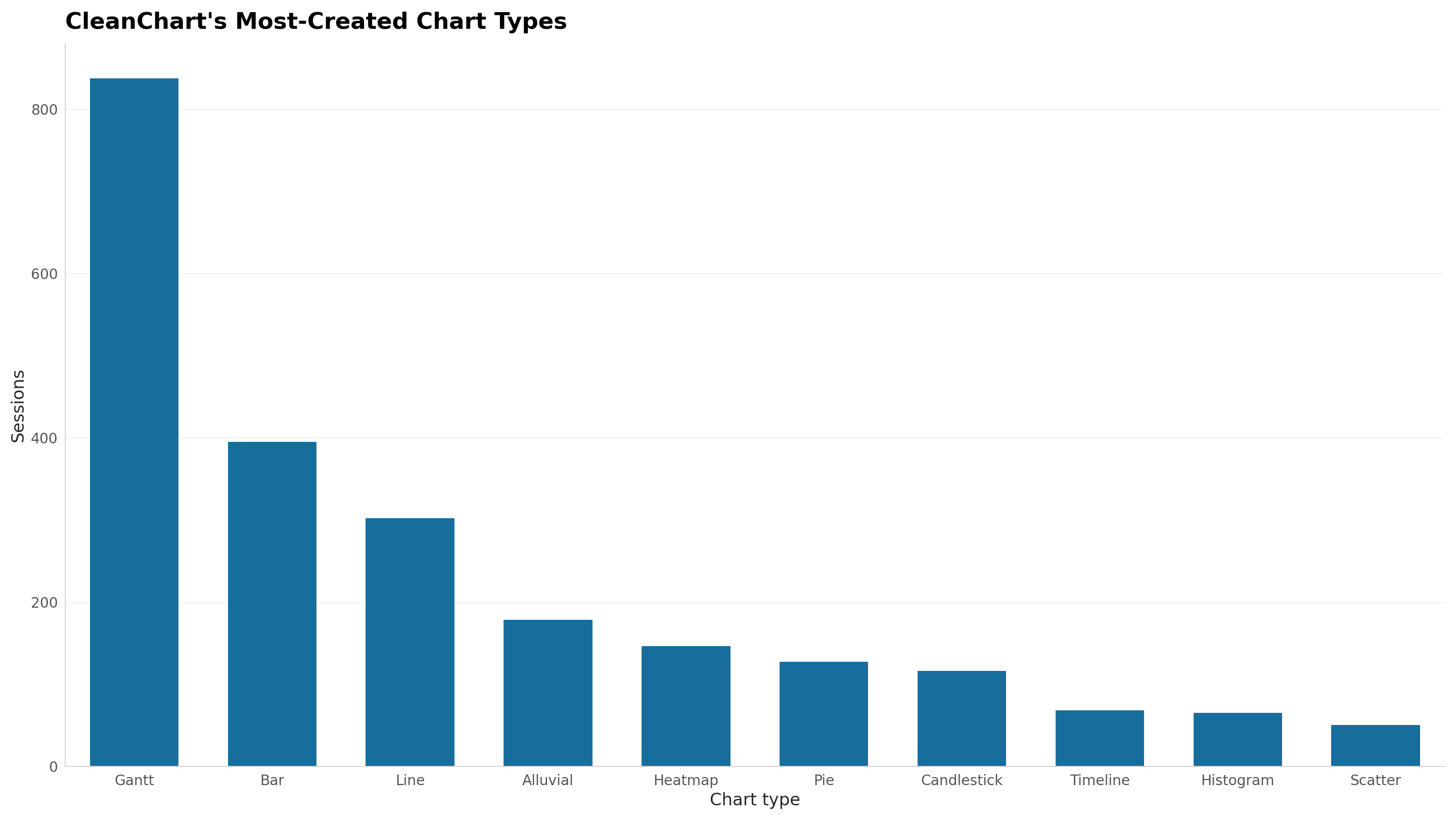
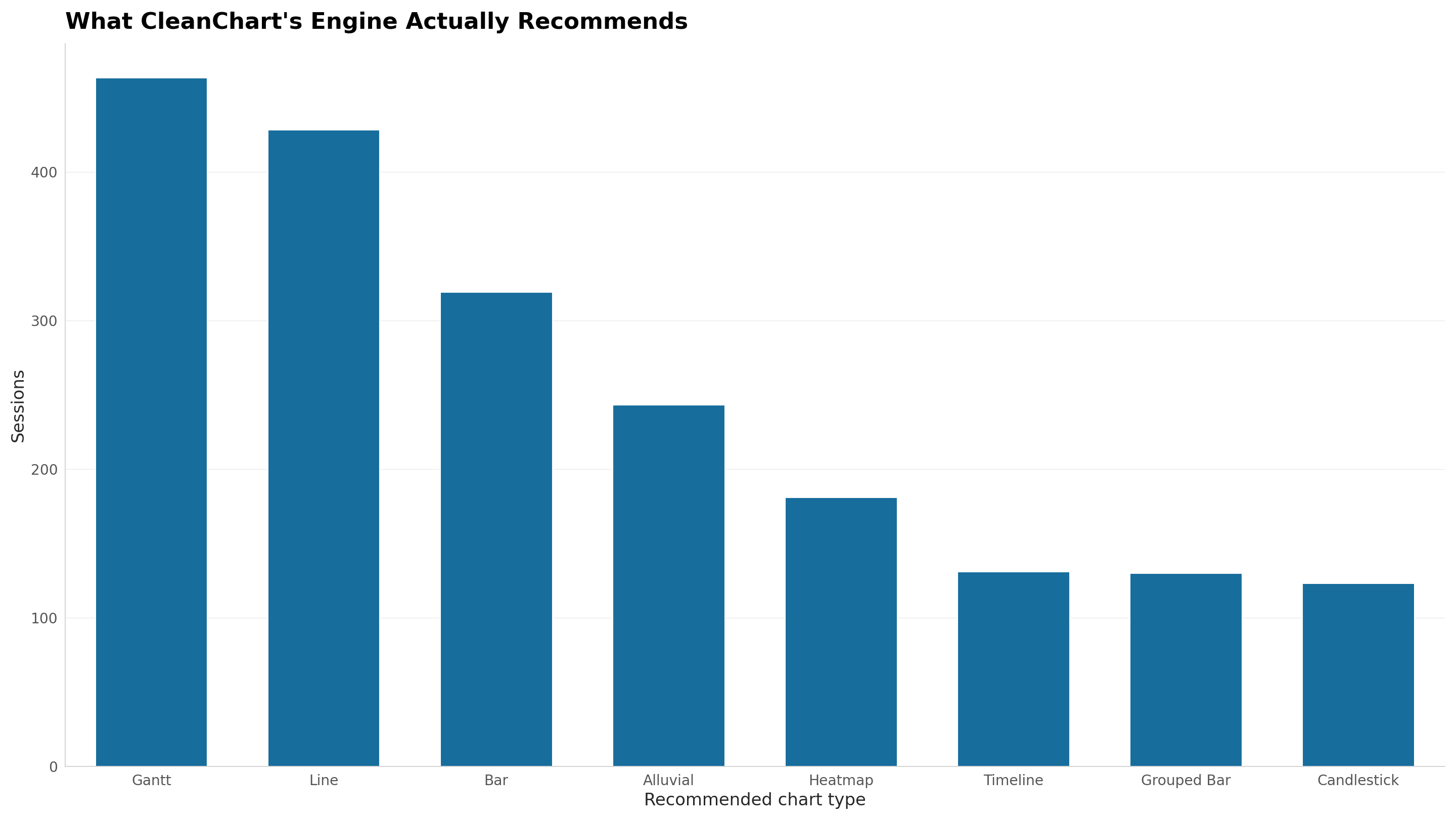
Here's the more surprising number. CleanChart's chart-recommendation engine suggests a chart type automatically after every upload, scored by confidence, and pie never wins.
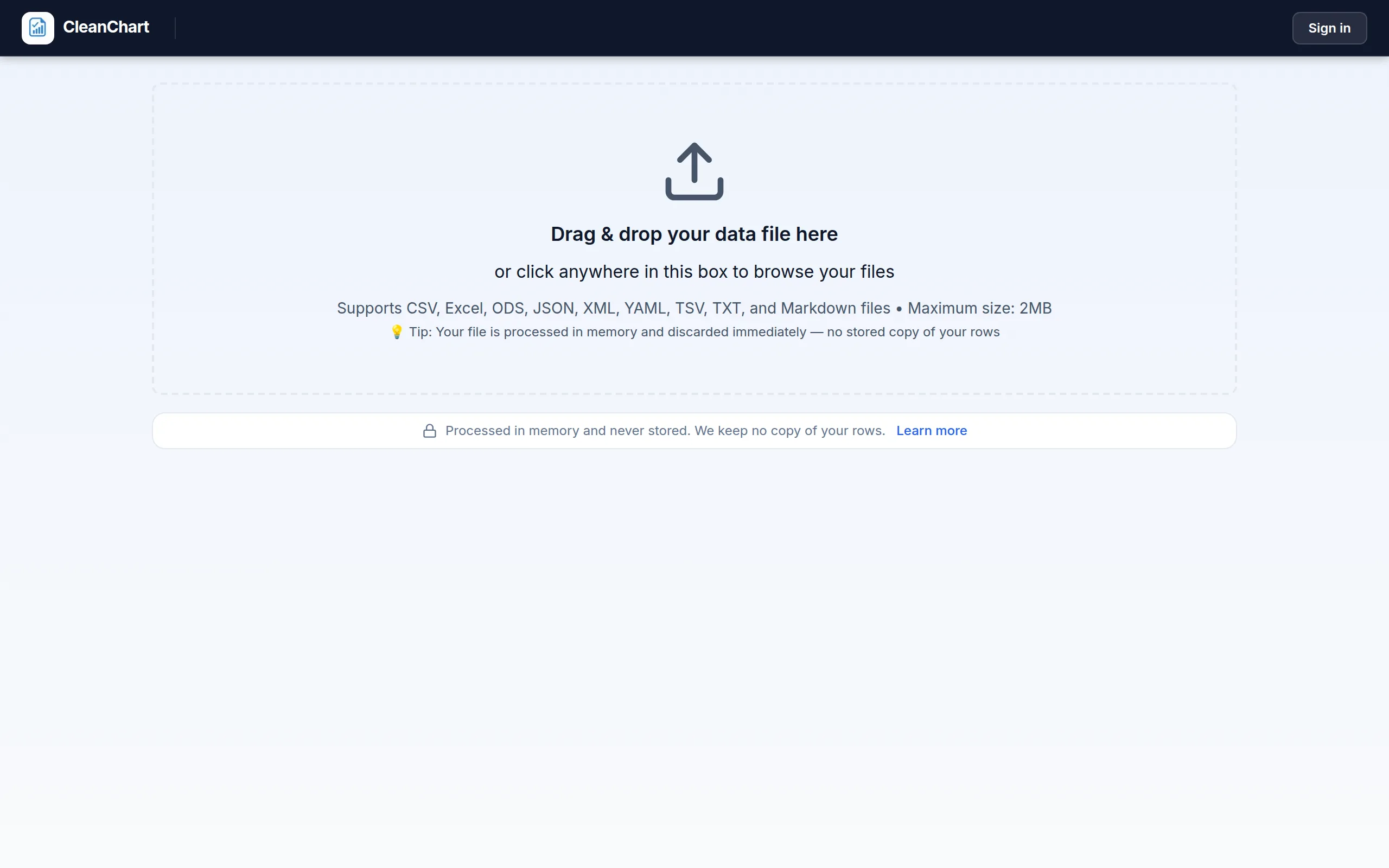
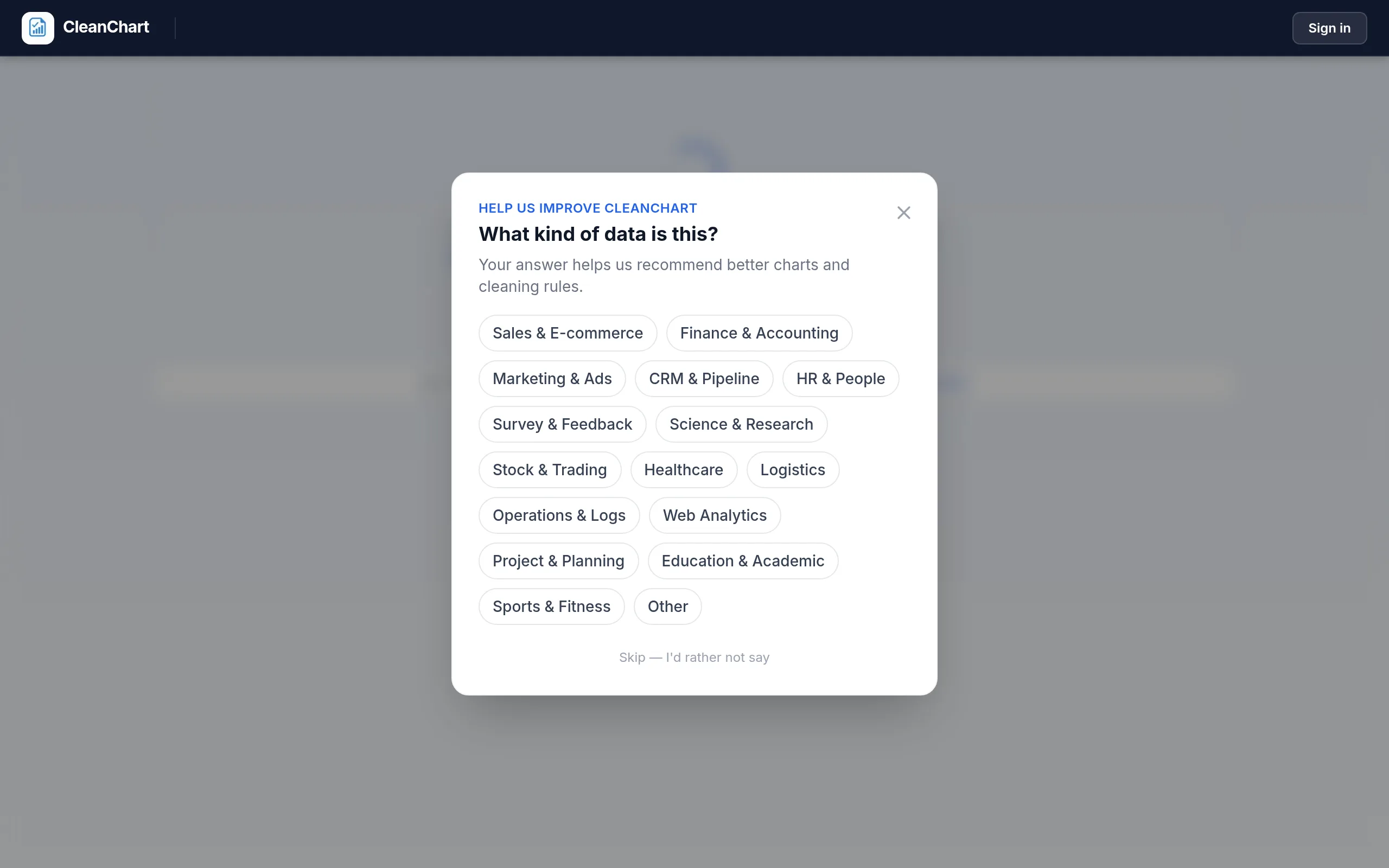
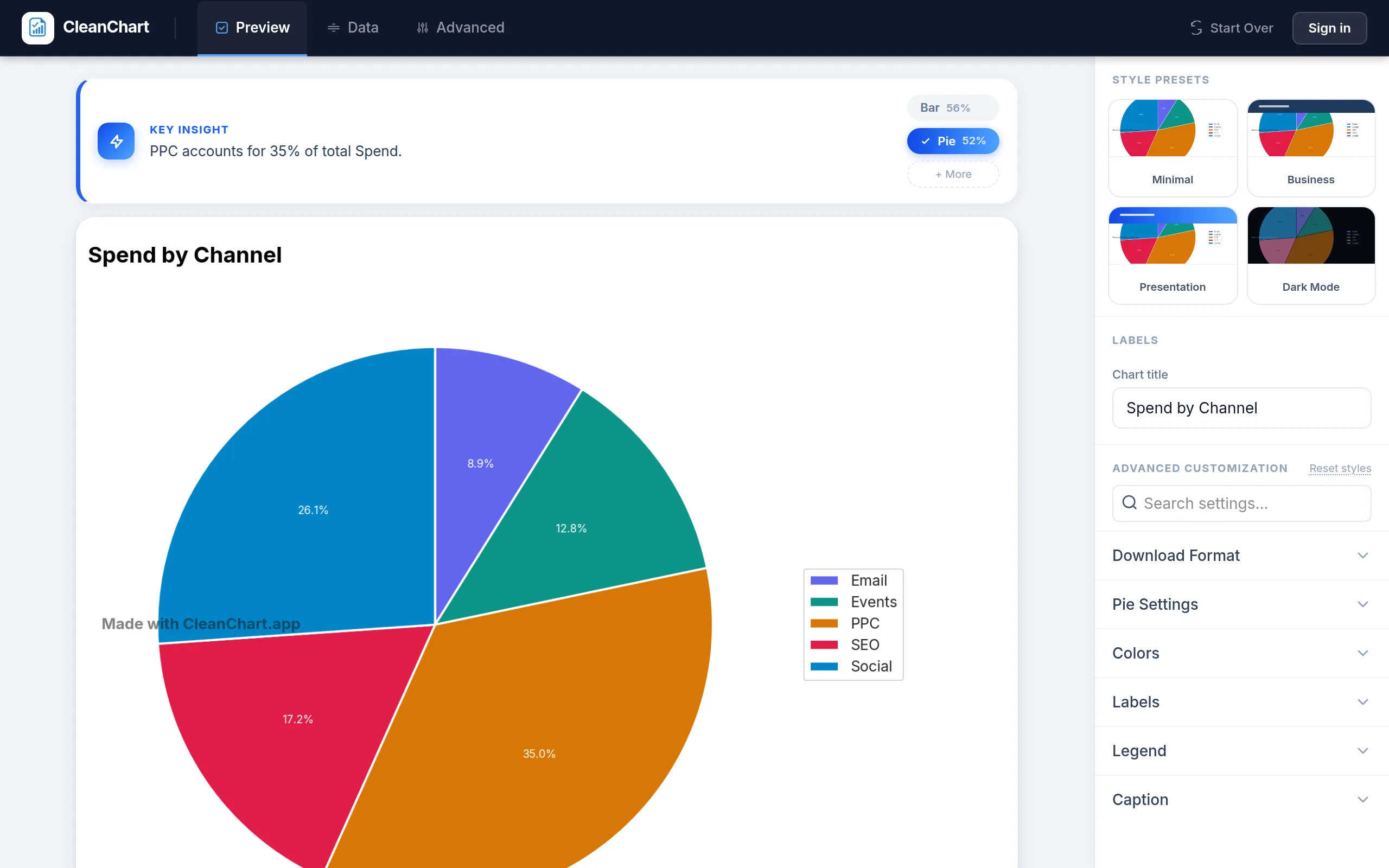
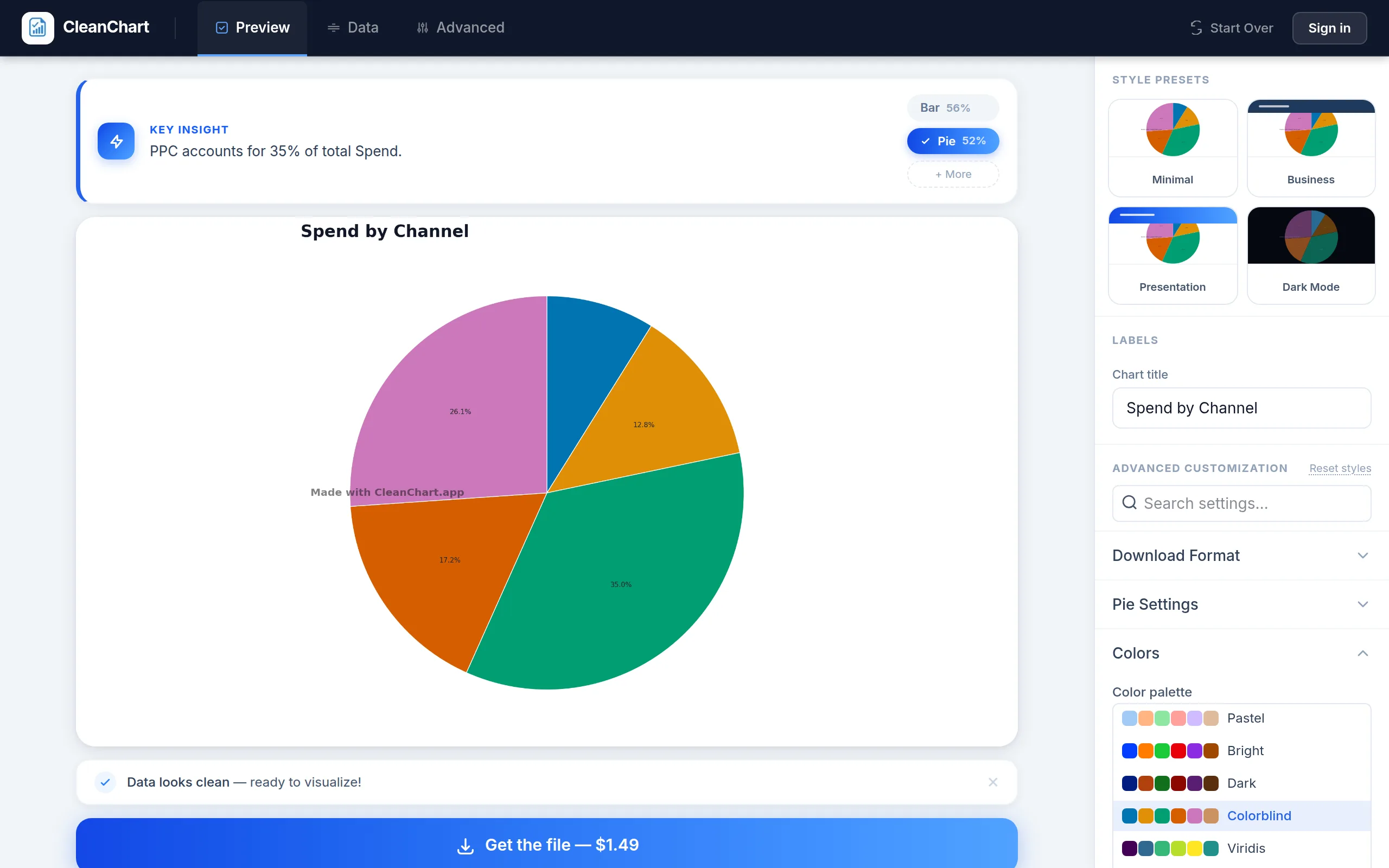
What does getting it right look like in practice? CleanChart's Pie Chart type defaults to its standard "CleanChart" palette, not a colorblind-safe one, so the fix is a manual step rather than something already handled for you.
It takes one click: upload data, switch to Pie Chart, then open the Colors panel and pick "Colorblind" (or "Okabe-Ito," which several other CleanChart chart types use as their own default). Screenshotted below with a marketing budget file.
The Solution: Don't Rely on Color Alone
Principle: Redundant Encoding
Bad: Color is the ONLY way to distinguish data
Good: Color PLUS something else (pattern, shape, label)
Example:
Bad line chart:
- Red line (Group A)
- Green line (Group B)
- Colorblind sees: Two gray lines
Good line chart:
- Red SOLID line (Group A)
- Green DASHED line (Group B)
- Colorblind sees: Solid vs dashed (clear!)
Colorblind-Safe Color Palettes
Palette #1: Blue & Orange
Colors:
- Blue: #0173B2
- Orange: #DE8F05
Why it works:
- High contrast
- Distinguishable by all colorblind types
- Professional appearance
Use for: Two-category comparisons
Palette #2: Multi-Color Safe
For 4+ categories:
- Blue: #0173B2
- Orange: #DE8F05
- Green: #029E73
- Red: #CC78BC
- Yellow: #ECE133
- Purple: #56B4E9
These colors avoid red-green confusion
Source: ColorBrewer (colorbrewer2.org)
Palette #3: Grayscale (Universal)
When printing in black & white:
- Black: #000000
- Dark gray: #404040
- Medium gray: #808080
- Light gray: #C0C0C0
Plus patterns (solid, striped, dotted)
Why it works: Accessible to everyone, including total colorblindness
Design Strategies by Chart Type
Line Charts
Strategy: Different line styles + color
Good practices:
- ✅ Solid, dashed, dotted, dash-dot lines
- ✅ Different line thicknesses
- ✅ Different point markers (●, ▲, ■)
Bar Charts
Strategy: Patterns + color
Good practices:
- ✅ Solid fill, striped, dotted, crosshatch
- ✅ Direct labels on bars (best!)
- ✅ High contrast colors
Even better: Label each bar directly (no legend needed)
Pie Charts
Strategy: Labels + patterns
Good practices:
- ✅ Label each slice directly (not just legend)
- ✅ Use patterns for additional distinction
- ✅ High contrast between adjacent slices
Or: Use bar chart instead (easier to distinguish)
Scatter Plots
Strategy: Shape plus color
Good practices:
- ✅ A different point marker (circle, triangle, square) per group, not color alone
- ✅ High-contrast colors between groups rather than tints of the same hue
- ✅ A trend line labeled directly instead of colored alone
Why it matters: A scatter chart often uses color to separate three or more groups sharing the same axes, which is exactly the case redundant encoding was built to solve.
Heatmaps
Strategy: Use colorblind-safe sequential palette
Good palettes:
- Blue to yellow: Works for red-green colorblindness
- Purple to green: Alternative
- Single hue (light blue to dark blue)
Avoid:
- ❌ Red to green (classic colorblind problem)
- ❌ Rainbow palettes (multiple colorblind issues)
Best: Use diverging palette (blue-white-orange) with clear midpoint
Tools & Testing
Test Your Charts for Colorblindness
Online simulators:
- Coblis (Color Blindness Simulator): coblis.com
- Toptal Color Blind Filter: toptal.com/designers/colorfilter
How to use:
- Create chart
- Take screenshot
- Upload to simulator
- View in different colorblind modes
- Verify you can still distinguish all elements
Takes: 2 minutes
Built-In Colorblind Modes
macOS:
- System Preferences → Accessibility → Display → Color Filters
- Enable "Protanopia" or "Deuteranopia"
Windows:
- Settings → Ease of Access → Color filters
Test your charts in these modes
Quick Accessibility Checklist
✅ Don't rely on color alone - Use patterns, shapes, or labels too
✅ High contrast - Light colors vs dark colors, not light vs lighter
✅ Direct labels - Label lines/bars directly when possible (not just legend)
✅ Safe color combinations:
- ✅ Blue + Orange
- ✅ Blue + Yellow
- ❌ Red + Green
- ❌ Blue + Purple
- ❌ Red + Brown
✅ Test in colorblind mode - Use simulators or OS color filters
✅ Works in grayscale? - Print test page in B&W—still distinguishable?
Common Mistakes
Mistake #1: Red & Green Together
Example: Profit (green) vs Loss (red)
Problem: Most common colorblind type can't distinguish
Fix:
- Green (solid) vs Red (dashed)
- Or use Blue vs Orange instead
Mistake #2: Subtle Color Differences
Example: Light blue, medium blue, dark blue for 3 categories
Problem: Hard for everyone, impossible for some colorblind types
Fix: Use completely different colors OR add patterns
Mistake #3: Color-Only Legends
Example: Legend with just colored squares, no other distinction
Problem: Colorblind can't match legend to chart
Fix: Add patterns or direct labels
The Takeaway
Making charts accessible to colorblind users makes them better for everyone.
Key principles:
- Color + Pattern/Shape - Redundant encoding
- High contrast - Not subtle differences
- Direct labels - Best accessibility solution
- Safe color combos - Blue/orange, not red/green
- Test - Use colorblind simulators
Time investment: 2 extra minutes
Benefit: Inclusive, professional, clear communication
Accessibility overlaps with another common chart-viewing condition worth designing for: see our dark mode charts guide for palettes that hold up on dark backgrounds too.
Frequently Asked Questions
How many people are affected by color vision deficiency?
Around 1 in 12 men and 1 in 200 women, or roughly 300 million people worldwide. Red-green deficiency is by far the most common form, which is why the default red/green pairing used for good-versus-bad in so many charts is the single riskiest color choice you can make.
Is it enough to just pick a colorblind-safe palette?
No. Color should never be the only thing carrying meaning. Pair it with a second channel — direct labels, patterns, line styles, or ordering — so the chart still works when the colors are indistinguishable or when it is printed in greyscale.
How do I check whether my chart is readable?
Simulate it. Upload the exported image to a color-blindness simulator such as Coblis or Toptal's color filter and check that every series is still separable. Converting the chart to greyscale is a fast proxy for the same test.
Does CleanChart default to a colorblind-safe palette?
It depends on the chart type. Pie and donut charts default to the standard "CleanChart" palette, so switching to "Colorblind" or "Okabe-Ito" in the Colors panel is a manual, one-click step. Several other chart types (scatter, histogram, radar, and more) use Okabe-Ito as their own default, but either way it's worth checking the Colors panel before you export.
Resources
Color palette generators:
Colorblind simulators:
Guidelines: