The best chart for sales data depends on the question: use a bar chart to compare products, reps, or regions, a line chart to track revenue over time, and a waterfall chart to explain how you got from last quarter's number to this one. This guide maps every common sales metric to the chart built for it, and shows the whole workflow in CleanChart, step by step.
Updated September 11, 2026: now with usage data from 2,698 real charts created in CleanChart and a full app walkthrough.
Sales teams, founders, and analysts face the same challenge every week: turning raw numbers into charts that actually drive decisions. Pick the wrong chart type and your quarterly review falls flat. Pick the right one and the takeaway is instant.
In this guide, you'll learn exactly which charts work best for different sales scenarios, how to convert your spreadsheet data into visualizations, and the mistakes that make sales charts misleading.
Why Visualize Sales Data?
Numbers in a table are precise but slow. According to research published in the journal Psychological Science in the Public Interest, humans process visual information roughly 60,000 times faster than text. A well-designed chart lets stakeholders grasp a quarter's worth of performance in seconds.
Here's what good sales visualization does:
- Reveals trends — Is revenue climbing, plateauing, or declining?
- Highlights comparisons — Which product line or region outperforms the rest?
- Surfaces anomalies — A sudden dip in March? A spike in Q4? Charts make outliers visible.
- Accelerates decisions — Executives don't need to parse a 500-row spreadsheet when a chart tells the story.
If you're new to charting altogether, our data visualization for beginners guide covers the fundamentals.
The 7 Best Charts for Sales Data (and When to Use Each)
Not every chart is a good fit for every metric. Here's a practical breakdown for the scenarios sales teams encounter most often.
1. Bar Charts — Compare Categories Side by Side
Use when: You need to compare discrete items—products, regions, sales reps, or channels.
Bar charts remain the gold standard for categorical comparison because the human eye is extremely accurate at judging bar length. Horizontal bars work well when category labels are long (e.g., full product names). Vertical bars (column charts) suit shorter labels like months or regions.
Sales examples:
- Revenue by product line
- Units sold per sales representative
- Customer acquisition cost by marketing channel
Ready to create one? Try the bar chart maker or convert data directly from CSV, Excel, or Google Sheets.
2. Line Charts — Track Trends Over Time
Use when: You need to show how a metric evolves—monthly revenue, daily orders, or year-over-year growth.
Line charts shine for time-series data because the slope of the line immediately communicates direction and velocity. Overlay multiple lines to compare products, regions, or periods.
Sales examples:
- Monthly recurring revenue (MRR) over the past year
- Weekly new deals entering the pipeline
- Year-over-year comparison of quarterly bookings
For a deep dive, see our complete guide to time series charts. Create your own with the line chart maker.
3. Pie & Donut Charts — Show Composition
Use when: You want to show how a total breaks down into parts—and you have 5 or fewer categories.
Pie and donut charts answer the question "What share does each segment hold?" Keep the number of slices small. With more than five or six categories the differences become hard to read. In that case, switch to a bar chart.
Sales examples:
- Revenue split by product line (3–5 products)
- Deal source distribution (inbound vs. outbound vs. partner)
- Customer tier breakdown (enterprise, mid-market, SMB)
Create one with the pie chart maker or the donut chart maker. If you're deciding between the two, our chart types guide covers the trade-offs.
4. Area Charts — Emphasize Volume Over Time
Use when: You want to highlight the magnitude of change, not just the direction. Stacked area charts are especially useful for showing how multiple revenue streams add up over time.
Sales examples:
- Cumulative revenue from three product lines over a year
- Total pipeline value built up week by week
- Regional sales contribution to global totals
Learn more in our complete area charts guide or jump straight to the area chart maker.
5. Scatter Plots — Find Correlations
Use when: You want to explore whether two variables are related—for instance, ad spend vs. conversions, or deal size vs. sales cycle length.
Scatter plots plot individual data points so you can spot clusters, trends, and outliers. Adding a trend line quantifies the relationship. This is invaluable for sales analytics.
Sales examples:
- Ad spend vs. revenue generated per campaign
- Deal size vs. time to close
- Customer satisfaction score vs. renewal rate
See our correlation charts and scatter plots guide for detailed examples. Build one with the scatter chart maker.
6. Heatmaps — Spot Patterns Across Two Dimensions
Use when: You need to visualize intensity or density across two categorical or temporal axes. Color intensity encodes values, making patterns jump out.
Sales examples:
- Sales by day of week and hour of day (when do deals close?)
- Product performance across regions
- Monthly conversion rates by lead source
Create one with the heatmap maker, or convert data directly from CSV, Excel, JSON, or Google Sheets. For a deep dive into heatmap types and best practices, see our complete heatmap guide.
7. Waterfall Charts — Explain How You Got From A to B
Use when: You need to show the cumulative effect of positive and negative values. Waterfall charts are the go-to for financial walk-throughs.
Sales examples:
- Revenue bridge: starting ARR → new sales + expansions − churn = ending ARR
- Profit margin breakdown: gross revenue − COGS − operating expenses = net profit
- Quarter-over-quarter change decomposition
Build one with the waterfall chart maker.
Bonus: Treemaps — Break Down Revenue by Hierarchy
Use when: You want to show how revenue or budget splits into many nested categories—product lines, sub-categories, and individual SKUs at once.
Treemaps pack an entire hierarchy into one visual. Each rectangle's size shows its share of the total. They're ideal when you have more categories than a pie chart can handle and your data has a natural tree structure.
Sales examples:
- Revenue by region → country → city
- Product revenue by category → sub-category → SKU
- Customer revenue by tier → industry → account
Create one with the treemap maker, or convert data from CSV, Excel, or Google Sheets. For a full walkthrough, see our complete treemap guide.
Quick Reference: Which Chart for Which Metric?
| Sales Metric | Best Chart | Why |
|---|---|---|
| Revenue by product | Bar chart | Easy categorical comparison |
| Monthly revenue trend | Line chart | Shows direction and velocity |
| Market share | Pie chart | Part-to-whole relationship |
| Cumulative pipeline | Area chart | Emphasizes volume buildup |
| Ad spend vs. revenue | Scatter plot | Reveals correlations |
| Sales by day/hour | Heatmap | Two-dimensional pattern spotting |
| Revenue bridge | Waterfall chart | Shows incremental changes |
| Revenue by product hierarchy | Treemap | Shows nested composition at a glance |
| Sales pipeline / conversion drop-off | Funnel chart | Shows linear stage-by-stage loss (guide) |
| Customer journey / multi-path conversion | Sankey diagram | Shows branching flow with drop-off |
| Volume + rate (e.g., revenue & growth %) | Combo chart | Dual-axis bars & line (guide) |
What People Actually Chart: Data From 2,698 Real Sessions
Advice about "the best sales chart" is usually opinion. Here is what people actually build. We aggregated every chart created with CleanChart between May and September 2026—2,698 charts in total (anonymous, aggregated usage data; no user content).
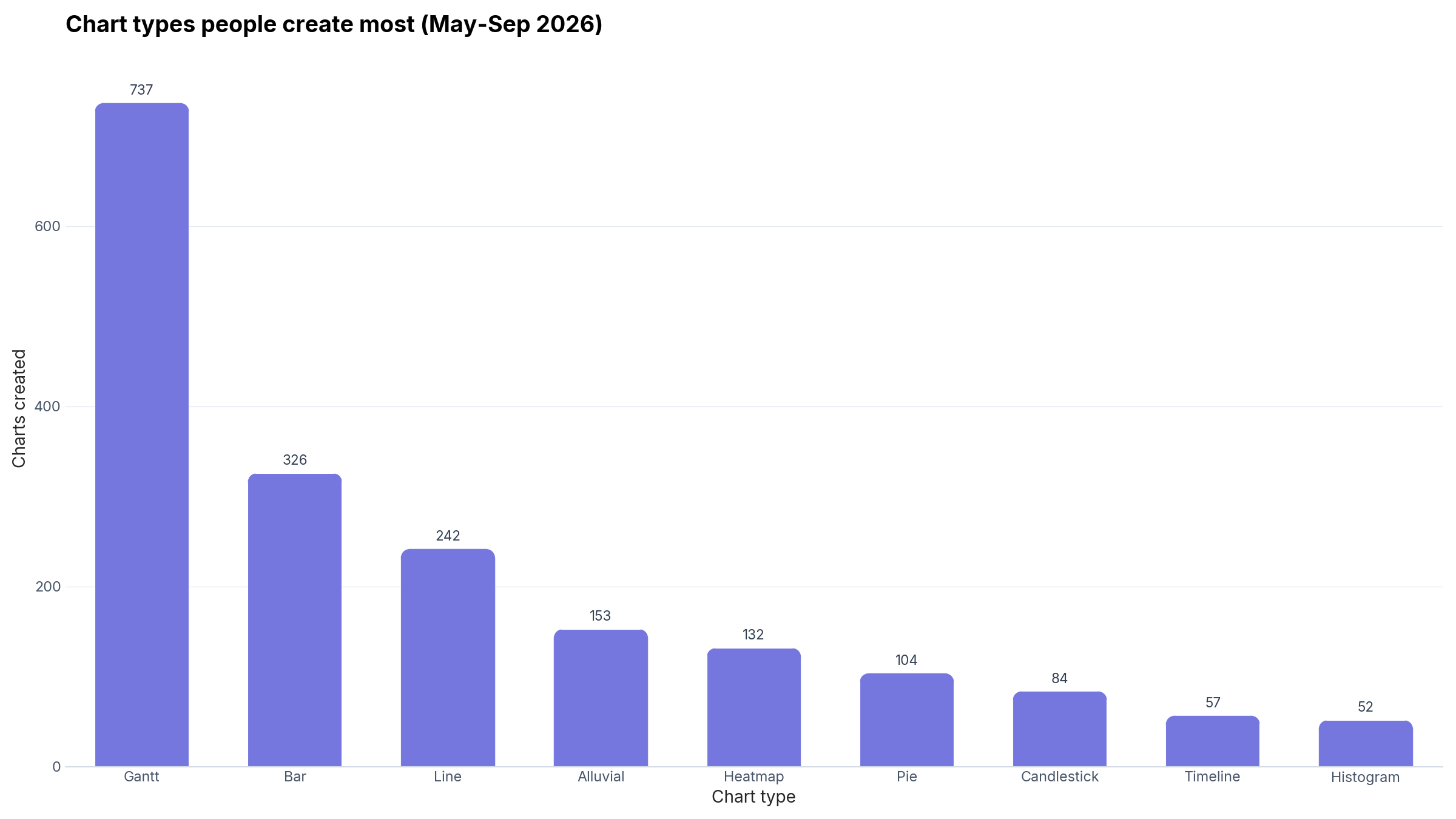
Three things stand out for sales teams:
- Bar and line charts are the sales workhorses. Together they account for 568 of 2,698 charts, matching the advice above: comparisons and trends cover most sales questions.
- Gantt's surprise lead comes from teams charting deals, projects, and pipelines over time. If your sales process is stage-driven, a Gantt chart of deal timelines is worth a look; see our project management charts guide.
- Pie charts rank only 6th (104 charts), consistent with the advice in the mistakes section below: composition charts have a narrow job.
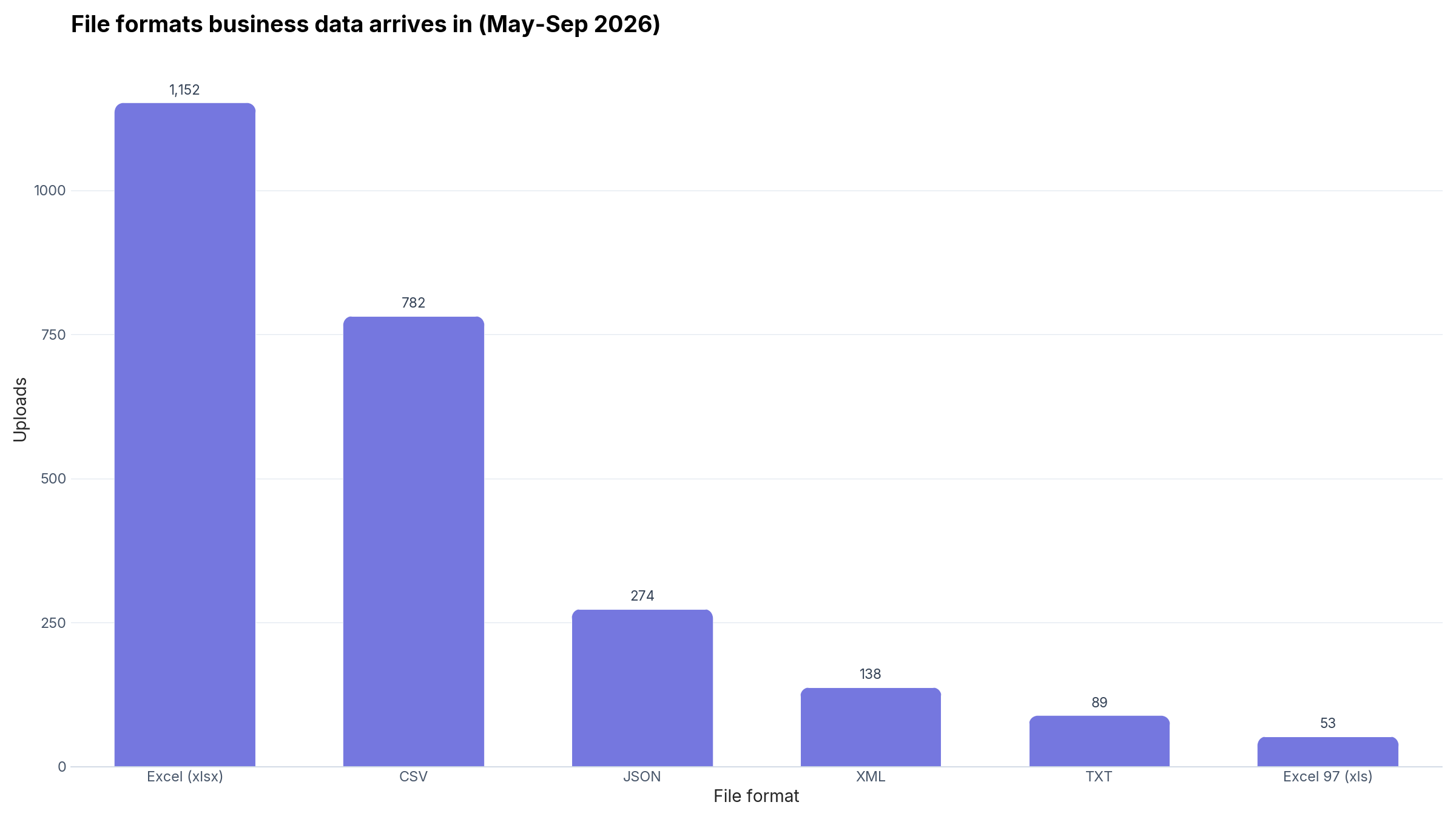
The practical consequence: if your revenue numbers are in a workbook, you don't need to convert anything first. Upload the .xlsx as-is (more on Excel vs. online tools in our Excel vs. online chart makers comparison). One more stat worth knowing: 42% of all sessions needed missing-value fixes before charting (n = 2,698, May–Sep 2026), which is why Step 1 below matters.
How to Convert Your Sales Spreadsheet Into a Chart
Most sales data lives in spreadsheets. Here's how to get from raw data to a polished chart without writing code.
Step 1: Prepare Your Data
A clean dataset produces a clear chart. Before visualizing, check for:
- Duplicate rows — Common when exporting from CRMs. See our 5 data cleaning mistakes guide for what to watch for.
- Missing values — Blank cells can break chart generation. Our missing values guide covers practical fixes.
- Inconsistent formats — Dates in three styles, currency symbols mixed with numbers. Our complete CSV cleaning guide walks through this step by step.
Step 2: Choose Your Import Method
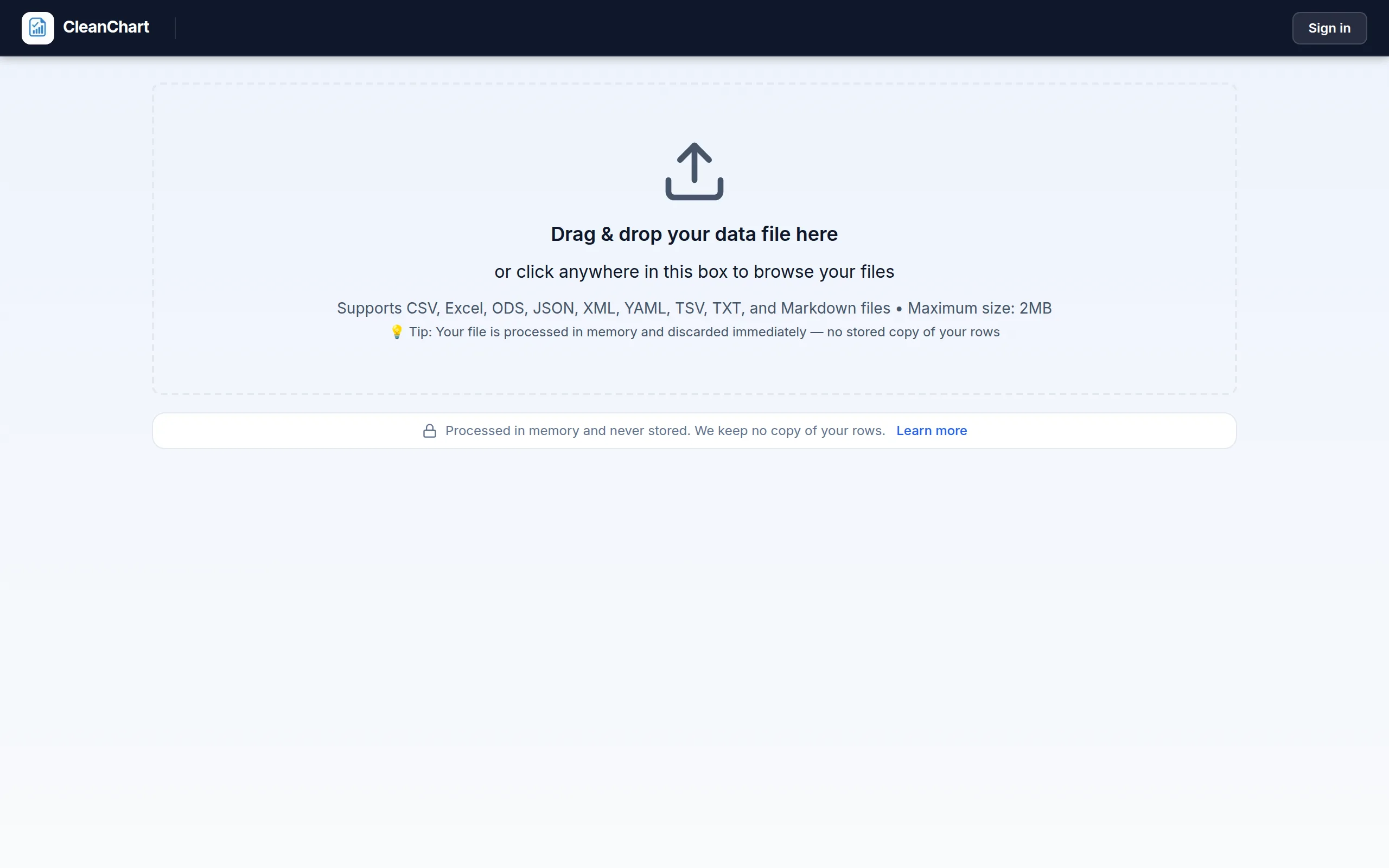
CleanChart accepts data from multiple sources. Drop the file on the upload screen. Here is the actual flow with a small sales dataset (regional revenue by month):
Pick whichever source matches your workflow:
- CSV files — Exported from Excel, Google Sheets, or your CRM. Use the CSV to bar chart or CSV to line chart converters.
- Excel files — Upload .xlsx directly. Try Excel to bar chart or Excel to pie chart.
- JSON data — From APIs or CRM exports. Use JSON to bar chart or JSON to scatter chart.
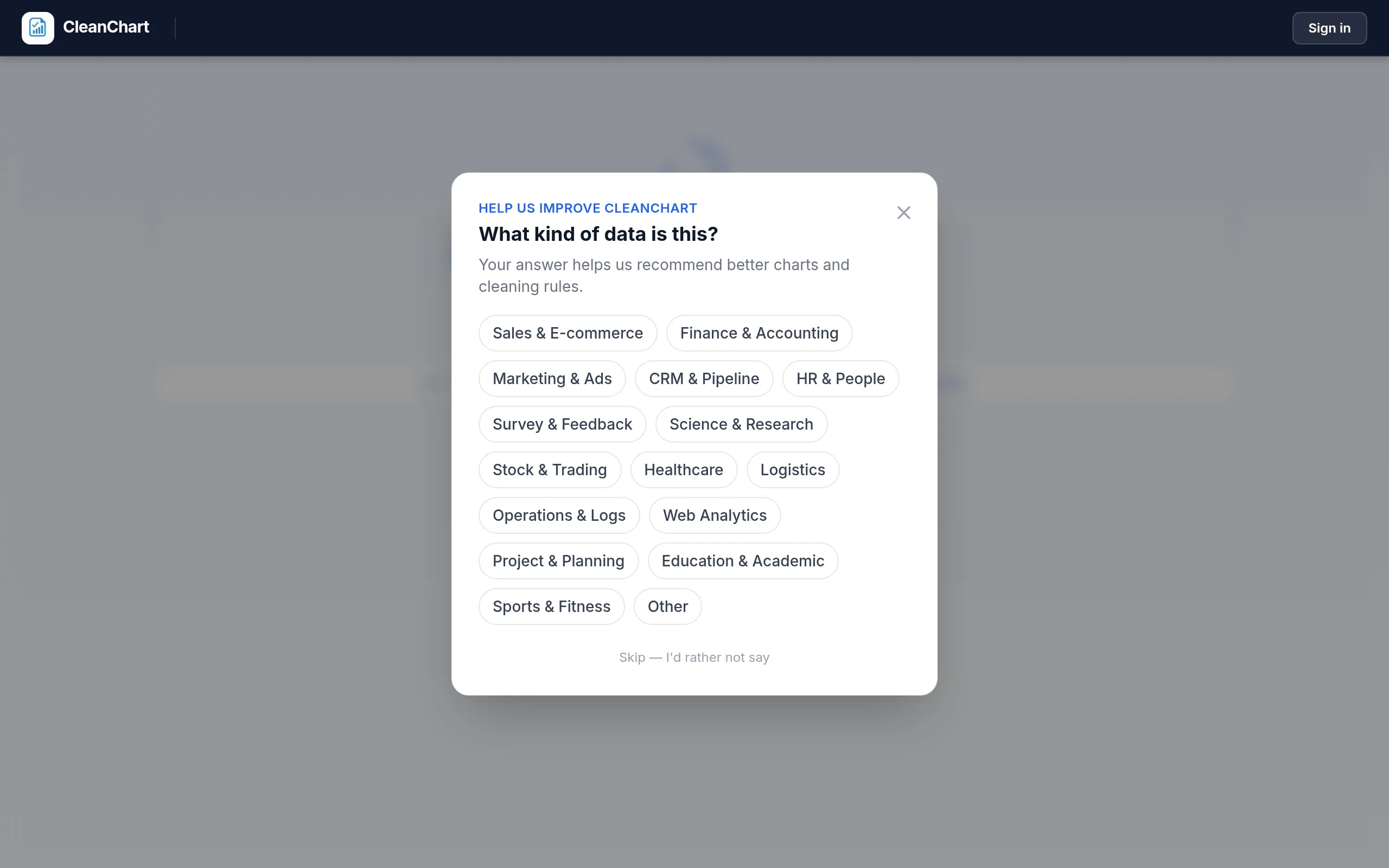
Right after the upload, CleanChart asks what kind of data you're working with, so its recommendation engine can favor the chart types that fit sales data:
Step 3: Customize and Export
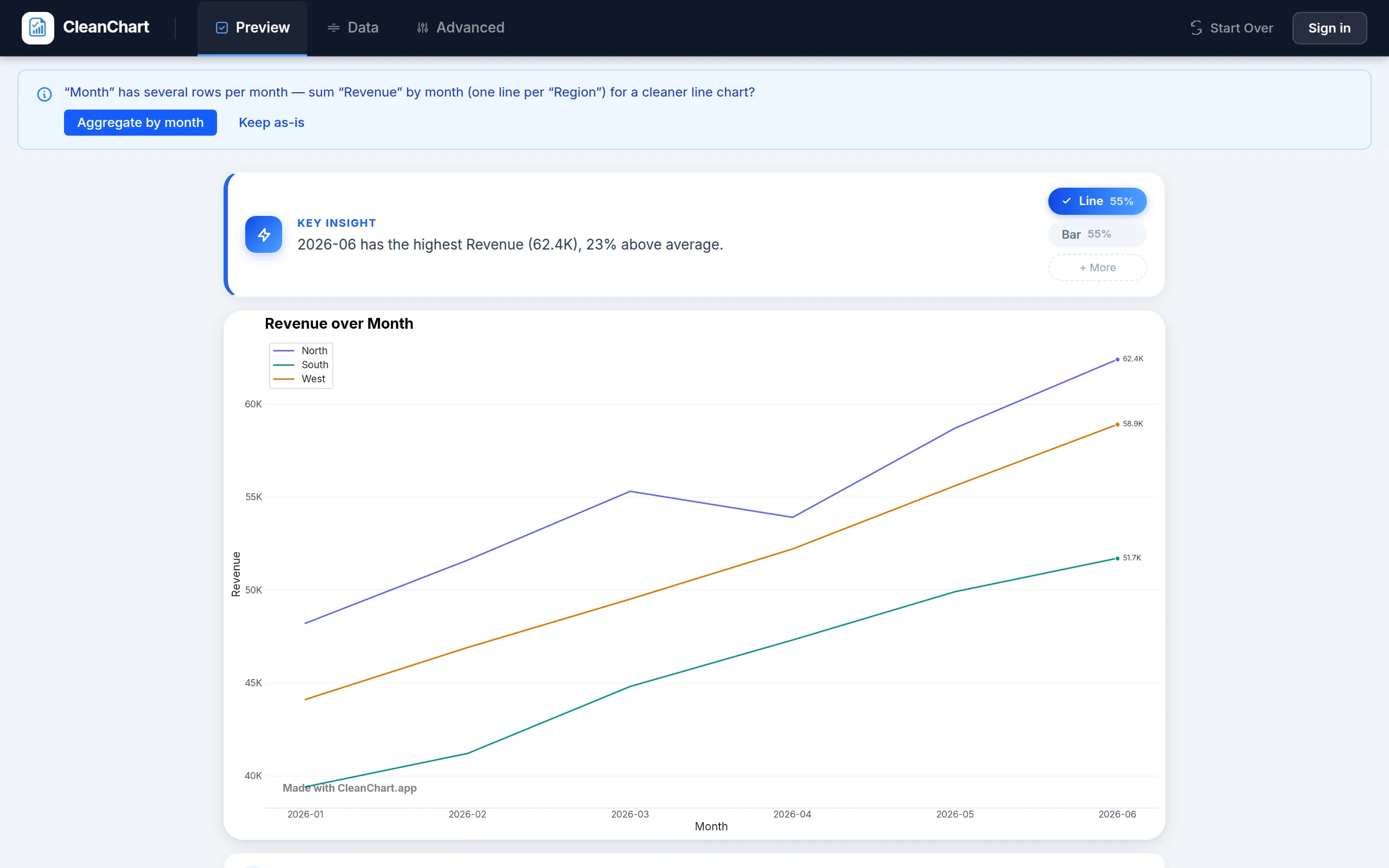
Once your data is uploaded, customize colors, labels, titles, and axes. For detailed guidance on styling, see our color in data visualization guide and best color palettes for data viz.
Need to put the chart in a presentation? Our export to PowerPoint guide covers every format option.
5 Best Practices for Sales Charts
1. Lead With the Insight, Not the Data
Your chart title should state the takeaway, not describe the data. Compare:
- Weak: "Q1 2026 Revenue by Region"
- Strong: "APAC Revenue Grew 34% in Q1, Leading All Regions"
A descriptive title tells viewers what to look for. This is the foundation of data storytelling—a skill worth developing for any sales role.
2. Use Consistent Time Periods
Comparing January (31 days) with February (28 days) using daily totals creates misleading differences. Normalize to per-day or per-week averages when periods differ. The same applies to comparing fiscal quarters of unequal length.
3. Start the Y-Axis at Zero for Bar Charts
Truncating the y-axis on a bar chart exaggerates small differences and can mislead stakeholders. Line charts are more flexible—truncating is acceptable when you want to zoom into a narrow range. For more on this and other pitfalls, read Why Your Chart Looks Wrong.
4. Don't Overcomplicate
A chart with 15 data series, dual axes, and a legend the size of a paragraph isn't a chart—it's a puzzle. Aim for one clear message per chart. If you have multiple points to make, create multiple charts.
5. Design for Your Audience
Executives want the headline. Analysts want the detail. For board presentations, simplify. For internal analytics, you can afford granularity. If your audience includes people with color vision deficiency, see our accessible charts for colorblind users guide.
Common Mistakes in Sales Data Visualization
Mistake 1: Using Pie Charts for Too Many Categories
A pie chart with 12 slices is unreadable. If you have more than five or six categories, switch to a horizontal bar chart sorted by value. The difference in clarity is dramatic.
Mistake 2: Ignoring Seasonality
"Sales are down this month!" — Or maybe December is always slow for your industry. Overlay the previous year's data or add a moving average to separate real trends from seasonal patterns.
Mistake 3: Comparing Absolute Numbers Across Different Scales
Plotting Enterprise revenue ($2M/month) alongside SMB revenue ($50K/month) on the same axis hides SMB trends entirely. Use percentage growth or separate charts.
Mistake 4: Cherry-Picking the Time Window
Starting your chart right after a dip makes the recovery look more impressive. Always show enough context for an honest picture. If a metric was declining for six months before recovering, show the full arc.
Mistake 5: Forgetting to Update
A chart from last quarter in this quarter's deck erodes trust.
3 Real-World Sales Visualization Scenarios
Scenario 1: Monthly Sales Review
Goal: Show total revenue, product mix, and trend to the leadership team.
Chart combination:
- Line chart — Monthly revenue with a 3-month rolling average overlay
- Bar chart — Revenue by product, sorted largest to smallest
- Donut chart — Revenue share by channel (inbound, outbound, partner)
This three-chart set answers: How are we trending? Where does revenue come from? What's the channel mix?
Scenario 2: Sales Rep Performance Dashboard
Goal: Compare individual rep performance across multiple metrics.
Chart combination:
- Bar chart — Total closed revenue per rep
- Scatter plot — Number of deals vs. average deal size per rep
- Radar chart — Multi-metric comparison (calls, emails, meetings, close rate, pipeline)
Scenario 3: Annual Board Presentation
Goal: Summarize the year's financial story for investors.
Chart combination:
- Stacked area chart — Revenue by product over 12 months
- Waterfall chart — Bridge from beginning ARR to ending ARR
- Heatmap — Win rates by deal size and industry vertical
Tools for Sales Data Visualization
Several tools handle sales visualization well. Here's how they compare for common sales use cases:
- CleanChart — Upload CSV or Excel and get publication-ready charts in minutes. No coding, no formulas. Best for: teams that need polished charts fast. For a fuller comparison with alternatives, see our best free chart makers in 2026 roundup.
- Google Sheets — Built-in charting works for quick internal charts but limited customization.
- Microsoft Excel — Powerful but time-consuming to style. Read our Excel vs. online chart makers comparison.
- Tableau — Enterprise-grade dashboards with a steep learning curve and premium pricing.
- Power BI — Deep Microsoft integration, good for organizations already on the Microsoft stack. If that's more than you need for a single chart, see our Power BI alternative comparison.
If you want to skip code entirely, our creating charts without Python guide covers no-code options in depth.
Frequently Asked Questions
What is the best chart for showing sales over time?
A line chart is the standard for time-series sales data. It clearly shows trends, growth rates, and seasonal patterns. For cumulative metrics, an area chart adds visual emphasis to the magnitude of change. See our time series charts guide for detailed examples.
How do I visualize sales by region?
A horizontal bar chart sorted by value is the clearest way to compare regions. If you also want to show sub-categories within each region, a stacked bar chart works well. For geographic patterns, a heatmap can reveal intensity differences across zones.
Can I create sales charts from my CRM data?
Yes. Most CRMs (Salesforce, HubSpot, Pipedrive) let you export data as CSV or Excel files. Upload those files to CleanChart and generate charts in minutes. See our CSV to bar chart converter for the quickest path.
What's the difference between a dashboard and a report chart?
A dashboard is a collection of charts that update in real time (or near real time) for ongoing monitoring. A report chart is a static visualization created for a specific presentation or document. Dashboards prioritize speed; report charts prioritize polish. For making report-quality output, see our publication-ready charts guide.
How many charts should I put in a sales presentation?
Aim for one chart per slide and no more than 6–8 charts in a single presentation. Each chart should answer one question. If a chart needs a paragraph of explanation, it's either the wrong chart type or it's too complex. See our business reports with charts guide for presentation tips.
Start Visualizing Your Sales Data
The best chart for your sales data is the one your audience understands instantly. Match the chart type to the question you're answering, keep the design clean, and let the data speak.
Ready to create your first chart? Try CleanChart free—upload a CSV or Excel file and get a polished chart in under two minutes.
Related CleanChart Resources
- Bar Chart Maker – Compare categories
- Line Chart Maker – Track trends over time
- Pie Chart Maker – Show composition
- Area Chart Maker – Emphasize magnitude
- Scatter Plot Maker – Find correlations
- Heatmap Maker – Spot patterns
- Treemap Maker – Visualize revenue hierarchies
- Waterfall Chart Maker – Explain changes
- CSV to Bar Chart – Quick conversion
- CSV to Treemap – Treemap from CSV data
- CSV to Heatmap – Heatmap from CSV data
- CSV to Waterfall Chart – Waterfall from CSV data
- Excel to Line Chart – Spreadsheet to chart
- How to Create a Waterfall Chart – Complete waterfall guide
- How to Create a Treemap – Complete treemap guide
- How to Create a Heatmap – Complete heatmap guide
- How to Create a Histogram – Distribution analysis
- Box Plots Guide – Statistical comparison
- Charts for Survey Data – Survey visualization guide
- Ecommerce Data Visualization – Chart by metric for online stores
- Chart Types Explained – When to use each
- Data Visualization for Beginners – Start here
- Business Reports with Charts – Professional output
- Combo Chart Maker – Combine volume and rate metrics
- How to Create a Combo Chart – Complete combo chart guide
- CSV to Combo Chart – Convert CSV to combo chart
- Bullet Chart Maker – Compare actual sales vs. quota compactly
- How to Create a Bullet Chart – Space-efficient KPI and sales dashboard guide
- Gauge Chart Maker – Single hero metric KPI display
- How to Create a Pareto Chart – Identify which products drive 80% of revenue
- Stacked Bar Chart Maker – Show revenue composition by product line
- Grouped Bar Chart Maker – Compare actual vs. target side by side
- Stacked vs Grouped Bar Charts – When to use each for sales data
- Candlestick Chart Maker – Stock price and OHLC financial data visualization
- How to Create a Candlestick Chart – Complete guide to OHLC and stock price charts
- CSV to Candlestick Chart – Convert financial CSV data instantly
- Marketing Data Visualization – Charts for campaign analytics and marketing KPIs
- CSV to Bullet Chart – Track sales quota attainment as bullet charts
External Resources
- Storytelling with Data Blog – Best practices for data communication
- Harvard Business Review: Data Visualization – Business-focused articles
- Tableau: Sales Dashboard Best Practices – Dashboard design principles
- Investopedia: Waterfall Charts – Financial chart reference
- Google: Create a Chart in Sheets – Google Sheets documentation
- NerdSip – Micro-learning for data analysis and sales visualization
Last updated: September 11, 2026