A box plot (also called a box-and-whisker plot) shows five numbers at once: the minimum, first quartile (Q1), median, third quartile (Q3), and maximum. The line inside the box is the median, the box spans Q1 to Q3, the whiskers mark the typical non-outlier range, and any dots beyond them are outliers.
Updated September 18, 2026: now with real outlier-detection rates from CleanChart's usage data and a full app walkthrough.
Box plots pack all five of those statistics into one compact graphic, which is why they're a staple from research papers to business dashboards. Unlike histograms, you can compare multiple groups side-by-side without the chart becoming unreadable.
In this guide, you'll learn exactly how to read box plots, when to use them, how often outliers actually show up in real uploaded data, and how to create your own in minutes, even if statistics isn't your thing.
What Is a Box Plot?
A box plot is a standardized way to display the distribution of data based on five summary statistics. Invented by the American statistician John Tukey in 1969, it was designed to give researchers a quick visual summary of a dataset without needing to inspect every data point.
Here's what makes a box plot:
- A rectangular box spanning from the first quartile (Q1) to the third quartile (Q3). This box represents the middle 50% of your data, also called the interquartile range (IQR).
- A line inside the box marking the median (the 50th percentile).
- Two "whiskers" extending from the box to the smallest and largest values within 1.5 × IQR of the box edges.
- Individual dots beyond the whiskers representing outliers — data points that fall unusually far from the rest.
That compact design is why box plots are a staple in fields from scientific research to business analytics. They surface patterns that raw numbers hide.
The Five-Number Summary Explained
Every box plot represents these five statistics:
1. Minimum (Lower Whisker)
The smallest value in the dataset that isn't an outlier. If outliers exist, the whisker extends to the smallest non-outlier value instead.
2. First Quartile (Q1)
The value below which 25% of the data falls. This forms the lower edge of the box. Think of it as the boundary between the bottom quarter and the rest of the data.
3. Median (Q2)
The middle value when all data points are sorted. Exactly 50% of values fall above and 50% below. The position of the median line within the box tells you about the data's symmetry: centered means symmetric, pushed toward Q1 means right-skewed, pushed toward Q3 means left-skewed.
4. Third Quartile (Q3)
The value below which 75% of the data falls. This forms the upper edge of the box.
5. Maximum (Upper Whisker)
The largest non-outlier value. Like the minimum, it stops at 1.5 × IQR from the box edge if outliers are present.
Together, these five numbers give you a remarkably complete picture of your data's shape, center, and spread. For a broader look at choosing between different chart types, see our chart types explained guide.
How to Read a Box Plot Step by Step
Follow this process every time you encounter a box plot:
Step 1: Find the Median
Look at the line inside the box. This is your center. If comparing multiple box plots, compare median lines first to see which group has a higher or lower typical value.
Step 2: Assess the Spread
Look at the width of the box (Q1 to Q3). A wide box means the middle 50% of data is spread across a large range (high variability). A narrow box means values are tightly clustered (low variability).
Step 3: Check for Skewness
Is the median line centered in the box, or pushed to one side?
- Centered median: Data is roughly symmetric
- Median closer to Q1: Right-skewed (long tail toward higher values)
- Median closer to Q3: Left-skewed (long tail toward lower values)
Also compare whisker lengths. Unequal whiskers reinforce the skewness signal.
Step 4: Spot the Outliers
Look for individual dots or circles beyond the whiskers. These are data points that deviate significantly from the rest. Ask yourself: are these legitimate values or data quality issues? Our guide on data cleaning mistakes covers how outliers can distort your analysis if not handled properly.
Step 5: Compare Groups
When multiple box plots sit side by side, compare them on three dimensions:
- Location: Which group has the highest/lowest median?
- Spread: Which group has the most/least variability?
- Outliers: Which group has unusual observations?
How Often Do Real Datasets Actually Have Outliers?
Step 4 above says to check every dot beyond the whiskers. But how often does that actually happen? We pulled the numbers from CleanChart's own usage data: 2,894 uploaded datasets where the cleaning engine ran its outlier check, May through September 2026.
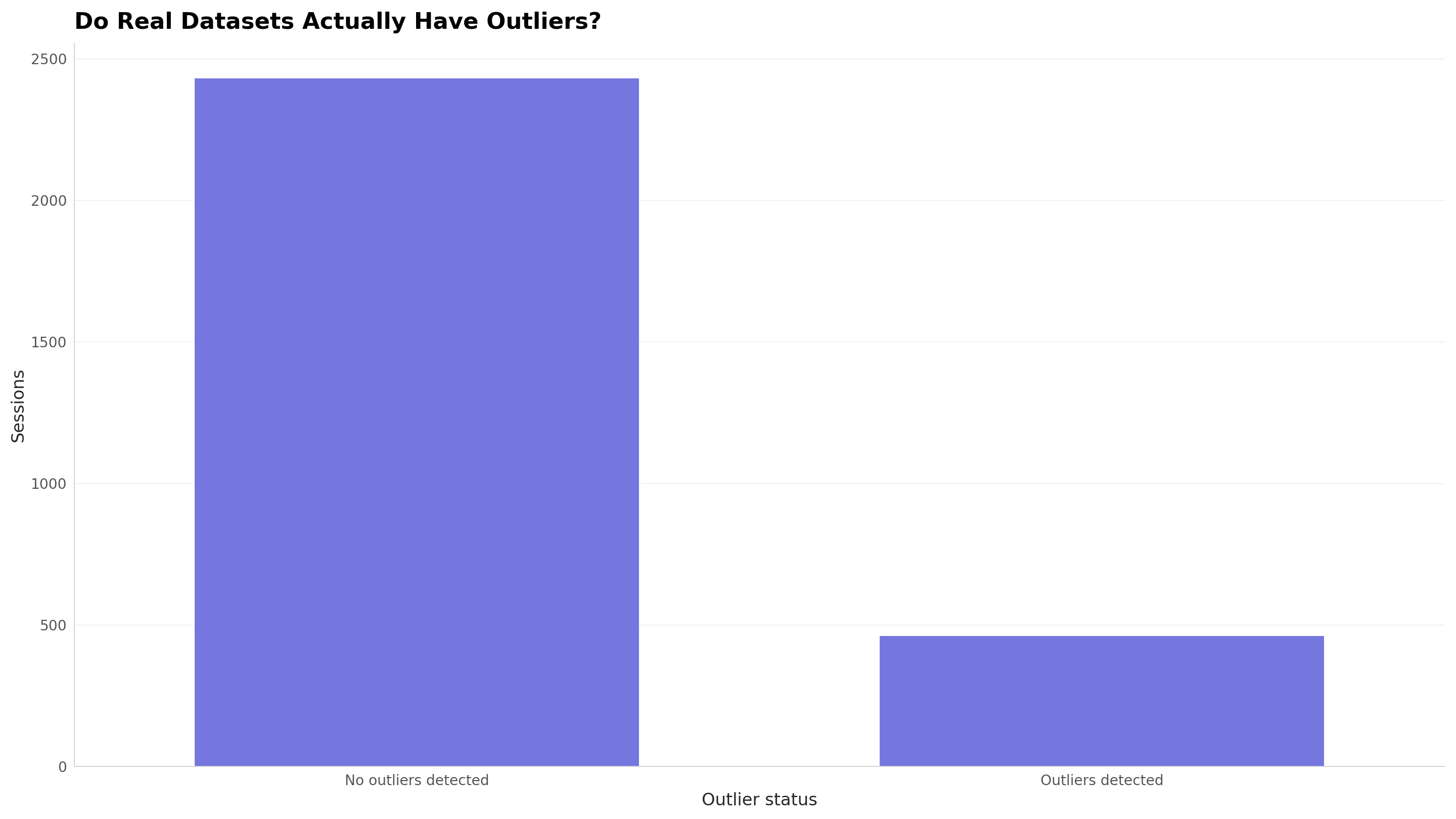
When outliers do show up, they rarely stay confined to one column:
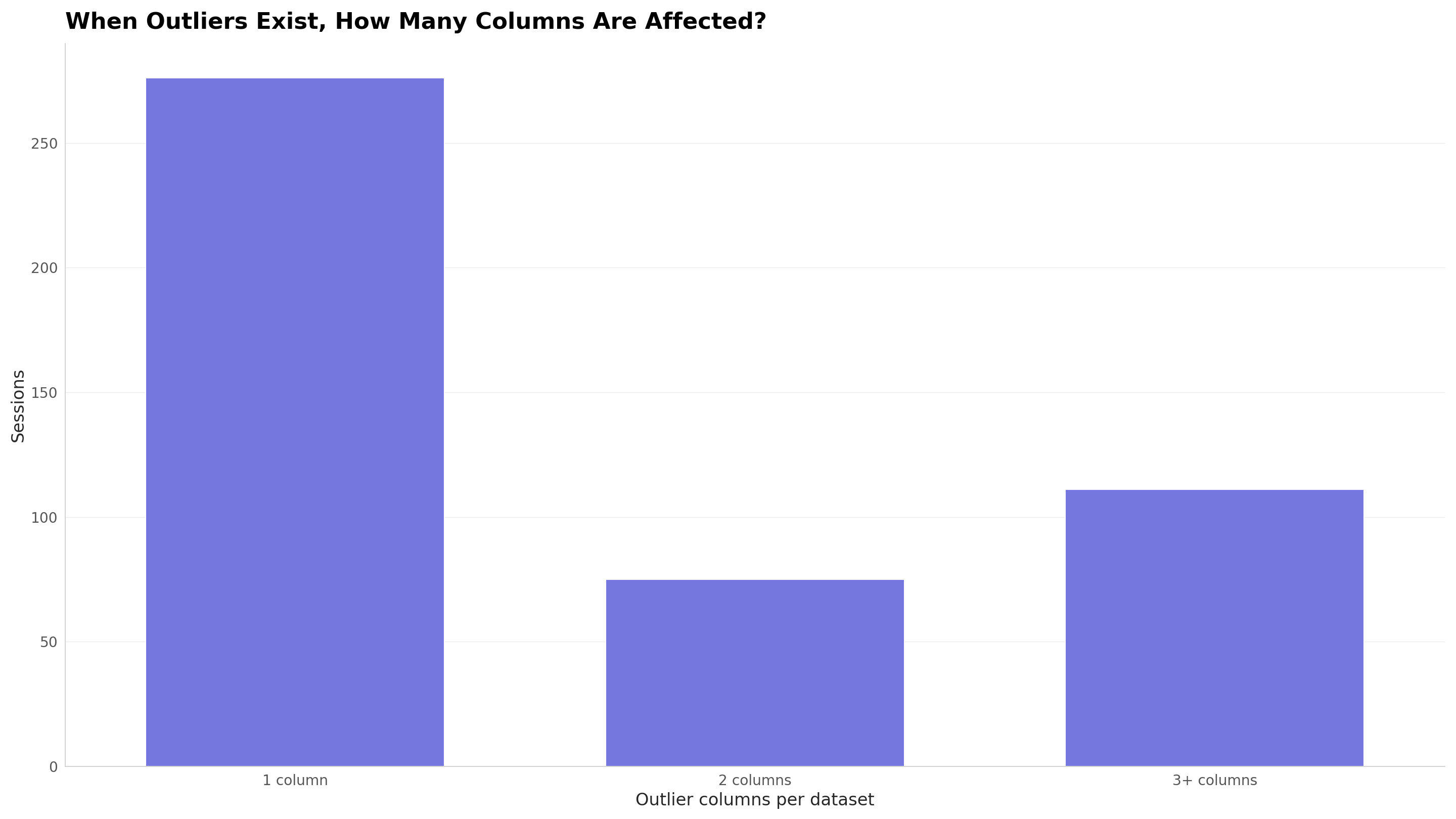
The practical takeaway for Mistake 1 below: if your box plot flags outliers in one column, it's worth checking whether the same rows look unusual in your other numeric columns too. A quarter of the time, they do.
TODO(data): box plot itself is still a smaller slice of CleanChart's overall chart mix (45 sessions in this window), below our 50-session publish threshold, so we can't yet break the outlier rate down by chart type specifically; the numbers above span every chart type CleanChart renders.
When to Use Box Plots (and When Not To)
Box Plots Work Great For:
- Comparing distributions across groups — Salary by department, test scores by school, response times by server. This is where box plots truly shine.
- Detecting outliers — Box plots make outliers immediately visible as individual points.
- Showing data spread concisely — When you have many groups to compare and space is limited.
- Quality control — Manufacturing and process monitoring, where understanding variability matters as much as the average. See how they're used in quality management (ASQ).
- Academic and scientific reporting — Box plots are standard in journals and publication-ready figures. In clinical trial reporting, they're the default way to compare lab values or endpoints across treatment arms without hiding spread and outliers behind a mean.
Box Plots Are Less Ideal For:
- Small datasets — With fewer than ~15 data points, the five-number summary loses meaning. A scatter plot showing individual points works better.
- Bimodal or multimodal data — Box plots hide multiple peaks. A histogram reveals these shapes clearly.
- Non-technical audiences — Beginners may struggle to interpret quartiles. A bar chart showing averages might communicate more effectively to a general audience.
- Showing exact values — Box plots summarize. If every individual data point matters, use a different approach.
Real-World Examples
Example 1: Salary Comparison by Department
Imagine an HR team comparing annual salaries across four departments: Engineering, Marketing, Sales, and Operations.
A side-by-side box plot would instantly reveal:
- Engineering has the highest median salary
- Sales has the widest box, meaning the most salary variation
- Operations has two outlier dots: a VP and a contractor paid above the normal range
- Marketing salaries are tightly clustered (narrow box) with the median near Q3, suggesting most people earn toward the top of the range
This is information that a simple "average salary" table would completely miss. If you're building business reports, box plots add a layer of insight that executives appreciate.
Example 2: Student Test Scores
A teacher comparing exam scores between three class sections:
- Section A: Narrow box, high median — consistently strong performance
- Section B: Wide box, lower median — inconsistent, with some students excelling and others struggling
- Section C: Median near Q1 with one very high outlier — most students scored low, but one aced it
This kind of analysis helps educators identify which sections need additional support. It's one of the reasons box plots are popular in student data analysis.
Example 3: Manufacturing Quality Control
A factory monitoring product weight across three assembly lines:
- Line 1: Narrow box centered on target weight — well-calibrated
- Line 2: Wide box, median below target — needs recalibration
- Line 3: Narrow box, but multiple outlier dots — occasional equipment malfunction
This application follows the Six Sigma methodology, where box plots are standard tools for process variation analysis.
Box Plot vs. Histogram: Which to Choose
Both box plots and histograms show data distributions, but they serve different purposes:
| Feature | Box Plot | Histogram |
|---|---|---|
| Shows exact shape (bimodal, etc.) | No | Yes |
| Compares multiple groups efficiently | Yes (side by side) | Hard beyond 2–3 groups |
| Shows outliers explicitly | Yes | Only as tail bins |
| Shows median and quartiles | Yes, precisely | Approximate from shape |
| Space efficient | Very compact | Needs more space |
| Non-technical readability | Lower | Higher |
Rule of thumb: Use a histogram to explore a single dataset's shape. Use box plots when comparing multiple groups or when you need a compact summary. For guidance on choosing the right chart type, see our complete guide.
How to Create a Box Plot
There are several ways to create box plots, ranging from manual spreadsheet work to automated tools.
Method 1: Use CleanChart (Fastest)
If you want a box plot without writing code or wrestling with spreadsheet formulas:
- Go to CleanChart and upload your data (CSV, Excel, or paste from clipboard)
- Select "Box Plot" from the chart type selector
- Customize colors, labels, and axis formatting
- Export as PNG, SVG, or PDF
Here is that flow end to end, with a small salary-by-department dataset:
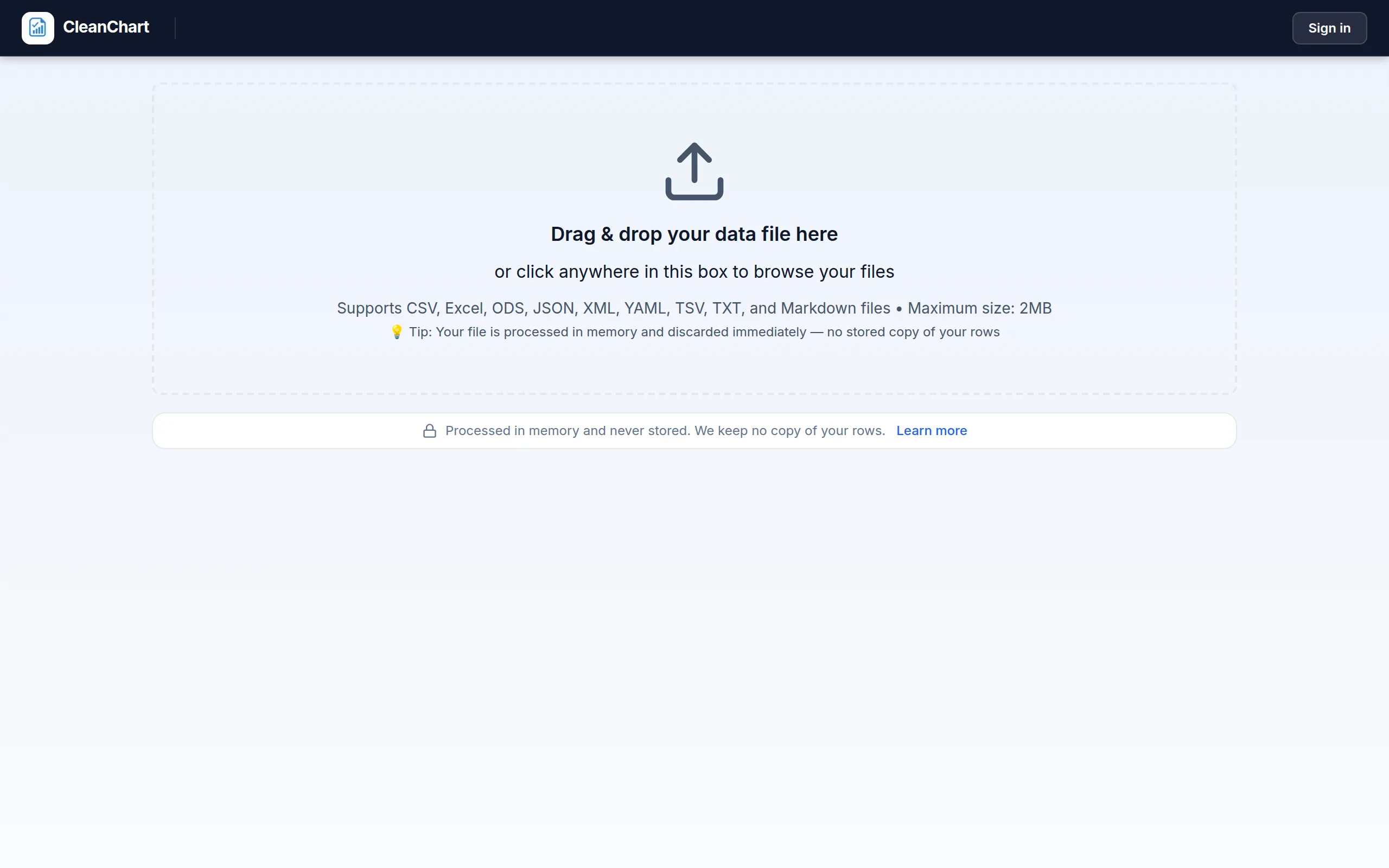
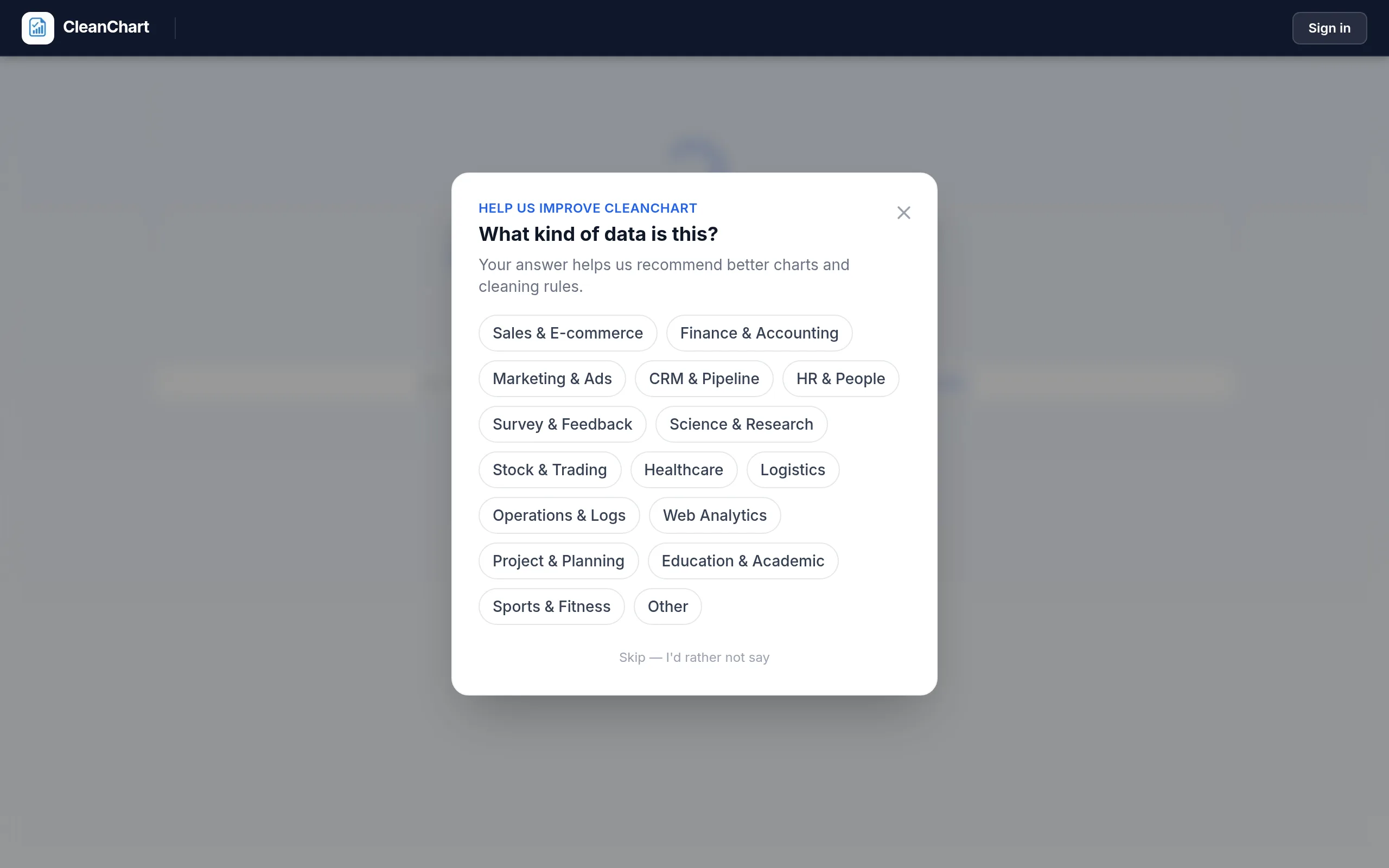
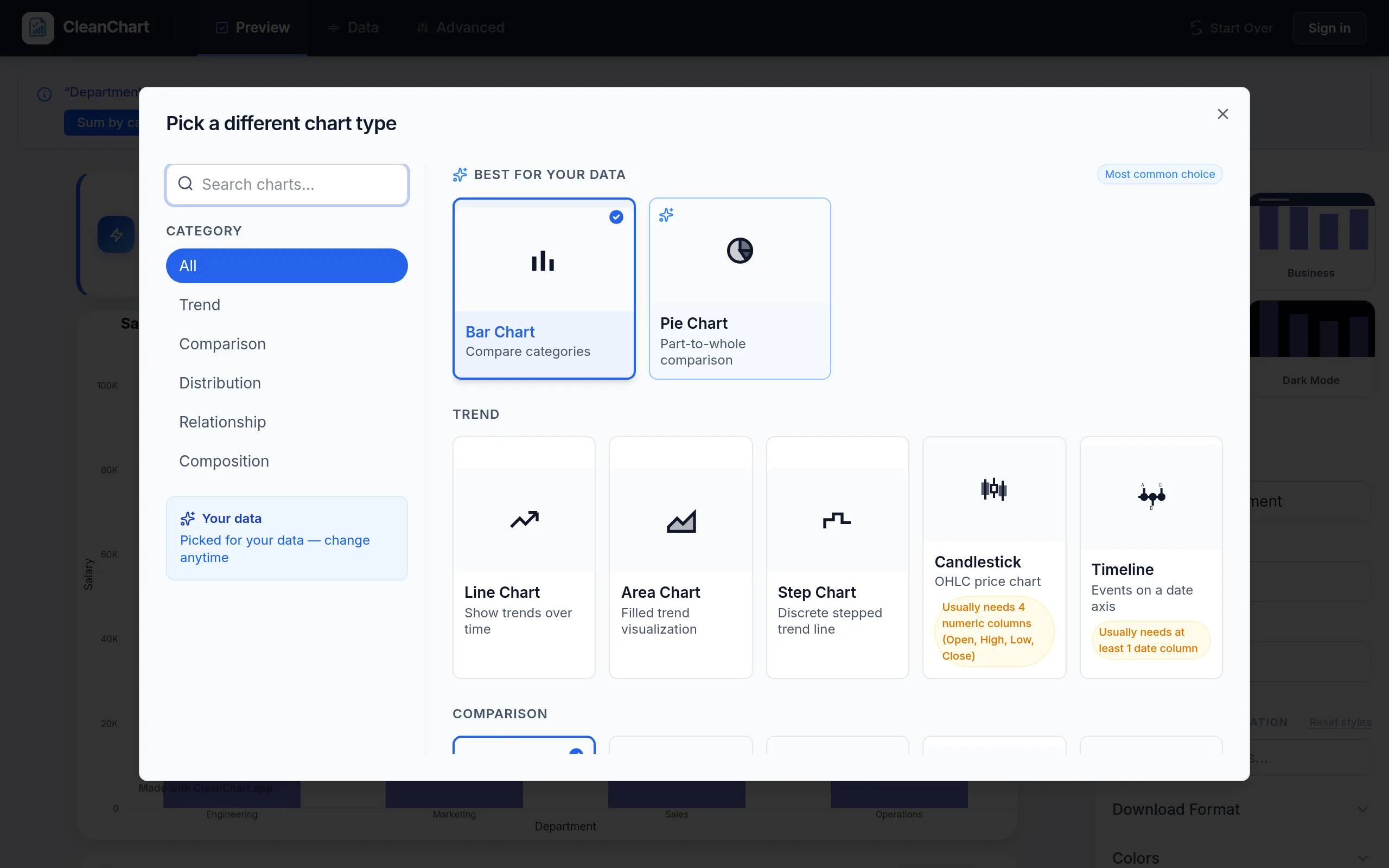
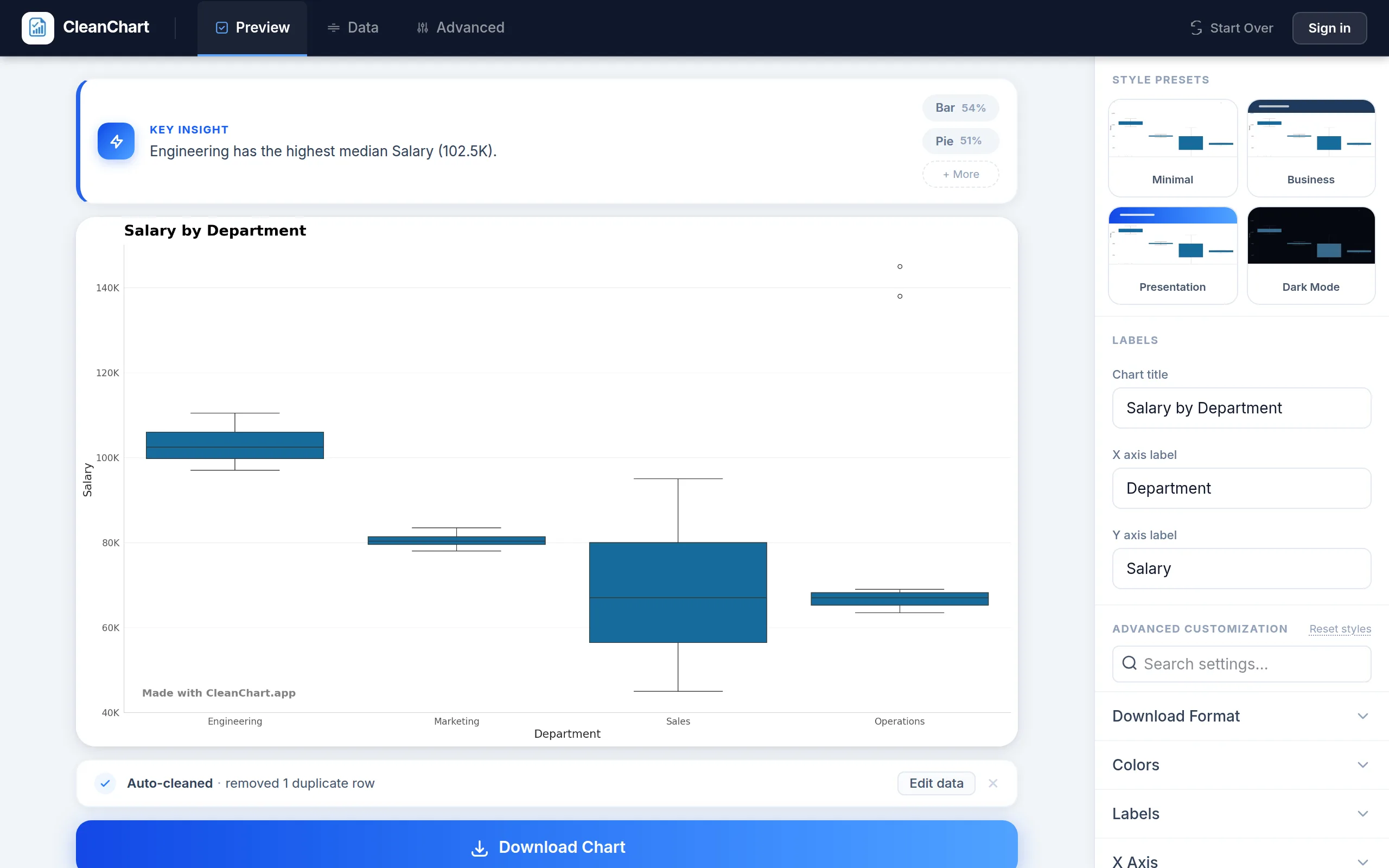
CleanChart handles the quartile calculations, whisker placement, and outlier detection automatically. You can also create box plots from CSV files, Excel spreadsheets, JSON data, or Google Sheets directly.
Method 2: Google Sheets
Google Sheets doesn't have a native box plot, but you can approximate one using a candlestick chart with calculated quartile values. However, this requires manual calculation of Q1, Q2, Q3, min, and max, which is error-prone with large datasets.
Method 3: Excel
Excel 2016+ includes a built-in Box and Whisker chart type. Select your data, go to Insert > Chart, and choose Box and Whisker. Excel calculates the statistics automatically.
If you're comparing Excel vs. online chart makers, online tools like CleanChart typically offer more customization and export options for box plots.
Method 4: Python (Matplotlib / Seaborn)
For programmers, Python makes box plots straightforward:
import matplotlib.pyplot as plt
import seaborn as sns
import pandas as pd

df = pd.read_csv("your_data.csv")
sns.boxplot(x="department", y="salary", data=df)
plt.title("Salary Distribution by Department")
plt.show()
The Seaborn documentation covers advanced customization. If coding isn't your thing, our guide on creating charts without Python covers simpler alternatives.
Common Mistakes to Avoid
Mistake 1: Ignoring Outliers
Outlier dots are not decoration. Each one deserves investigation. Is it a data entry error? A genuinely unusual value? Outliers can dramatically affect calculations like the mean, even though the box plot's median is more robust. Always check if your data needs cleaning before drawing conclusions.
Mistake 2: Using Box Plots for Small Samples
With 5 or 10 data points, the quartile calculations become unreliable. The box plot will look misleading because it implies a continuous distribution. With small samples, just show the individual data points instead.
Mistake 3: Comparing Groups with Very Different Sample Sizes
A box plot for 10 observations looks identical in shape to one for 10,000 observations. If your groups have wildly different sample sizes, note the count alongside each box (e.g., "n=12" vs. "n=4,500"). Without this context, readers may draw incorrect conclusions.
Mistake 4: Forgetting to Label Axes
A box plot without axis labels is nearly useless. Always include units (dollars, kilograms, milliseconds) and a clear title explaining what's being compared. For more on chart formatting, see our guide on why your chart looks wrong.
Mistake 5: Assuming Normal Distribution
A symmetric box plot does not guarantee a normal distribution. The data could be bimodal or uniform and still produce a symmetric-looking box. If distributional shape matters for your analysis, pair your box plot with a histogram.
Frequently Asked Questions
What does IQR mean?
IQR stands for Interquartile Range: the distance between the first quartile (Q1) and third quartile (Q3). It represents the middle 50% of your data and determines where the whiskers end. Outliers are typically defined as points beyond 1.5 × IQR from the box edges.
Can I use a box plot for categorical data?
Box plots require a numerical variable to display on the value axis. You can group by a categorical variable (department, region, grade) on the other axis. But you cannot create a box plot of purely categorical data like "red, blue, green." For categorical data, a bar chart or survey chart is more appropriate.
How many data points do I need for a box plot?
While there's no strict minimum, most statisticians recommend at least 15–20 observations per group for meaningful box plots. Below that, the quartile estimates become unreliable and individual data points or dot plots are better choices.
What's the difference between a box plot and a violin plot?
A violin plot combines a box plot with a kernel density plot, showing the full shape of the distribution. Violin plots reveal multimodal distributions that box plots hide. Use violin plots when the shape matters; use box plots when you need a cleaner, more compact comparison.
Do box plots show the mean?
By default, standard box plots show the median, not the mean. Some tools (including CleanChart) can optionally display the mean as a separate marker (often a diamond or cross). The median is preferred because it's more robust to outliers.
Create Your First Box Plot
Box plots are one of the best tools for understanding how your data is distributed. Whether you're analyzing salaries, test scores, or manufacturing tolerances, they show center, spread, and outliers in a single compact graphic.
Ready to try it? Create a box plot with CleanChart — upload your data and get a publication-ready chart in under a minute. Or explore our histogram maker if you need to see the full shape of a single distribution.
Related CleanChart Resources
- Box Plot Maker – Create box plots online, free
- Histogram Maker – Visualize frequency distributions
- Scatter Plot Maker – Explore correlations
- CSV to Box Plot – Convert CSV files directly
- Excel to Box Plot – Convert Excel spreadsheets
- JSON to Box Plot – Convert JSON data
- Chart Types Explained – Find the right chart for your data
- How to Create a Histogram – Distribution analysis guide
- Correlation Charts & Scatter Plots – Relationship analysis
External Resources
- Wikipedia: Box Plot – Comprehensive reference
- Khan Academy: Reading Box Plots – Free video lesson
- Seaborn Box Plot Documentation – Python reference
- ASQ: Box and Whisker Plot – Quality management applications
- Microsoft: Create Box and Whisker Charts – Excel documentation
- Statistics How To: Box Plot Guide – Detailed statistical explanation
Last updated: September 18, 2026