You can generate publication-ready charts directly inside Claude, Cursor, VS Code, or ChatGPT by connecting the CleanChart MCP server. It takes one command to set up, works without an account, and your AI assistant handles the messy part: it inspects your data, fixes formatting problems, and calls the chart renderer for you.
MCP (Model Context Protocol) is the open standard that lets AI assistants use external tools. CleanChart exposes its chart engine as a remote MCP server at cleanchart.app/api/mcp, so any MCP-capable assistant can validate a chart config, clean tabular data, and render any of CleanChart's 29 chart types as a PNG, all from a normal conversation. The free tier is watermarked at reduced resolution; an API key on a paid plan unlocks clean, full-resolution output.
What Is an MCP Server?
The Model Context Protocol is an open standard, introduced by Anthropic in late 2024, that gives AI assistants a common way to call external tools. Think of it as a USB port for AI: once a tool speaks MCP, every MCP-capable assistant can use it without custom integration work.
That's a better fit for charting than you might expect. Assistants are excellent at understanding what you want ("show me revenue by region as a bar chart") and terrible at actually rendering pixels. A chart MCP server splits the work: the assistant interprets your request and prepares the data, and CleanChart's rendering engine (the same Python, Matplotlib and Seaborn pipeline behind the web app) produces the finished image.
What Can the CleanChart MCP Server Do?
The server exposes the core of CleanChart as tools your assistant can call:
| Tool | What it does |
|---|---|
| list_chart_types | Lists all 30 renderable chart types with their default configs |
| validate_chart_config | Dry-run check of a chart config, so failed renders don't waste attempts |
| generate_chart | Renders the chart and returns it as a PNG |
| detect_data_issues | Finds duplicates, missing values, type mismatches and broken date formats |
| apply_data_fixes | Applies the same cleaning fixes the web app offers |
| get_entitlements | Shows your current tier: free, 24-hour pass, or subscription |
Because the assistant sits in front of these tools, it acts as a flexible data-fixing layer. Hand it a messy export and it will detect the problems, repair them, and retry until the chart renders.
How Do You Connect It to Claude?
For Claude Code, it's one terminal command:
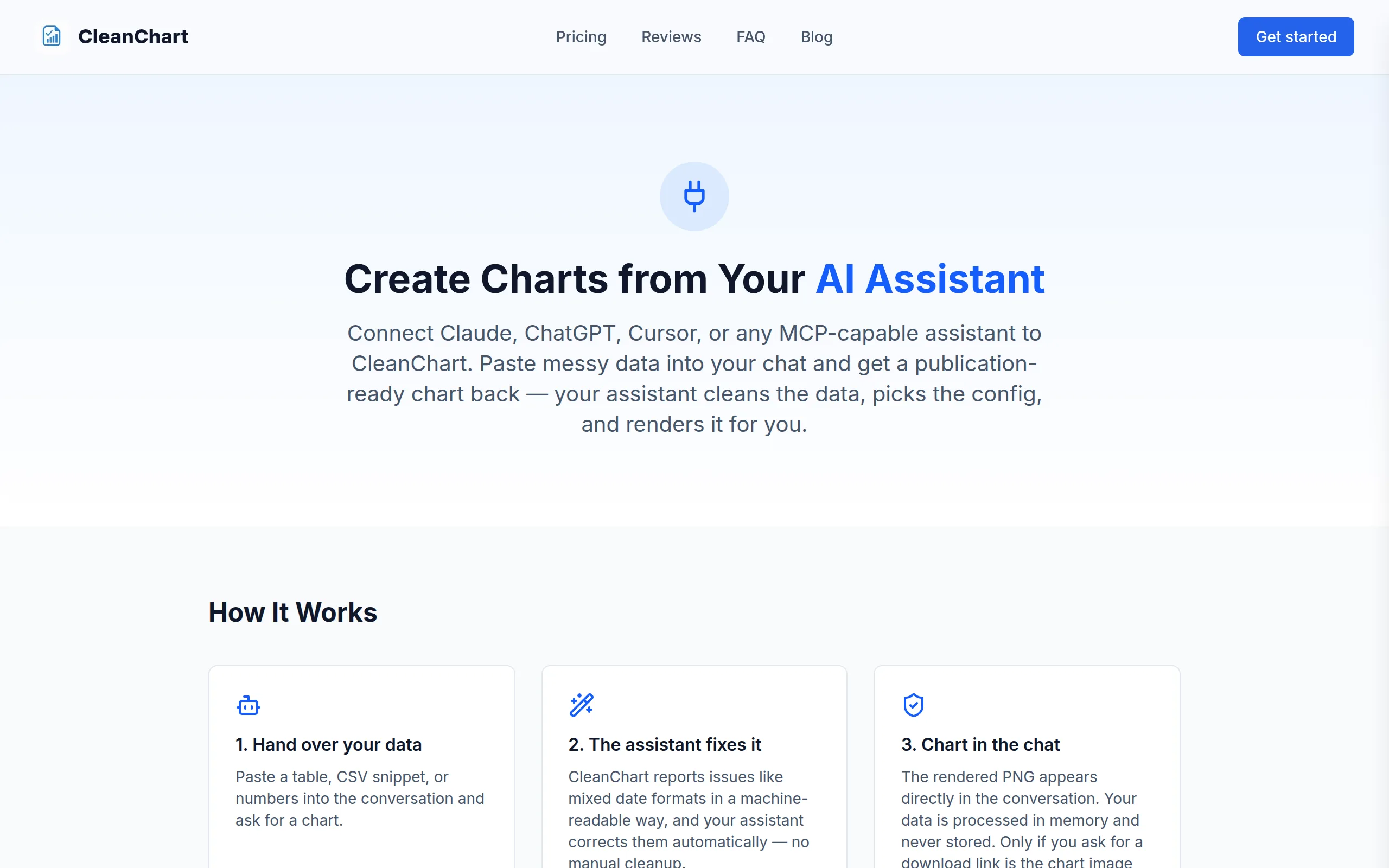
claude mcp add --transport http cleanchart https://www.cleanchart.app/api/mcpIn claude.ai or Claude Desktop, add a custom connector pointing at the same URL. The full, always-current setup guide for every client lives on our MCP server page:
Cursor and VS Code
Add the server to your mcp.json settings file with the same URL and transport type "http". Cursor's own MCP documentation shows where that file lives.
ChatGPT
ChatGPT supports remote MCP connectors on plans that include developer mode. Add cleanchart.app/api/mcp as a connector and the same tools appear there.
From Prompt to Finished Chart: a Real Example
This chart wasn't made in the web app. It was rendered by the MCP server from a plain conversation, with the assistant preparing the data and calling validate_chart_config, then generate_chart:
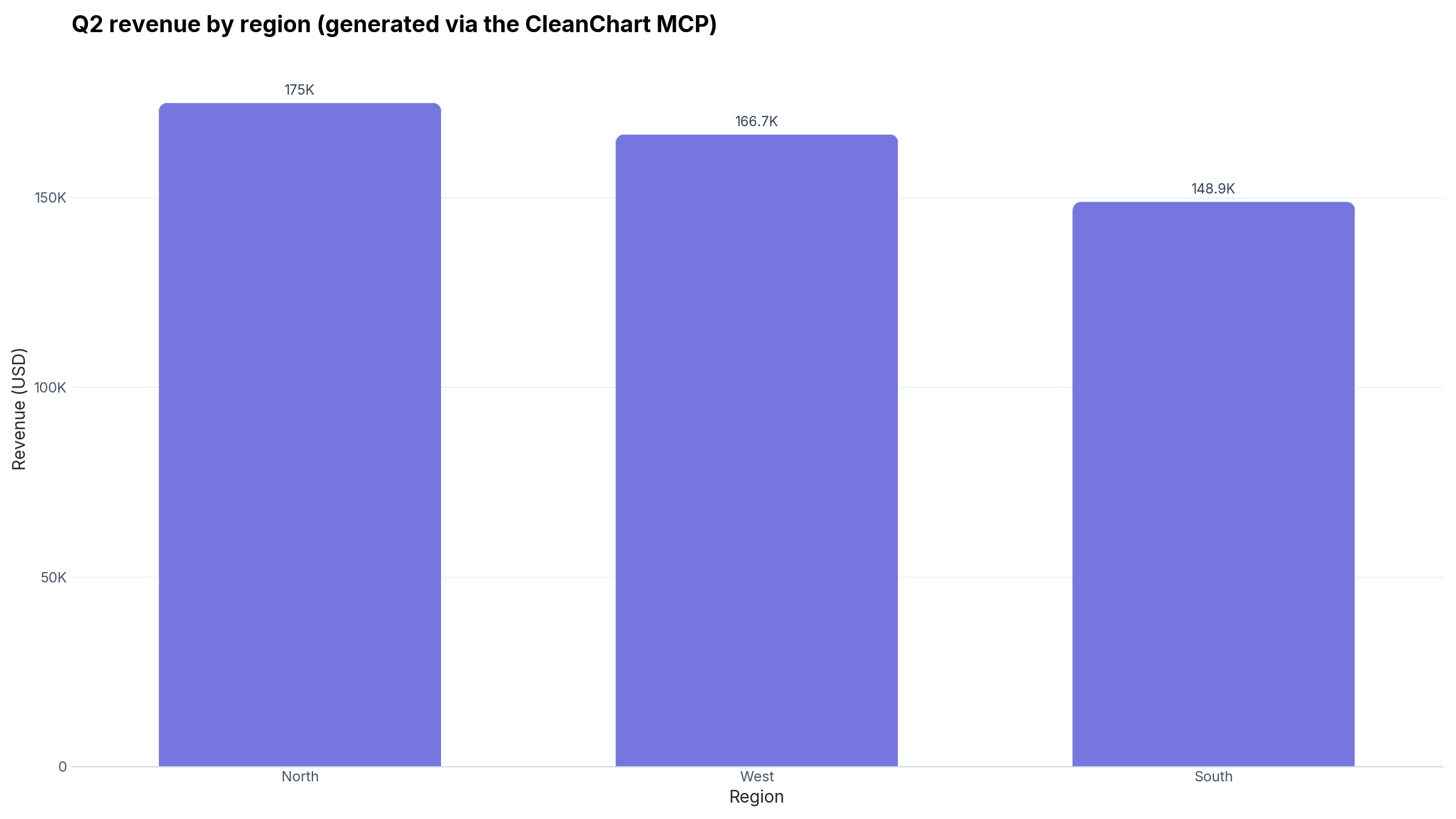
The interesting part is what you didn't have to do: no column mapping, no cleaning pass, no export settings. The assistant read the structured validation errors, adjusted, and retried on its own.
Is It Free? What Does an API Key Change?
Without any key, the MCP server works on the free tier: every chart renders with a watermark at reduced resolution. That's enough to test the workflow and for quick internal charts.
For clean, full-resolution output, create an API key in your CleanChart dashboard (available on a subscription or a 24-hour pass) and add it to your client's MCP config as an Authorization header. Every chart your assistant generates is then watermark-free, exactly like a paid export in the web app.
When Should You Use MCP Instead of the Web App?
- You already live in your assistant. If your data analysis happens in Claude or Cursor anyway, the chart can happen there too.
- Repetitive chart jobs. "Same chart, new numbers, every Monday" is a one-line prompt instead of a upload-click-export loop.
- Messy inputs. The assistant fixes what it can before rendering, and CleanChart's own cleaning tools handle the rest.
- The web app still wins for visual fine-tuning: the chart builder gives you live previews, style presets and recommendation chips that a chat can't match.
If you're comparing this route with writing plotting code yourself, our guide on creating charts without Python covers where each approach fits, and chart types explained helps you pick the right visualization before you prompt for it.
Try It in Your Assistant
Add the server with the one-liner above, then ask your assistant for a chart from any CSV you have lying around. If you'd rather see the engine first, the bar chart maker is the same renderer with a visual interface, and our sales chart guide shows what it produces on real business data.
Frequently Asked Questions
Is the CleanChart MCP server free to use?
Yes. Without an API key you're on the free tier: charts render with a watermark at reduced resolution. An API key on a subscription or 24-hour pass removes the watermark and unlocks full resolution.
Which AI assistants can use it?
Any MCP-capable client: Claude (claude.ai, Claude Desktop and Claude Code), Cursor, VS Code with MCP support, and ChatGPT in developer mode. The setup snippets for each are on the MCP page.
Do I need a CleanChart account?
No account is needed for watermarked free-tier charts. You need an account with a subscription or day pass only to create an API key for clean output.
Can the assistant fix messy data before charting?
Yes. The detect_data_issues and apply_data_fixes tools expose CleanChart's cleaning engine, and the assistant itself can reshape data before calling them, which is often the fastest way to get from a raw export to a usable chart.
Related CleanChart Resources
- CleanChart MCP server: setup guide
- How to create charts without Python
- All chart types explained
- Sales chart guide
- Bar chart maker
External Resources
- Model Context Protocol – the official MCP specification and docs
- Anthropic: Introducing MCP – the announcement and background
- Cursor MCP documentation – client-side setup reference