Stacked and grouped bar charts both display multiple data series in bars—but they answer completely different questions. Choosing the wrong one is one of the most common chart mistakes in business presentations.
Updated October 1, 2026: refreshed the usage data; September 20, 2026: added a data section built from CleanChart's own usage numbers and a real app walkthrough for building a grouped bar chart.
Quick answer: Use a stacked bar chart when you want to show how parts add up to a total. Use a grouped bar chart, also called a side-by-side bar chart or (for vertical bars) a grouped column chart, when you want to compare individual values side by side across categories.
In this guide you'll learn the exact differences, see real-world examples for each, and know precisely when to use one over the other—or when to choose something else entirely.
What Is a Stacked Bar Chart?
A stacked bar chart divides each bar into segments, where each segment represents a sub-category. The segments stack on top of each other so the full bar height (or length, if horizontal) represents the total value.
There are two common variants:
- Standard stacked bar — bars show absolute values; the total bar height = the sum of all segments.
- 100% stacked bar (percentage stacked) — all bars are normalized to the same height, showing each segment as a percentage of the whole. Useful when the totals differ significantly and composition is what matters.
Best used for: “How does the mix change across categories?” or “How much does each component contribute to the total?”
Create one instantly with the stacked bar chart maker or convert your data directly: CSV to stacked bar chart, Excel to stacked bar chart.
What Is a Grouped Bar Chart?
A grouped bar chart places bars for each sub-category side by side within each group. Instead of stacking, the bars sit next to each other, making individual comparisons easy.
Best used for: “How does Category A compare to Category B within each group?” or “Which region performed best in Q1, Q2, and Q3?”
Create one with the grouped bar chart maker or convert your data: CSV to grouped bar chart, Excel to grouped bar chart.
Stacked vs Grouped Bar Chart: Key Differences
| Feature | Stacked Bar Chart | Grouped Bar Chart |
|---|---|---|
| Primary question | How do parts add up to a total? | How do individual values compare across groups? |
| Shows totals | Yes — total bar height = sum of segments | No — individual bars, not combined |
| Compares sub-categories | Difficult (only the bottom segment is easy to read) | Easy — bars are directly adjacent |
| Best series count | 2–5 segments per bar | 2–4 groups per cluster |
| Space efficiency | High — one bar per category | Lower — multiple bars per category |
| Color usage | Each color = one segment/category | Each color = one series |
| Typical use | Revenue by product line over time | Sales by region vs. prior year |
How Many Series Do Real Bar Charts Actually Have?
The series counts above (2–5 for stacked, 2–4 for grouped) are design guidance. We checked them against what people actually upload: 399 bar, grouped-bar and stacked-bar chart sessions on CleanChart, May–October 2026, where we could see the uploaded dataset's column count.
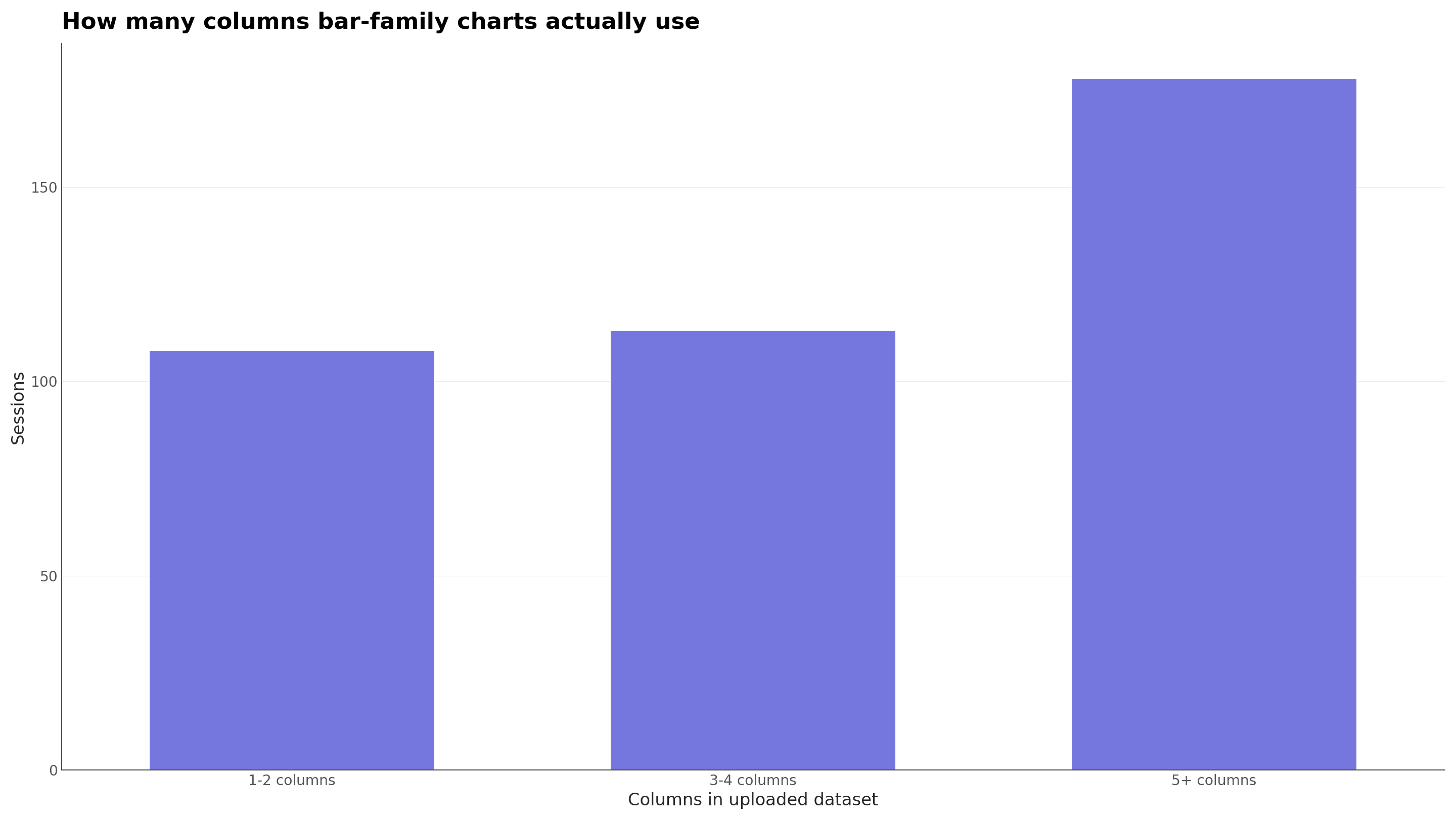
We also checked what file format those uploads came from, since it decides which converter page below fits your file:
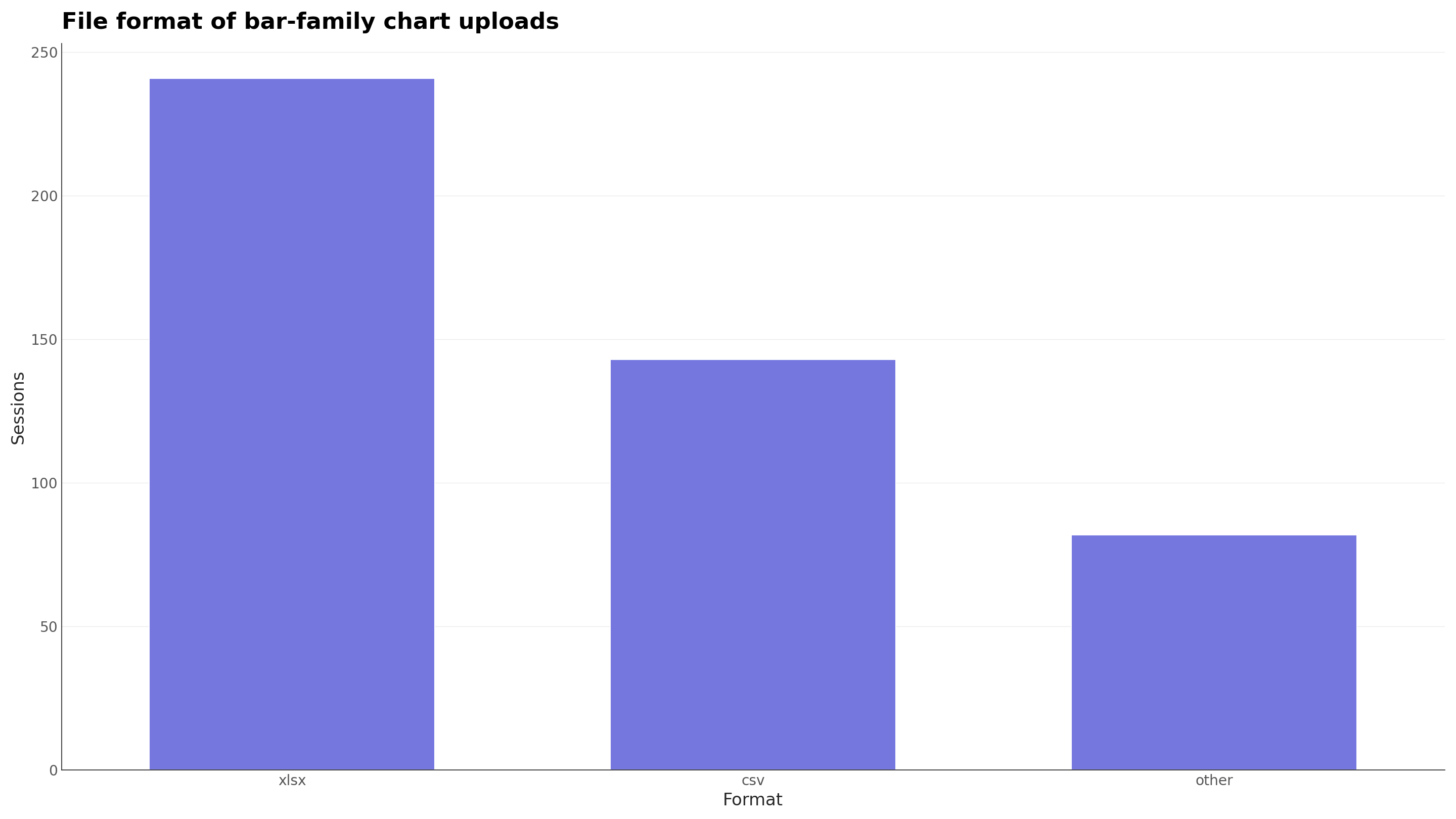
TODO(data): grouped-bar and stacked-bar sessions are each below our 50-session publish threshold on their own (39 and 7 respectively this window), so the charts above cover the combined bar family rather than breaking grouped out from stacked. If you're charting sales data by region or product line specifically, the same Excel-first pattern holds: the Excel to bar chart converter is the fastest path from a spreadsheet export to any of the three layouts on this page.
When Should You Use a Stacked Bar Chart?
Use a stacked bar chart when composition and totals are both important. If you need viewers to understand both “how much overall” and “what it’s made of,” stacked is the right choice.
Good use cases for stacked bar charts
- Revenue by product over time — Each bar = one month; segments = product lines. You see total revenue and how the product mix shifts.
- Budget allocation across departments — Each bar = one year; segments = department budgets. Clearly shows where money went and how total spend changed.
- Survey Likert scale results — Each bar = one question; segments = agreement levels (Strongly Disagree → Strongly Agree). See our charts for survey data guide for the diverging stacked bar variant, which is considered the gold standard for this use case.
- Website traffic sources over time — Each bar = one month; segments = organic, paid, direct, referral. Shows both growth and channel mix shifts.
- Expense breakdown by category — Each bar = one quarter; segments = expense categories. Board-level composition view at a glance.
When stacked bars work best
- You have 2–5 sub-categories (more makes it hard to read)
- The categories have a logical order (e.g., product hierarchy, agreement scale)
- Showing the aggregate total matters as much as the breakdown
- At least one segment is always visible from the baseline (the bottom segment is easiest to compare)
When Should You Use a Grouped Bar Chart?
Use a grouped bar chart when direct comparison between series values is the primary goal. If viewers need to see exactly how Q1 compares to Q2 for each region, grouped bars let them do that precisely.
Good use cases for grouped bar charts
- Year-over-year comparison by region — Each cluster = one region; bars = current year vs. prior year. Makes the difference between periods immediately visible.
- Budget actual vs. planned by department — Each cluster = one department; bars = actual spend vs. budget. Instantly spots over/under-budget departments.
- A/B test results across segments — Each cluster = one user segment; bars = variant A vs. variant B. Supports data-driven decisions.
- Competitor feature comparison — Each cluster = one feature; bars = your product vs. competitors. Supports the chart types guide’s recommendation to use grouped bars for comparative analysis.
- Sales team performance across metrics — Each cluster = one rep; bars = deals closed, revenue, pipeline. Replaces a dense table with a scannable visual.
When grouped bars work best
- You have 2–4 series (more than 4 gets very crowded)
- The exact height of each bar matters (not just the proportion)
- Readers need to compare specific values across series
- The totals across groups are less important than individual series differences
When Should You Use Neither?
Both chart types struggle in certain situations. Here’s when to reach for an alternative:
| Situation | Better Alternative |
|---|---|
| You have more than 6–7 segments per bar (stacked) | Treemap or heatmap for composition |
| You have more than 4 series per group (grouped) | Radar chart or small multiples |
| Trend over time is the main story | Stacked area chart for flowing composition over time |
| Two metrics with different units (e.g., volume + rate) | Combo chart (bars + line on dual axis) |
| You want to show cumulative change | Waterfall chart |
| Parts of a whole with no time dimension | Pie chart or donut chart (when ≤7 categories) |
When in doubt, see our complete chart types guide with a decision flowchart for every common scenario.
How to Create Stacked and Grouped Bar Charts
Both chart types need the same data structure: a category column plus one numeric column per series. The difference is purely in how you configure the visualization.
Data format example
| Quarter | Product A | Product B | Product C |
|---|---|---|---|
| Q1 2025 | 42000 | 31000 | 18000 |
| Q2 2025 | 47000 | 28000 | 22000 |
| Q3 2025 | 51000 | 33000 | 19000 |
| Q4 2025 | 58000 | 37000 | 24000 |
This same CSV works for both chart types. As stacked bars, each row’s values stack to show total quarterly revenue and product mix. As grouped bars, the three product bars sit side by side each quarter, making direct comparison easy.
Step-by-step in CleanChart
- Upload your data — CSV, Excel, or Google Sheets. Use the CSV to stacked bar converter or CSV to grouped bar converter for the quickest path.
- Select chart type — Choose “Stacked Bar” or “Grouped Bar” from the chart picker.
- Map your columns — Set the category column (x-axis) and select which columns are series.
- Customize colors — Assign distinct colors to each series. See our color in data visualization guide for palette recommendations.
- Add labels and title — A clear title that states the question the chart answers improves comprehension.
- Export — Download PNG, SVG, or PDF for presentations and reports. For embedding in slides, see our export to PowerPoint guide.
Here is that flow end to end, with a small revenue-by-region-and-month Excel file:
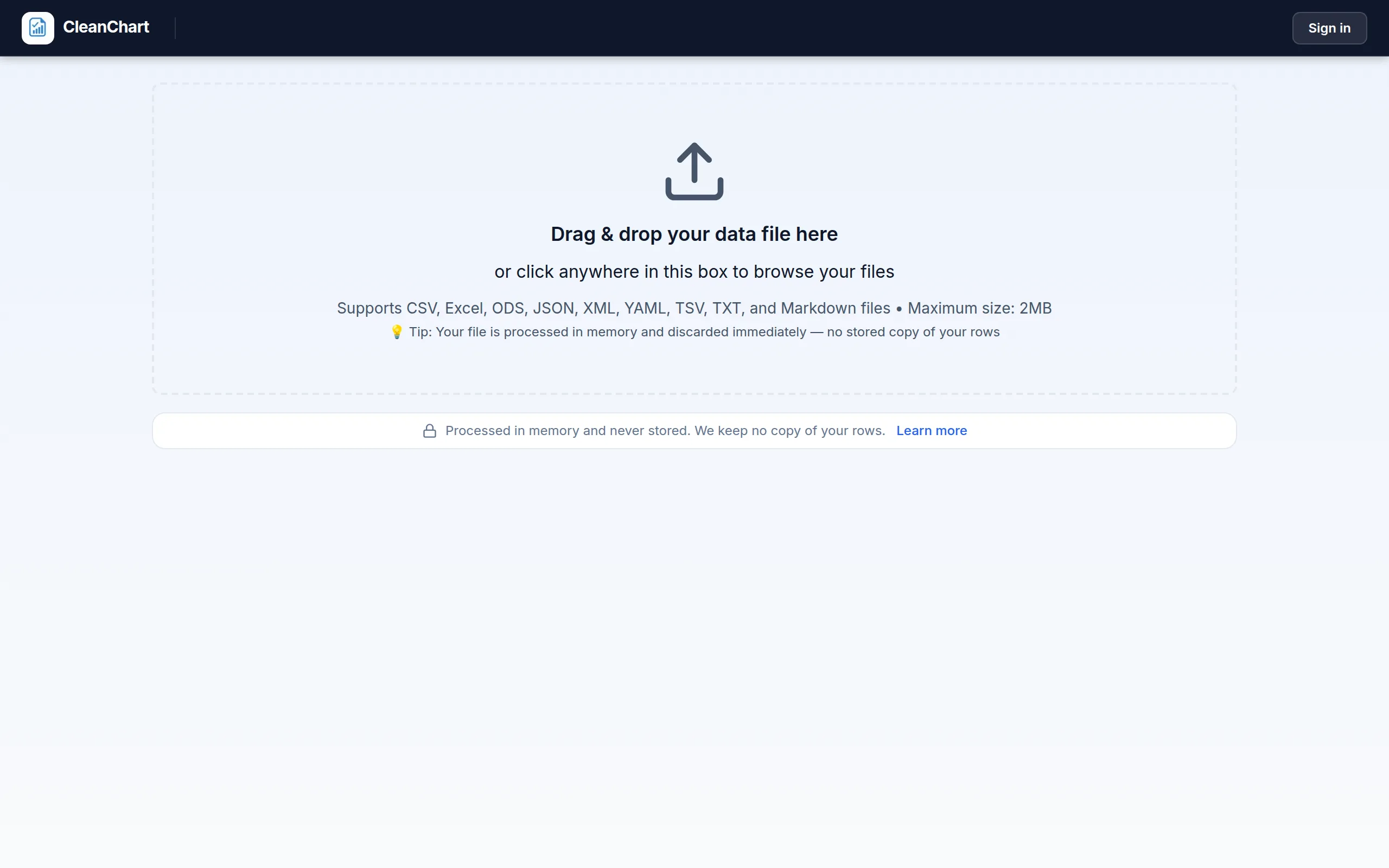
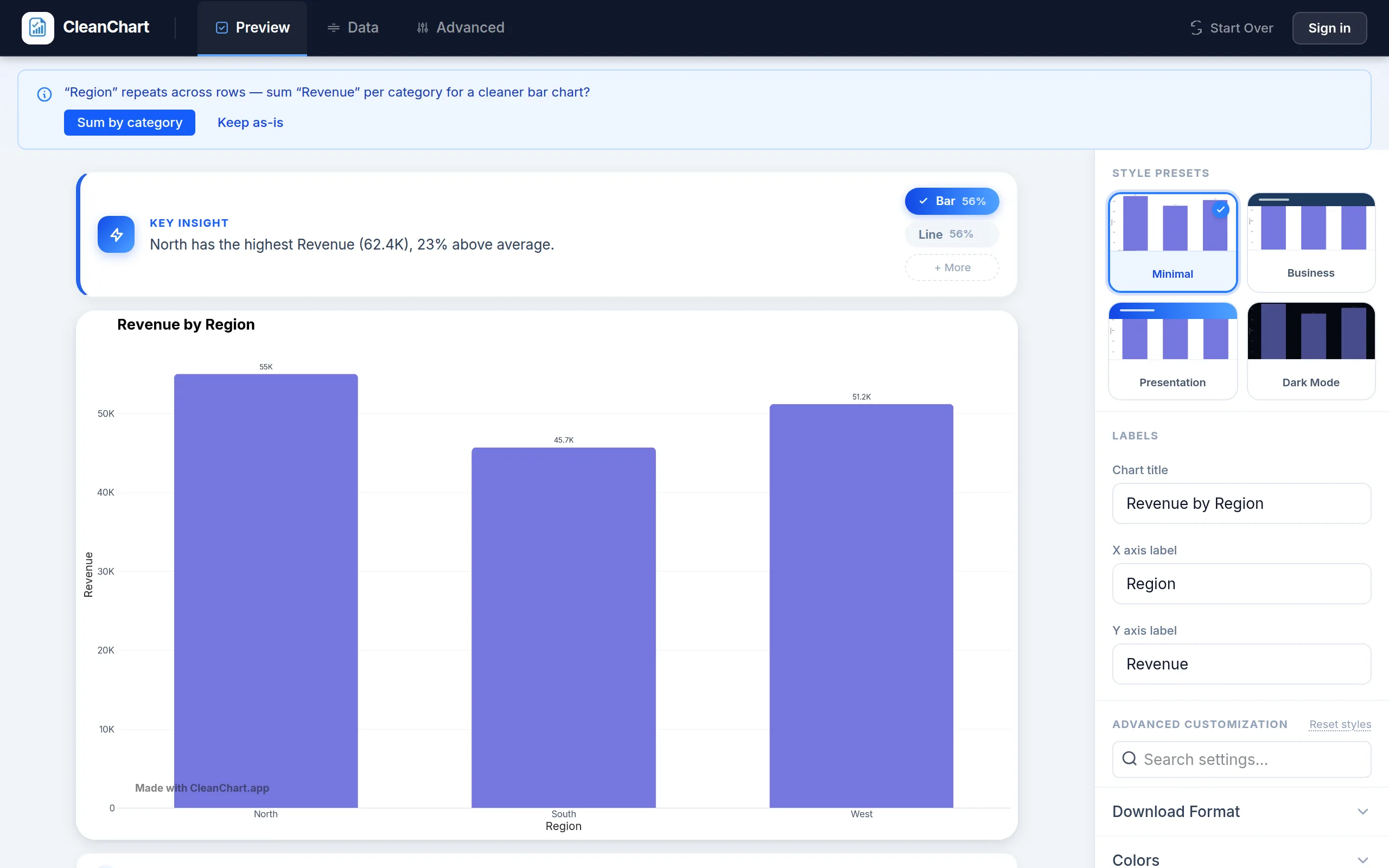
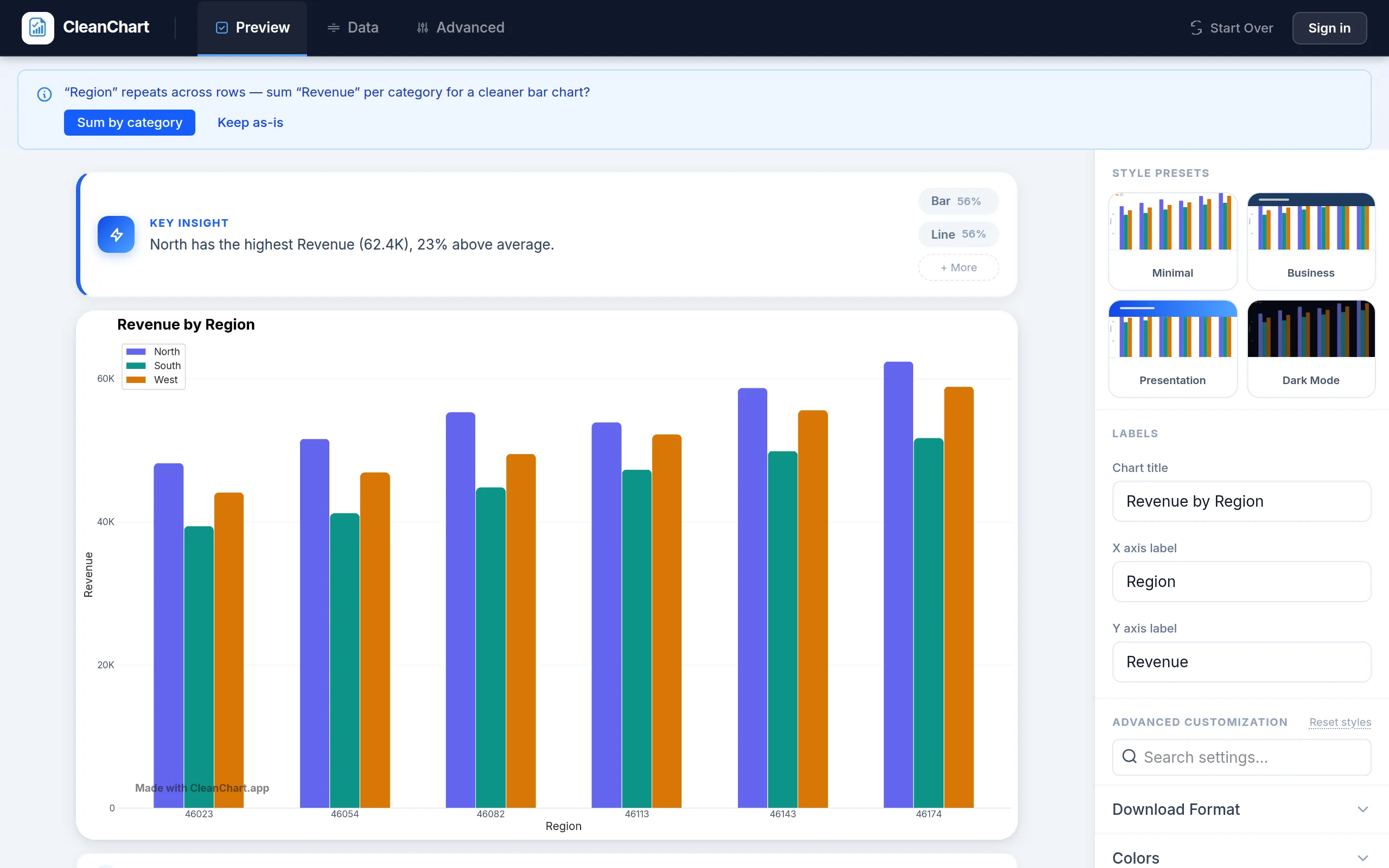
Switching that same mapping to “Stacked Bar” instead turns each month into one bar with North, South, and West stacked inside it, so the total height reads as combined monthly revenue.
If your data needs cleaning before upload, our complete CSV cleaning guide covers removing duplicates, fixing formatting, and handling missing values.
Common Mistakes to Avoid
Mistake 1: Too Many Segments or Series
Stacked bars with 8 segments become impossible to interpret. Grouped bars with 6 side-by-side bars look like a wall of color. Cap stacked segments at 5 and grouped series at 4. If you have more, consider a different chart type.
Mistake 2: Using Stacked When You Need to Compare Sub-Categories
In a stacked bar, only the bottom segment has a stable baseline (zero). Every other segment floats—its start position changes from bar to bar, making comparison inaccurate. If readers need to compare a specific segment across bars, switch to grouped.
Mistake 3: Not Starting the Axis at Zero
Always start the y-axis at zero for both chart types. Truncating the axis exaggerates differences between bars and misleads viewers. Our why your chart looks wrong guide covers this and other chart integrity issues in detail.
Mistake 4: Poor Color Choices
Using too-similar colors in stacked charts makes segments impossible to distinguish. Avoid traffic-light color schemes (red/amber/green) without clear labeling, as they fail for colorblind readers. See our accessible colorblind-friendly charts guide for palettes that work for everyone.
Mistake 5: Wrong Orientation
Horizontal layouts work better when category labels are long (e.g., department names, product SKUs). Vertical layouts are conventional for time series. If your labels overlap on a vertical chart, switch to horizontal.
Real-World Examples
Example 1: Q4 Business Review (Stacked Bar)
Question: How did total revenue change, and what drove the mix shift?
Setup: Horizontal axis = months; segments = four product lines. The stacked bar clearly shows that total revenue grew 18% and that the new enterprise product drove the growth while SMB revenue held flat.
Why stacked? The total matters. The audience is a board that needs both the “how much” and the “what drove it” answers in a single chart.
Example 2: Regional Sales Comparison (Grouped Bar)
Question: Which regions exceeded their quota in each quarter?
Setup: Horizontal axis = quarters; two bars per cluster = actual vs. target. The grouped bars make the shortfall or surplus in each region immediately visible per period.
Why grouped? The comparison between actual and target is the story. Stacking them would make it impossible to read the gap. For more on sales visualization, see our sales data visualization guide.
Frequently Asked Questions
What is the difference between a stacked bar chart and a grouped bar chart?
A stacked bar chart places sub-categories on top of each other within a single bar, showing composition and totals. A grouped bar chart places sub-categories side by side within each group, making direct comparison of individual values easy. Use stacked when totals matter; use grouped when you need to compare specific series values against each other.
When should I use a stacked bar chart instead of a grouped bar chart?
Use a stacked bar chart when you want to show how parts add up to a whole—for example, revenue by product line, budget allocation by department, or traffic sources by month. Use a grouped bar chart when you need to compare specific values within categories—for example, actual vs. planned, current year vs. prior year, or A/B test results by segment.
Can I use a stacked bar chart to compare sub-category values?
Only for the bottom segment. The bottom segment has a stable zero baseline, making it easy to compare across bars. Every other segment floats at a different starting point depending on the segments below it, which makes accurate visual comparison very difficult. If comparing a specific segment is important, use a grouped bar chart or a separate chart for that segment.
What is a 100% stacked bar chart?
A 100% stacked bar chart (also called a percentage stacked bar) normalizes all bars to the same height, showing each segment as a percentage of the total rather than an absolute value. Use it when the composition proportions matter more than the total size—for example, comparing market share percentages across regions when the regions differ greatly in total sales volume.
How many categories can I show in each chart type?
For stacked bar charts: limit segments to 5 per bar. Beyond that, readers can’t distinguish colors or compare floating segments. For grouped bar charts: limit to 4 series per cluster. With 5+ bars per cluster, the chart becomes too crowded to read. If you have more data, consider a heatmap (for many categories) or small multiples (separate charts for each series).
Do stacked and grouped bar charts need the same data structure?
Yes. Both require a category column and one numeric column per series. The same CSV file works for both chart types—the difference is in how you configure the visualization, not in the underlying data structure.
Can I create these charts in Excel?
Yes. In Excel, select your data and go to Insert > Charts. Choose “Stacked Bar” or “Clustered Bar” (Excel’s term for grouped). Customization is limited compared to dedicated tools. For publication-quality output with more control, use CleanChart directly. See our Excel vs. online chart makers comparison for a full breakdown.
Related CleanChart Resources
Chart Maker Pages
- Stacked Bar Chart Maker – Create stacked bar charts online free
- Grouped Bar Chart Maker – Side-by-side comparison charts
- Bar Chart Maker – Simple category comparison
- Area Chart Maker – Stacked areas for trends over time
- Combo Chart Maker – Bars + line for dual-metric analysis
- Waterfall Chart Maker – Cumulative change visualization
- Treemap Maker – Composition for many categories
Converter Pages
- CSV to Stacked Bar Chart – Instant conversion from CSV
- Excel to Stacked Bar Chart – Convert Excel to stacked bar
- CSV to Grouped Bar Chart – Instant conversion from CSV
- Excel to Grouped Bar Chart – Convert Excel to grouped bar
- CSV to Bar Chart – Standard bar chart from CSV
Related Blog Posts
- Chart Types Explained – Full guide to choosing the right chart
- Visualize Sales Data – Bar charts in sales contexts
- Charts for Survey Data – Stacked bars for Likert scale surveys
- Business Reports with Charts – Professional report design
- Color in Data Visualization – Palette choices for multi-series charts
- Why Your Chart Looks Wrong – Common chart pitfalls and fixes
- Data Visualization for Beginners – Chart fundamentals
- How to Create a Combo Chart – When bars pair with a line
- How to Create a Waterfall Chart – Sequential change visualization
- Stacked Bar Chart Guide – Definition, standard vs. 100% variants, and common reading mistakes
Data Tools
External Resources
- Wikipedia: Grouped and Stacked Bar Charts – History and overview of bar chart variants
- From Data to Viz: Bar Plot – Interactive decision guide for bar chart variants
- Storytelling with Data: Chart Chooser – Expert guide to selecting the right chart type
- Data Viz Project – Visual catalogue of chart types with stacked and grouped bar examples
- NerdSip – Micro-learning for data visualization and chart selection skills
- Stephen Few: Designer Intentions – Expert analysis on chart design choices
Last updated: October 1, 2026