The best chart for Likert scale data is a stacked bar chart, specifically a diverging stacked bar chart that centers on the neutral response. This layout lets readers instantly compare the balance of positive and negative sentiment across questions or groups.
Updated October 1, 2026.
Likert scale questions are everywhere in surveys: "Rate your satisfaction from 1 (Strongly Disagree) to 5 (Strongly Agree)." The challenge is not collecting this data, it is showing it clearly. A pie chart hides the comparison across questions. A simple bar chart ignores the ordinal structure. This guide covers the three chart types that actually work for Likert data and shows you how to build them.
What Is a Likert Scale?
A Likert scale is an ordered rating scale used in surveys to measure attitudes, opinions, or perceptions. Named after psychologist Rensis Likert, who introduced it in 1932, it typically has 5 or 7 response options that range from one extreme to another with a neutral midpoint.
A standard 5-point Likert scale looks like:
- Strongly Disagree
- Disagree
- Neutral
- Agree
- Strongly Agree
The key characteristics that affect how you visualize Likert data:
- Ordinal: The responses have a meaningful order (Disagree < Neutral < Agree), but the intervals between them are not necessarily equal.
- Symmetric: There is a natural midpoint (Neutral), with an equal number of positive and negative options on each side.
- Categorical: Each response is a discrete category, not a continuous number — even though it is often coded as 1–5.
These properties mean standard numerical charts (like line charts or scatter plots) are misleading for Likert data. You need charts designed for ordered categories. For more on choosing the right chart for different data types, see our chart types guide.
Which Chart Types Work for Likert Scale Data?
Three chart types handle Likert data well. Each serves a different purpose.
| Chart Type | Best For | Strengths | Limitations |
|---|---|---|---|
| Diverging stacked bar | Comparing sentiment balance across questions | Shows positive vs. negative split at a glance; easy to compare across rows | Harder to read exact percentages for middle categories |
| 100% stacked bar | Showing distribution within each question | All bars are the same length, making proportions easy to compare | No visual centering on neutral; less intuitive for "agree vs. disagree" comparisons |
| Grouped bar chart | Comparing raw counts or exact percentages per response | Precise reading of each category; familiar to all audiences | Gets cluttered with many questions; doesn't emphasize the ordinal structure |
How Common Are Multi-Category Bar Charts? Real CleanChart Usage Data
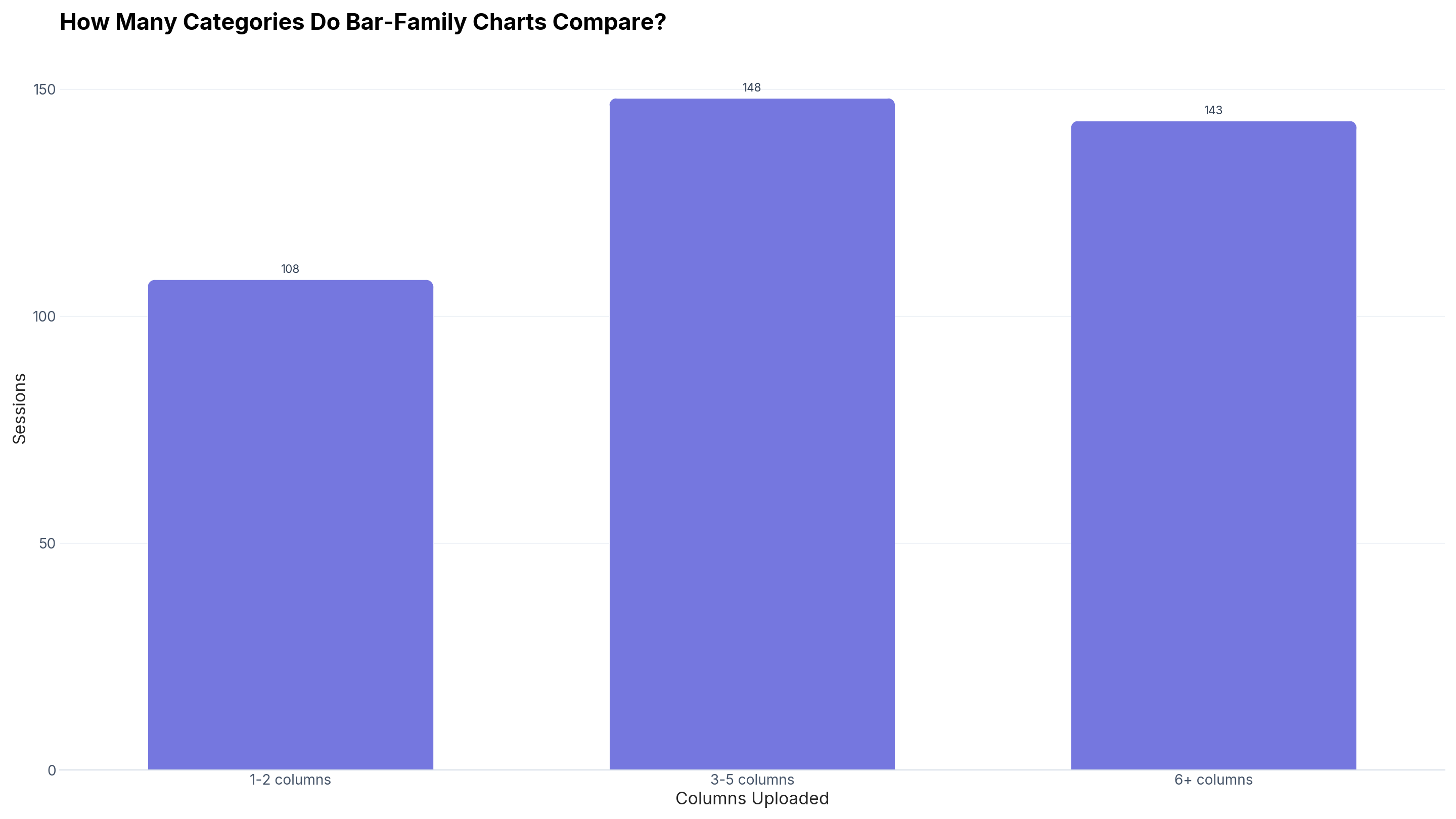
Likert dashboards are a specific case of a broader pattern: comparing several categories (survey questions, response options) side by side or stacked. We pulled our own usage data to see how common that shape actually is. Based on 399 bar-family charts (Bar, Grouped Bar, Stacked Bar) generated with CleanChart between May 12 and October 1, 2026, 73% (291 of 399) compare 3 or more categories in a single chart, exactly the shape of a multi-question Likert dashboard.
Within that bar family, the plain Bar chart still dominates: 409 sessions versus 57 for Grouped Bar and Stacked Bar combined (Grouped Bar and Stacked Bar are each below our 50-session minimum publishable sample size on their own, so they're reported together here). That's about 1 in 8 bar-family charts using a layout built for side-by-side or stacked comparison, the layout family this guide is about.
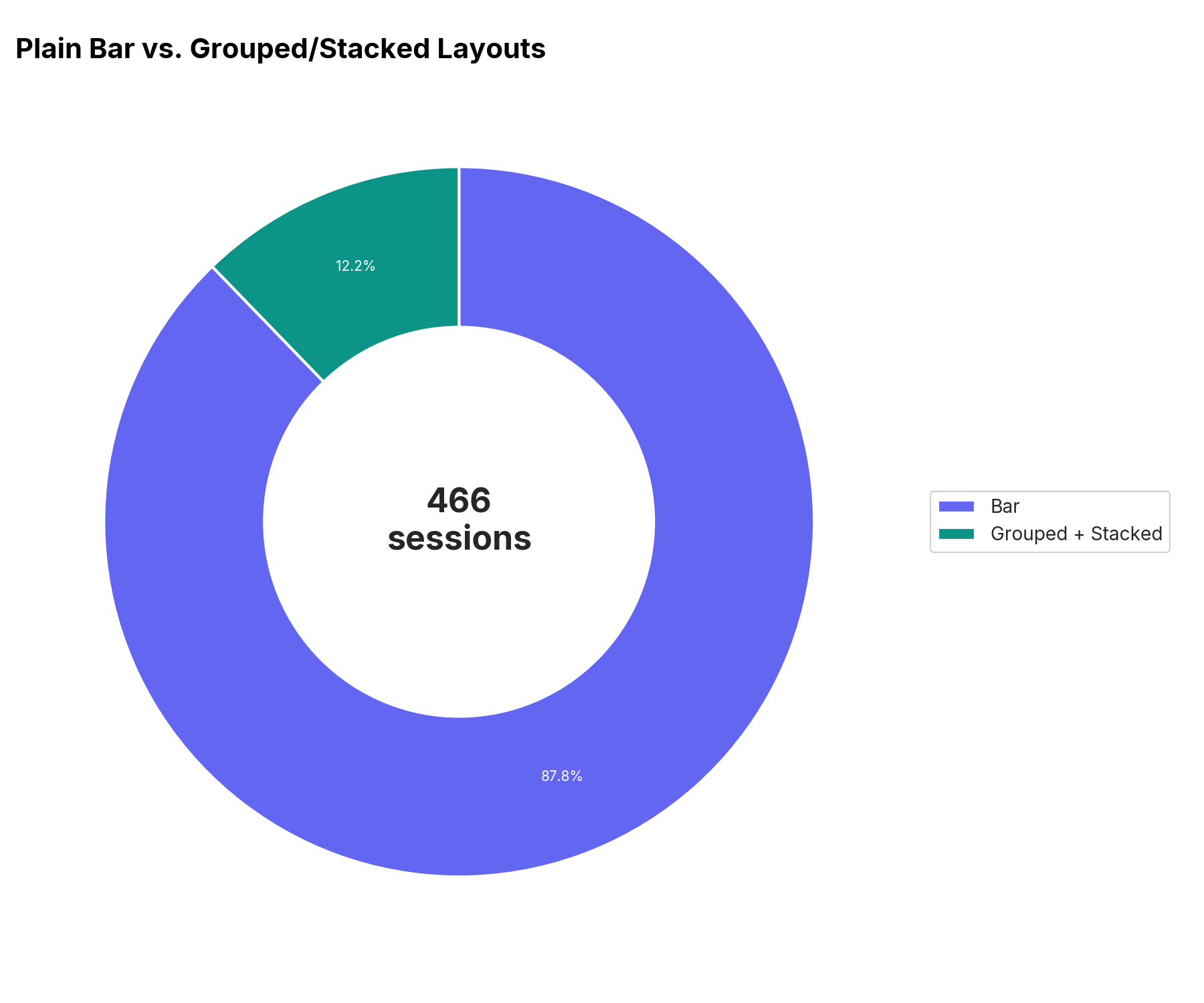
Chart #1: Diverging Stacked Bar Chart (Recommended)
A diverging stacked bar chart is the gold standard for Likert scale data. It centers each bar on the neutral response, pushing positive responses to the right and negative responses to the left. This creates a visual "tug of war" that immediately shows whether sentiment leans positive or negative.
How to read it
- Bars extending to the right = positive responses (Agree, Strongly Agree)
- Bars extending to the left = negative responses (Disagree, Strongly Disagree)
- The center represents neutral responses
- Wider bars = stronger sentiment in that direction
When to use it
Use diverging stacked bars when you have 3–15 survey questions with the same Likert scale and want to compare overall sentiment direction across them. This is the default choice for employee engagement surveys, customer satisfaction reports, and course evaluations.
How to build it
To create a diverging stacked bar chart:
- Calculate the percentage of responses in each Likert category for every question.
- Split the neutral percentage in half — assign 50% to the negative side and 50% to the positive side.
- Use a stacked bar chart with the negative categories plotted as negative values (left of center) and positive categories as positive values (right).
- Apply a diverging color palette — red/orange for negative responses, blue/green for positive, and gray for neutral. For accessible palettes, see our color palette guide.
In CleanChart, you can build this by preparing your data with negative percentages for Disagree/Strongly Disagree columns, then uploading and selecting the stacked bar chart type.
Chart #2: 100% Stacked Bar Chart
A 100% stacked bar chart shows each Likert question as a bar of equal length, divided into segments by response category. Every bar represents 100% of responses, making it easy to compare proportions across questions.
When to use it
Use this when you care more about the distribution of responses than the positive-vs-negative split. It works well when:
- Your audience is unfamiliar with diverging charts
- You want to highlight the proportion of neutral responses
- You are comparing questions with different sample sizes
How to build it
- Calculate percentages for each response category per question.
- Use a stacked bar chart and ensure all bars total 100%.
- Order the segments consistently: Strongly Disagree on the left through Strongly Agree on the right.
- Use a sequential color scheme that reflects the ordinal nature of the scale — darker shades for extreme responses, lighter for moderate ones.
Chart #3: Grouped Bar Chart
A grouped bar chart places individual bars side by side for each response category within a question. This is the simplest approach and works well when you need exact counts or percentages.
When to use it
- You have only 1–3 survey questions to visualize
- Your audience needs to read precise values
- You are comparing two groups (e.g., before vs. after an intervention)
Build this with a grouped bar chart. Each question gets a group of 5 bars (one per Likert point). For more on comparing grouped and stacked bar approaches, see our stacked vs. grouped bar chart guide.
How to Prepare Likert Scale Data for Charting
Your survey platform (Google Forms, SurveyMonkey, Qualtrics, Typeform) will export responses as CSV or Excel files. Here is how to structure the data for visualization.
Format A: Raw responses (one row per respondent)
| Respondent | Q1: Easy to use | Q2: Good value | Q3: Would recommend |
|---|---|---|---|
| 1 | Agree | Strongly Agree | Neutral |
| 2 | Strongly Agree | Agree | Agree |
| 3 | Disagree | Neutral | Disagree |
To chart this, you need to aggregate it into counts or percentages first.
Format B: Aggregated (ready to chart)
| Question | Strongly Disagree | Disagree | Neutral | Agree | Strongly Agree |
|---|---|---|---|---|---|
| Easy to use | 5% | 10% | 15% | 40% | 30% |
| Good value | 8% | 12% | 20% | 35% | 25% |
| Would recommend | 3% | 7% | 25% | 38% | 27% |
This wide layout is the clearest way to read and check your numbers by eye, but it is not what CleanChart's Stacked Bar and Grouped Bar chart types need for upload. Both require a Group Column, which only works with a long, one-row-per-response table.
Format C: Long format (what you actually upload)
| Question | Response | Percentage |
|---|---|---|
| Easy to use | Strongly Disagree | 5 |
| Easy to use | Disagree | 10 |
| Easy to use | Neutral | 15 |
| Easy to use | Agree | 40 |
| Easy to use | Strongly Agree | 30 |
| Good value | ... | ... |
Reshape Format B into this one row per question-and-response pair (a spreadsheet's "unpivot" or "melt" tool does this, or paste-special by row), then export as CSV. Upload this version. CleanChart will notice "Question" repeats and ask whether to sum Percentage into one bar per question or keep every row; choose Keep as-is so each response option stays visible as its own segment. For help preparing survey exports generally, see our guide on survey data visualization.
Common Mistakes When Charting Likert Data
Mistake #1: Treating Likert data as continuous numbers
Calculating an average of 1–5 ratings and plotting it as a line chart or single bar implies equal intervals between response options. "The difference between Agree and Strongly Agree" is not necessarily the same as "the difference between Disagree and Neutral." Show the full distribution instead of collapsing it to a mean.
Mistake #2: Using a pie chart
Pie charts show one question at a time and lose the ordinal structure of the scale. With 5 slices of similar size, they are nearly unreadable. Stacked bars do everything a pie chart does, but better — and they let you compare across questions side by side.
Mistake #3: Using red and green for disagree and agree
Approximately 8% of males have red-green color deficiency and cannot distinguish these colors. Use a diverging palette that works for everyone — blue/orange or purple/teal are safe choices. See our colorblind-friendly chart guide for tested palettes.
Mistake #4: Not labeling the scale
If your chart legend shows "1, 2, 3, 4, 5" instead of the actual response labels, readers have to guess what each number means. Always use the text labels (Strongly Disagree through Strongly Agree) in your legend and axis.
Step-by-Step: Visualize Likert Data with CleanChart
- Prepare your data in Format C above: one row per question-and-response pair, with a Percentage (or count) column.
- Export as CSV from your spreadsheet (File → Download → CSV).
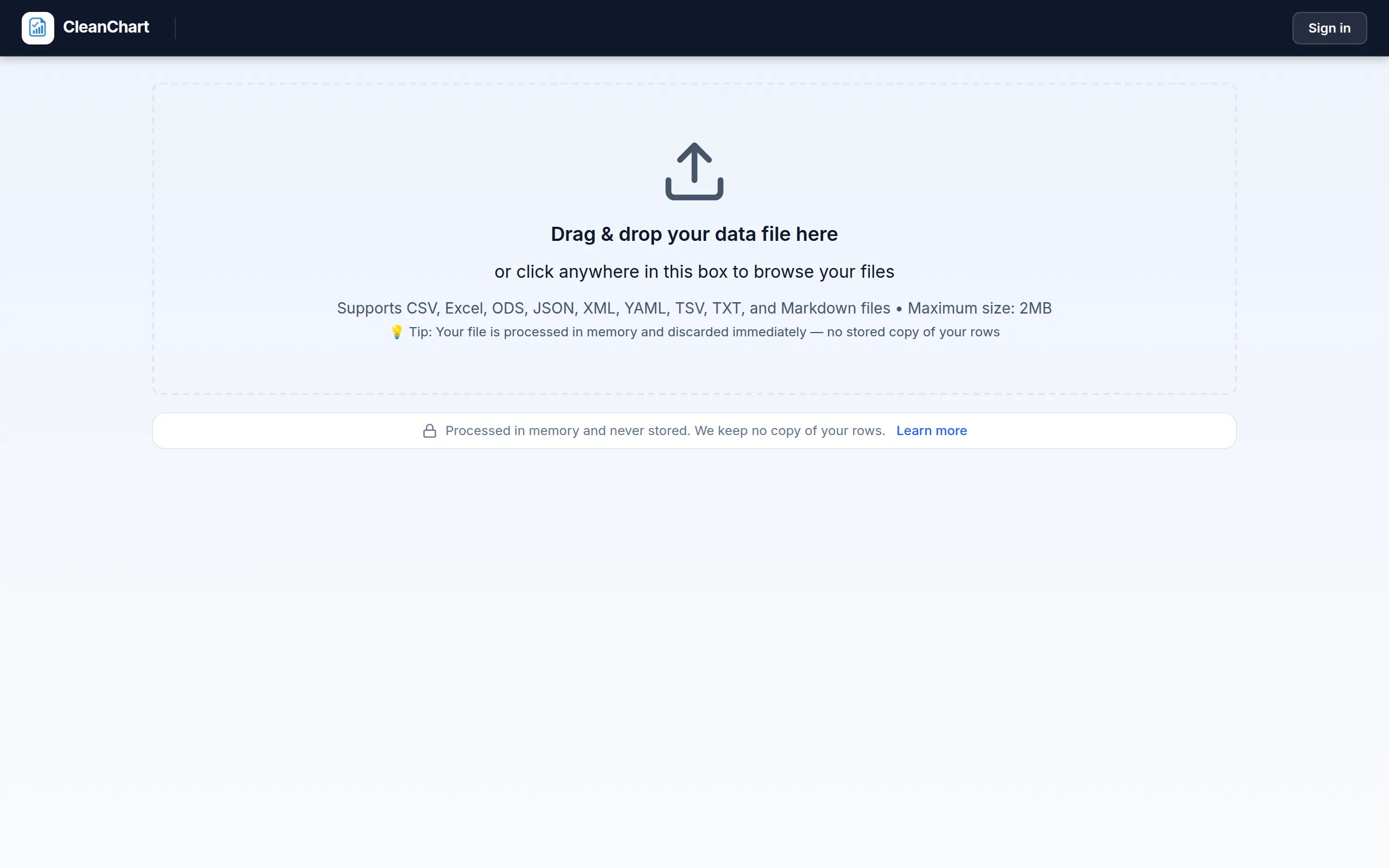
- Upload to CleanChart. Drag and drop your CSV file.
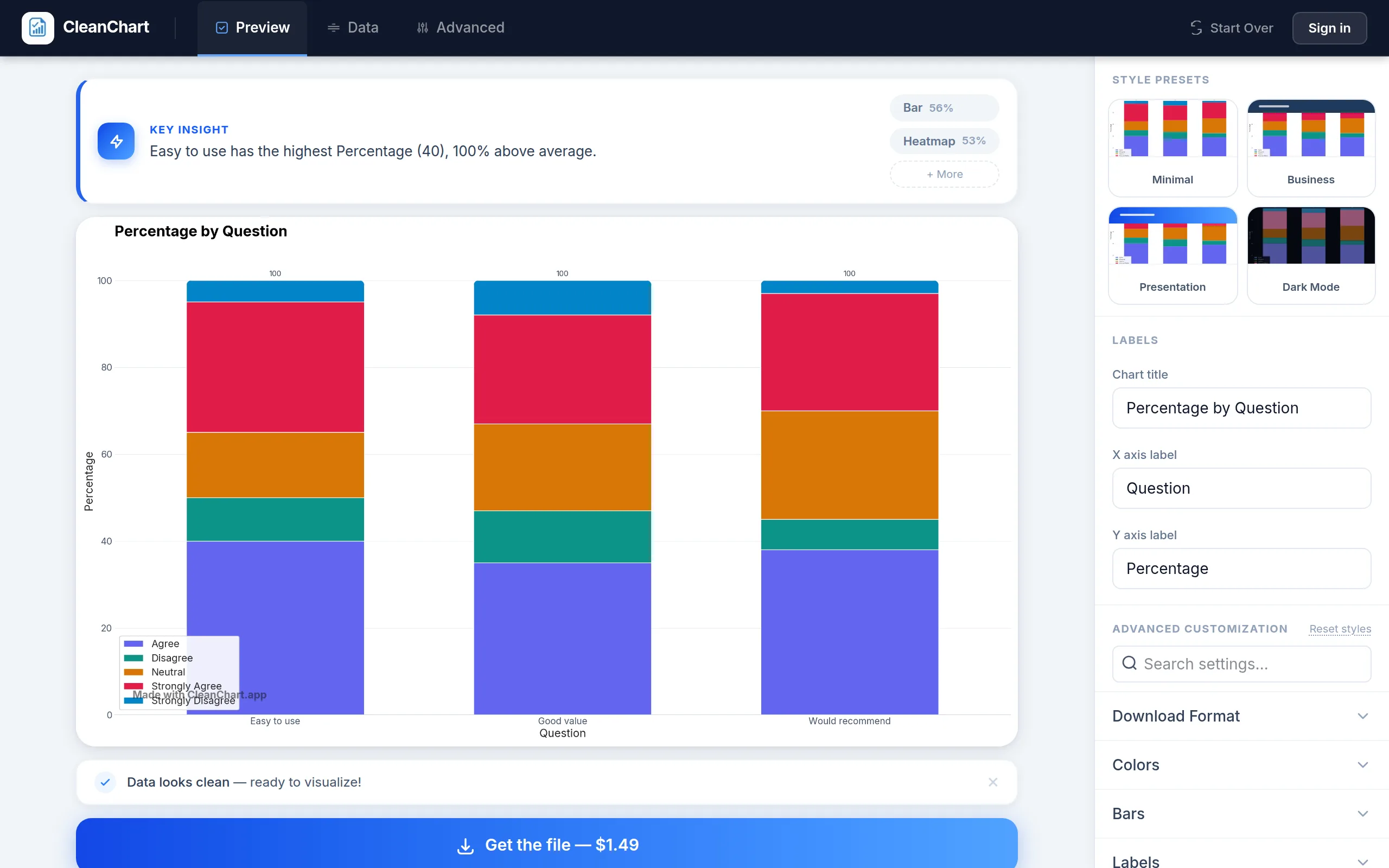
- Keep every row if CleanChart asks whether to sum Percentage by question. Click Keep as-is, not Sum by category.
- Select Stacked Bar Chart from the chart type selector (under "+ More" if it is not in the top suggestions).
- Check the column mapping in the sidebar: Question as the X axis, Percentage as the Y axis, and Response as the Group Column, the field that splits each bar into segments.
- Choose a diverging color palette in the Colors section. Use a palette that runs from a warm color (disagree) through gray (neutral) to a cool color (agree).
- Add a title and labels. Make sure the legend shows "Strongly Disagree" through "Strongly Agree," not numeric codes.
- Export as PNG or SVG for your report or presentation.
Here is that flow on a real, three-question dataset in the long format from Format C:
You can also start directly with our CSV to stacked bar converter for a faster workflow.
Related CleanChart Resources
- Charts for Survey Data — comprehensive guide to visualizing all types of survey results
- How to Make a Radar Chart — the other common option for multi-attribute Likert ratings, one polygon per respondent group
- Stacked vs. Grouped Bar Charts — when to use each layout for categorical comparisons
- Chart Types Explained — full reference for choosing the right chart for any data type
- Colorblind-Friendly Charts — palette selection for inclusive data visualization
- Data Visualization Color Palettes — choosing sequential, diverging, and categorical palettes
- Stacked Bar Chart Maker — create stacked bar charts from your data
- Grouped Bar Chart Maker — create grouped bar charts for side-by-side comparisons
- Bar Chart Maker — create standard bar charts
- CSV to Stacked Bar — one-click converter
- Google Sheets to Stacked Bar — convert directly from Google Sheets
External Resources
- Likert Scale (Wikipedia) — history, methodology, and psychometric properties of Likert scales
- Simply Psychology: Likert Scale Guide — accessible introduction to Likert scale design and analysis
- UCLA Statistical Methods: Variable Types — understanding ordinal vs. interval data for proper chart selection
- NerdSip — micro-learning platform for data literacy and visualization skills
Frequently Asked Questions
What is the best chart for Likert scale data?
A diverging stacked bar chart is the best default choice. It centers on the neutral response and shows positive sentiment extending to the right and negative sentiment to the left, making it easy to compare across multiple survey questions at a glance. For simpler needs, a 100% stacked bar chart also works well.
Should I use the mean or the full distribution to visualize Likert data?
Show the full distribution whenever possible. Likert data is ordinal, not interval, so calculating a mean (e.g., "average rating: 3.7") assumes equal spacing between response options, which is not guaranteed. The full distribution reveals bimodal patterns, high neutral rates, and other insights that a single average hides.
How many Likert scale points should I use in my survey?
Five-point and seven-point scales are both widely used. Five-point scales are simpler for respondents and produce cleaner charts. Seven-point scales offer more granularity but can overwhelm less engaged respondents. Research by psychometric studies suggests both produce reliable data — choose based on your audience and question complexity.
Can I make a Likert scale chart in Google Sheets?
Google Sheets can create basic stacked bar charts, but it does not support diverging stacked bars natively. You would need to manually calculate negative offsets for the disagree responses. A faster alternative is to export your data as CSV and upload it to CleanChart, which handles the stacked bar layout automatically.
How do I handle "N/A" or "Don't Know" responses in Likert charts?
Exclude "N/A" and "Don't Know" responses from the main stacked bar chart. Report the percentage of N/A responses separately — either as a footnote or as an additional column in your data table. Including them in the bar distorts the positive-negative balance and makes the chart harder to interpret.
Last updated: October 1, 2026