To make a radar chart, upload a table with 4–7 comparable variables as columns to CleanChart's free radar chart maker — no coding required. A radar chart (also called a spider chart, spider graph, web chart, or, in reliability and software-quality engineering, a Kiviat chart) plots those variables on axes radiating from a central point, so it's the clearest way to compare items across several dimensions at once, whether you're evaluating product features, employee performance, or survey results.
This guide explains when radar charts work (and when they don't), how to build one step by step, and the common mistakes that make radar charts misleading. You'll also find real CleanChart usage data on how often radar charts actually get used, and screenshots of the no-code flow.
Updated October 1, 2026 (usage data refreshed): added a dataset column-count breakdown showing how many uploads already fit radar's 4–7-column sweet spot.
Updated September 25, 2026: added real CleanChart usage data on how common radar charts are and how fast they render, app screenshots of the radar chart maker auto-detecting a radar chart from survey data, and FAQ coverage of the Kiviat chart name.
What Is a Radar Chart?
A radar chart is a two-dimensional chart that displays multivariate data on axes arranged radially around a central point. Each axis represents one variable, and data values are plotted along the axis and connected to form a polygon. The resulting shape — wider on stronger axes, narrower on weaker ones — gives an immediate visual "profile" of the item being measured.
The chart type has several names used interchangeably:
- Spider chart / spider graph — because the axes look like spider legs, and its angular, multi-sided outline is why some tools label it an "angular spider chart"
- Web chart — because multiple datasets create overlapping web patterns
- Radar plot — common in scientific literature
- Star chart or polar chart — used in some tools
- Kiviat chart: the name used in software engineering and systems performance analysis, after Philip Kiviat, who introduced the format in a 1970s IBM report on evaluating computer system performance
You may also see radar charts described as "angular" charts. This isn't a separate chart type: it refers to the axes being spaced at equal angles around the center point, as opposed to a purely circular gauge. If a tool or tutorial mentions an "angular spider chart," it means the same radar/spider chart covered in this guide.
According to Wikipedia's radar chart entry, the chart was popularized in the 1980s by management researchers and is now standard in product benchmarking, UX research, and sports analytics.
How Does a Radar Chart Work?
Each variable gets its own axis radiating from the center. All axes are evenly spaced and scaled the same way (e.g., 0–10 or 0–100). A data point on one axis is connected to the adjacent data points to form a closed polygon. Multiple datasets appear as overlapping polygons, making comparisons immediate.
When Should You Use a Radar Chart?
Use a radar chart when you need to compare multiple items across the same set of dimensions simultaneously. It excels at revealing strengths, weaknesses, and overall "profiles" that would require several separate charts to communicate otherwise.
Ideal Use Cases
- Product comparison — Compare two or three products across features like Price, Quality, Durability, Support, and Ease of Use
- Employee performance reviews — Plot scores for Communication, Technical Skills, Teamwork, Initiative, and Delivery
- Survey multi-attribute ratings — When respondents rate an experience on several dimensions simultaneously (see our survey data visualization guide)
- Sports performance analysis — Compare players across Speed, Strength, Agility, Accuracy, and Endurance
- Brand perception research — Track how a brand scores on Trust, Innovation, Value, Reliability, and Design
- Competitive benchmarking — Show how your offering compares to competitors on multiple dimensions at once
When NOT to Use a Radar Chart
- More than 7 axes — The chart becomes too cluttered to read. Use a heatmap instead for many variables.
- Fewer than 3 axes — Two or three variables are better shown in a bar chart.
- Precise values matter — Radar charts are hard to read precisely. If exact numbers matter, use a table or bar chart.
- Non-expert audiences — Unfamiliar audiences may struggle to interpret polygon overlaps. A simple bar chart communicates more clearly.
- More than 3 datasets — Overlapping polygons become unreadable. Limit to 2–3 datasets per radar chart.
- Ordered or time-series data — Use line charts for trends over time.
Radar Chart vs. Bar Chart: Which to Choose?
This is the most common decision when visualizing multi-dimensional data. Here's a direct comparison:
| Factor | Radar Chart | Bar Chart |
|---|---|---|
| Number of dimensions | 4–7 (ideal) | Any number |
| Overall profile view | Excellent — polygon shape = instant profile | Poor — requires reading individual bars |
| Precise value reading | Difficult | Easy |
| Comparing 2–3 items | Excellent (overlapping polygons) | Good (grouped bars) |
| Audience familiarity | Lower | Higher |
| Shows balance/imbalance | Excellent — irregular shapes stand out | Good but requires more reading |
Rule of thumb: If you want to show "what's the overall profile?", use a radar chart. If you want to show "exactly how much?", use a bar chart. For a complete decision framework, see our chart types explained guide.
How to Create a Radar Chart Step by Step
Here's how to create a radar chart using CleanChart's free radar chart maker — no coding or Excel required.
Step 1: Define Your Variables (Axes)
Choose 4–7 variables that are meaningful and comparable. All variables must be measured on the same scale (e.g., all on a 1–10 rating, or all as percentages). Mixing scales — some out of 10, others out of 100 — makes the chart misleading.
Good variable set (product evaluation): Price Value, Build Quality, Ease of Use, Customer Support, Feature Set — all rated 1–10.
Bad variable set: Price ($), Quality (1–10), Speed (seconds) — three incompatible scales.
Step 2: Prepare Your Data
Structure your data as a table with variable names as columns and items as rows. For CSV or JSON input to CleanChart, it looks like this:
Category,Product A,Product B,Competitor
Price Value,8,6,7
Build Quality,7,9,6
Ease of Use,9,7,8
Customer Support,8,8,5
Feature Set,6,9,7
If your data is in JSON format, use our JSON to Radar Chart converter to upload it directly. For CSV files, use CSV to Radar Chart. For Google Sheets data, download the sheet as CSV and use the same CSV converter.
Step 3: Open the Radar Chart Maker
Go to CleanChart's Radar Chart Maker and upload your file. The tool automatically maps each row to a radar axis and each column to a dataset polygon.
Step 4: Customize Your Chart
- Title — Describe what's being compared (e.g., "Product A vs. B: Feature Comparison")
- Colors — Use distinct colors for each polygon. For colorblind-accessible palettes, see our guide to colorblind-safe charts.
- Fill opacity — Semi-transparent fills (30–50% opacity) prevent polygons from hiding each other
- Scale — Set the minimum and maximum to match your data range
- Grid lines — Keep them subtle; they help with value estimation without cluttering
Step 5: Export and Share
Download as PNG for presentations, SVG for publications, or PDF for reports. For embedding in slides, see our guide on exporting charts for PowerPoint.
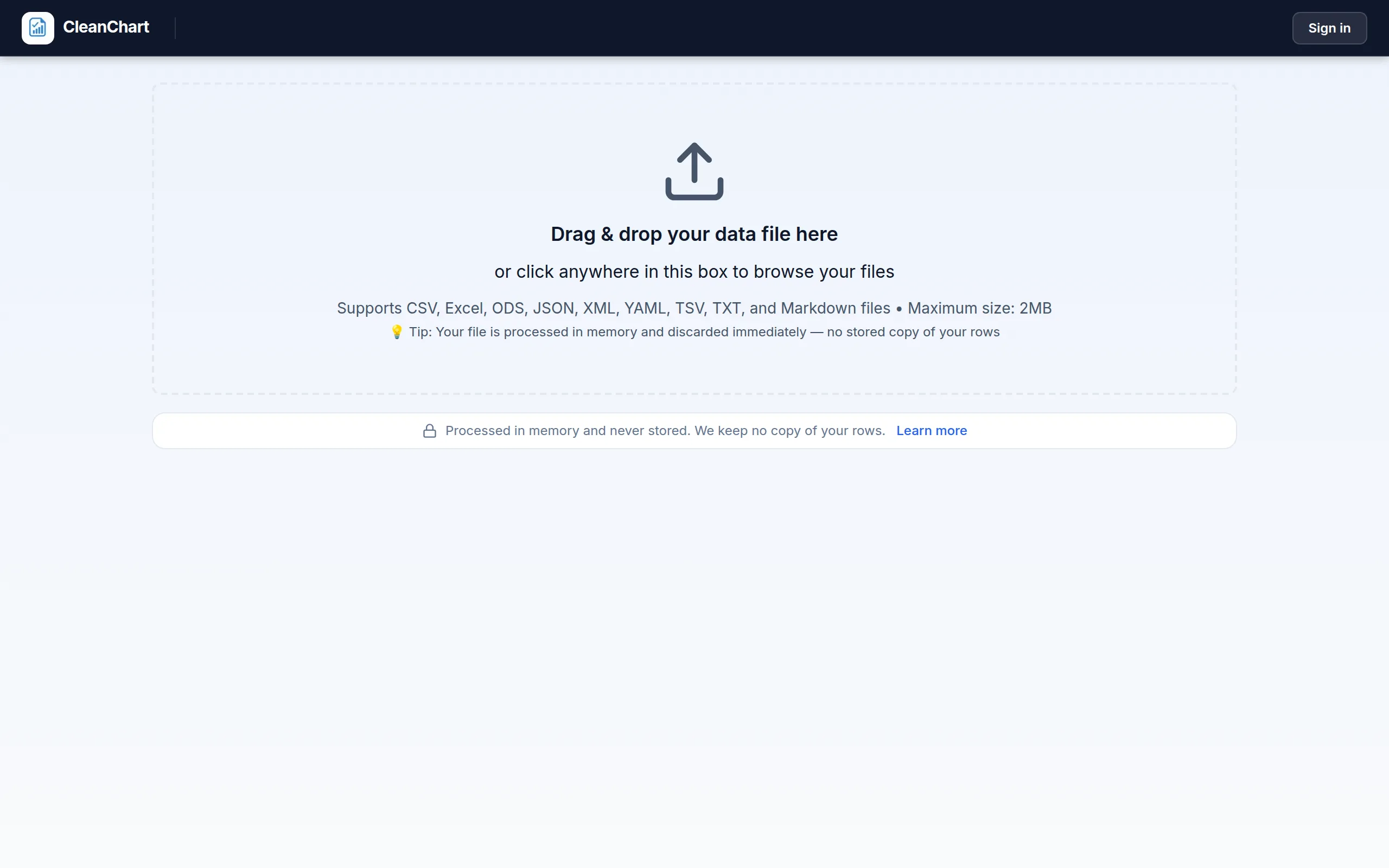
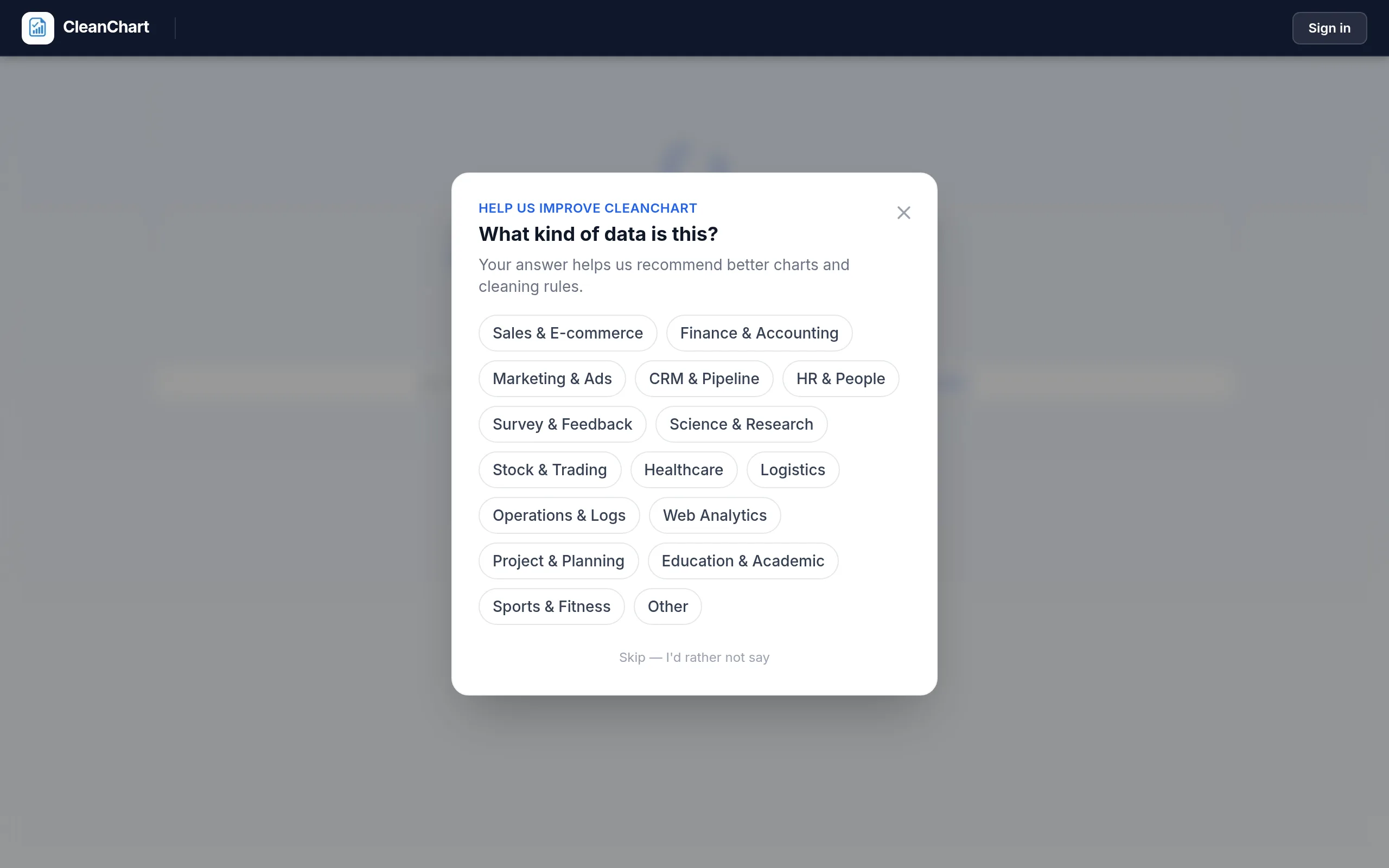
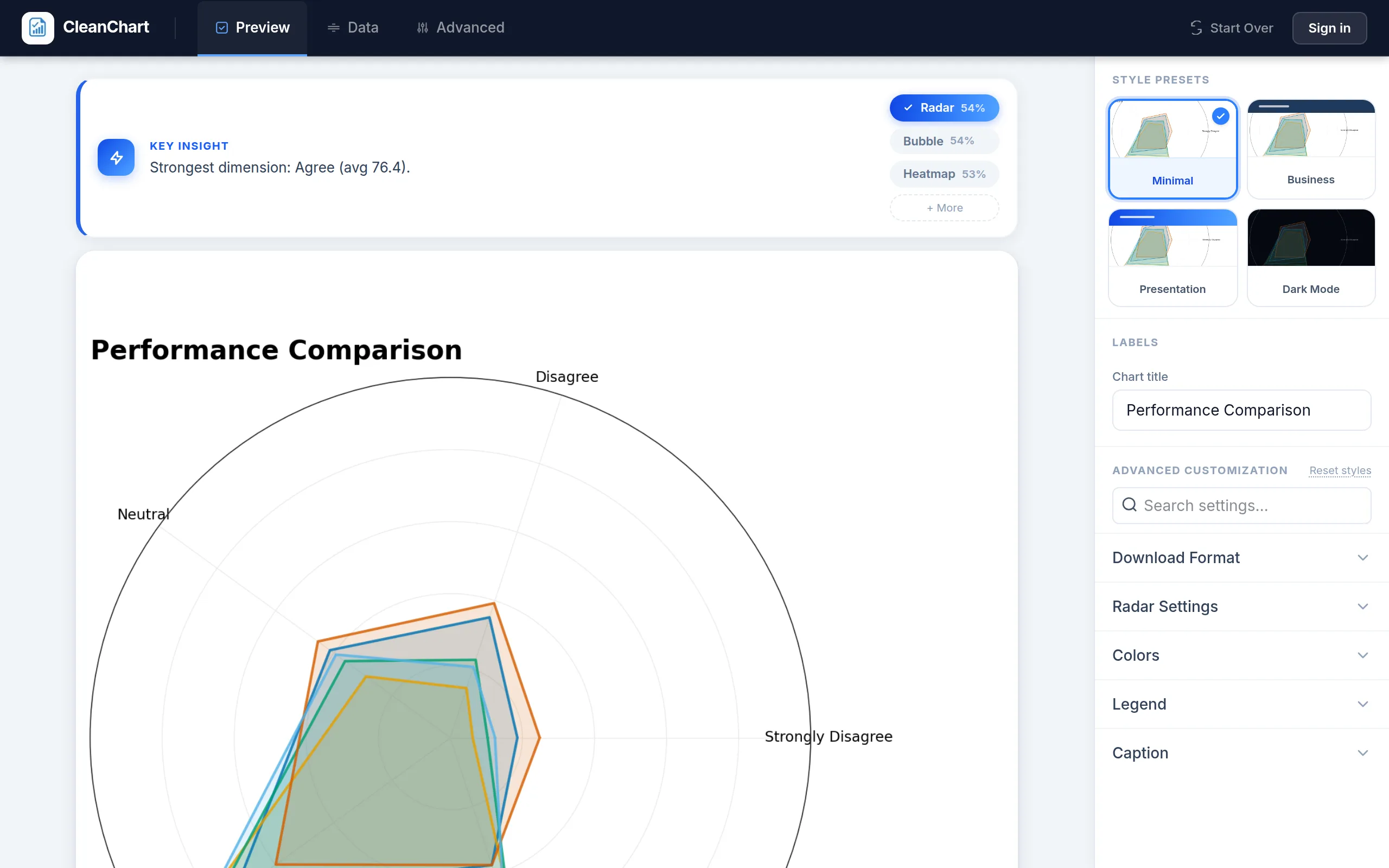
See It in Action: Auto-Detecting a Radar Chart from Survey Data
You don't have to pick "Radar Chart" manually every time. When CleanChart recognizes Likert-scale survey data (one row per question, one column per response option), it recommends a radar chart automatically. Here's the flow with a real employee-survey CSV:
Radar Chart Examples by Use Case
Example 1: Product Feature Comparison
A SaaS company comparing its tool against two competitors across five dimensions. Each polygon represents one tool. The radar chart immediately shows that "Your Tool" leads on Ease of Use and Support but lags on Advanced Features — a clear signal for product roadmap prioritization.
Dimension,Your Tool,Competitor A,Competitor B
Ease of Use,9,6,7
Advanced Features,6,9,8
Customer Support,9,7,5
Price Value,8,6,9
Integrations,7,8,6
Example 2: Employee Skills Assessment
HR teams use radar charts to visualize performance review scores. Two employees' profiles overlap — one strong on Technical Skills but weak on Communication, the other the opposite. This profile view makes individual development plans obvious at a glance.
Example 3: Survey Multi-Attribute Ratings
A restaurant survey asking customers to rate Food Quality, Service Speed, Atmosphere, Value for Money, and Cleanliness on a 1–5 scale. The radar chart shows the restaurant's "personality profile" — strong on Atmosphere but weak on Value. For more on survey chart selection, see our guide to visualizing survey data.
Example 4: Sports Performance
Comparing two athletes across Speed, Strength, Agility, Endurance, and Accuracy. The irregular polygon shapes immediately communicate which athlete is more "well-rounded" vs. which is specialized. Sports analytics uses radar charts extensively — StatsBomb and other sports analytics platforms have popularized "pizza charts" (circular radar charts) for football player profiles.
How Common Are Radar Charts? Real CleanChart Usage Data
Radar charts are a deliberately narrow tool. They're built for the specific job of showing a multi-dimensional "profile," not for general-purpose charting, and that shows up in how often people actually create them.
Across 2,689 chart-generation sessions on CleanChart from May to October 2026, Gantt (879), bar (409), and line (314) charts dominate. Radar sits well down the list, between scatter (52) and bubble (21): a small enough bucket (n = 35) that we can't publish an exact count for it under our own minimum-sample-size rule (n ≥ 50). TODO(data): the precise radar-chart session count isn't publishable this window. What we can say precisely is the shape of the rest of the distribution:
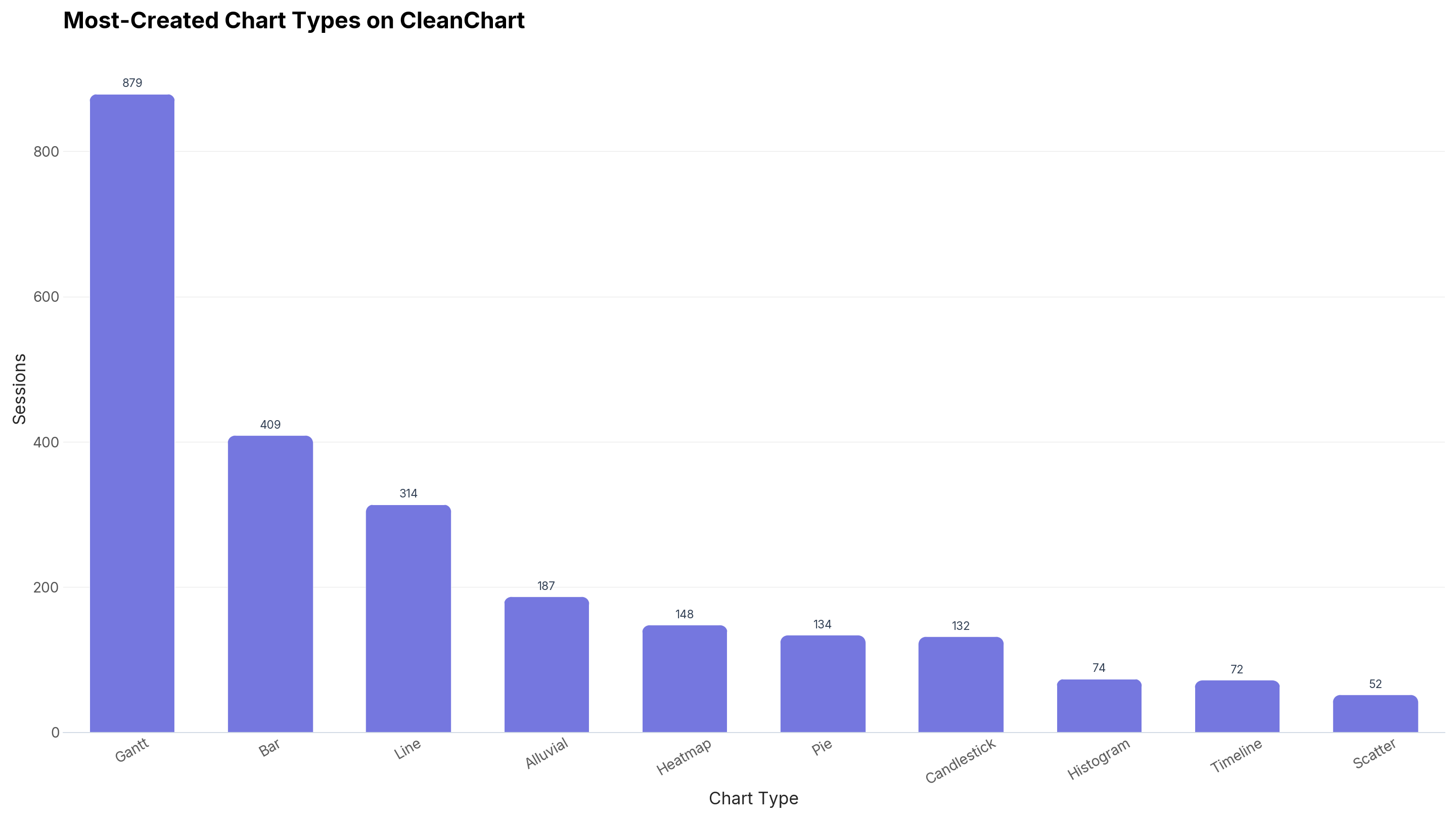
Source: CleanChart usage data, May–Oct 2026, n = 2,689.Download the underlying data (CSV).
The takeaway for radar charts specifically: they're a precision tool for the 4–7-dimension, 2–3-item comparisons described above, not a default chart type. That matches the guidance throughout this post to reach for a bar chart first and switch to radar only when the "profile" shape is the actual point.
Radar's 4–7 axis sweet spot is a real constraint on real data, not a rule of thumb we invented. Here's how many columns people's uploaded datasets actually have, across every chart type:
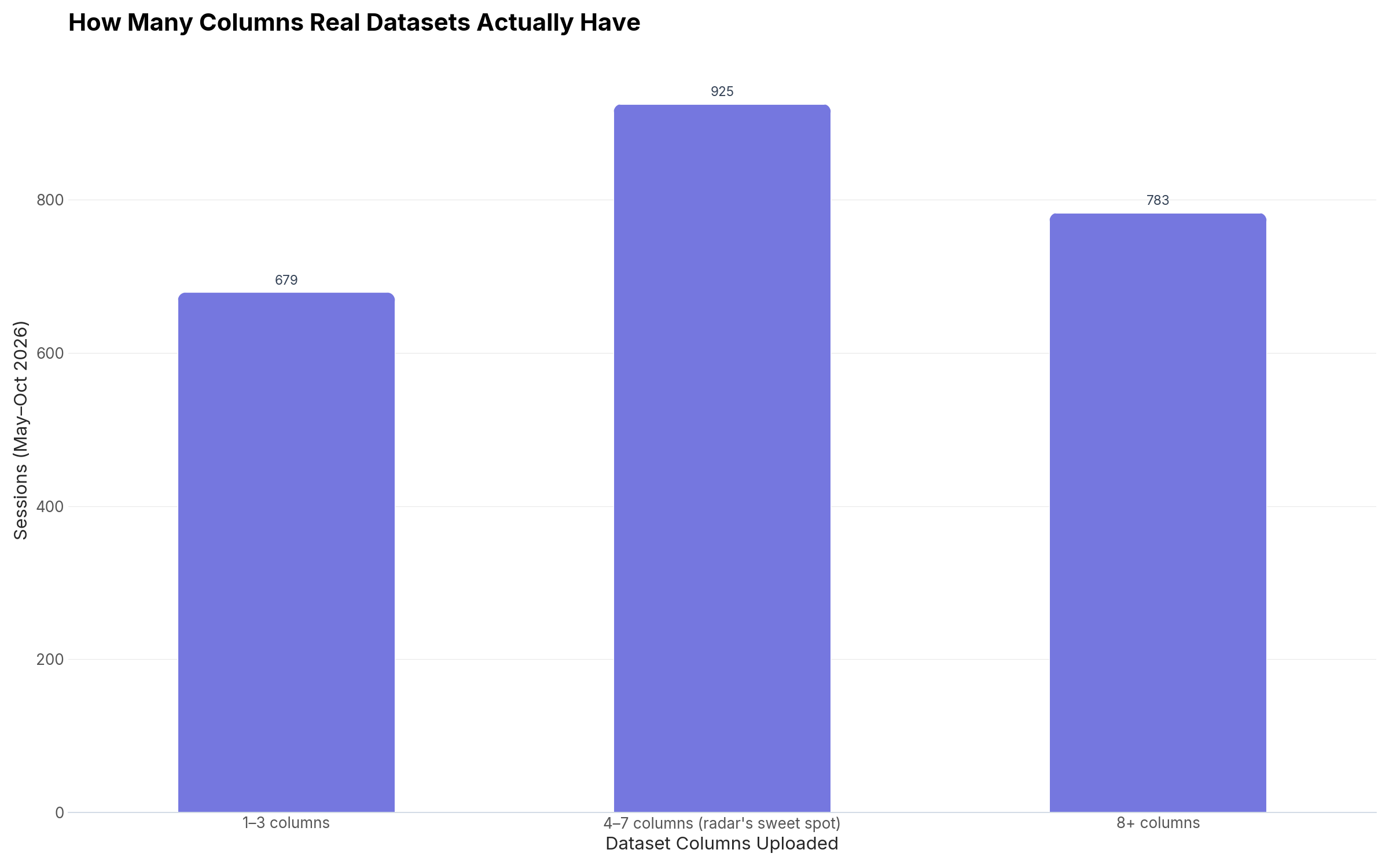
Takeaway: 38.8% of uploaded datasets (925 of 2,387) land in the 4–7 column range radar charts need, the single largest of the three bands. If your data already has that shape, a radar chart is worth trying before defaulting to a bar chart. Source: CleanChart usage data, May–Oct 2026, n = 2,387 sessions with a recorded column count. Download the underlying data (CSV).
One number does hold up across chart types, radar included: how fast CleanChart gets you from upload to a rendered chart. Across 1,164 sessions with a successful render in the same window, the median time from upload to first chart is 17 seconds, with 90% of sessions finished within 51 seconds. TODO(data): a radar-only breakdown of this timing isn't publishable either (n = 19 for radar specifically, also below our n ≥ 50 threshold), so this figure covers all chart types together, not radar in isolation.
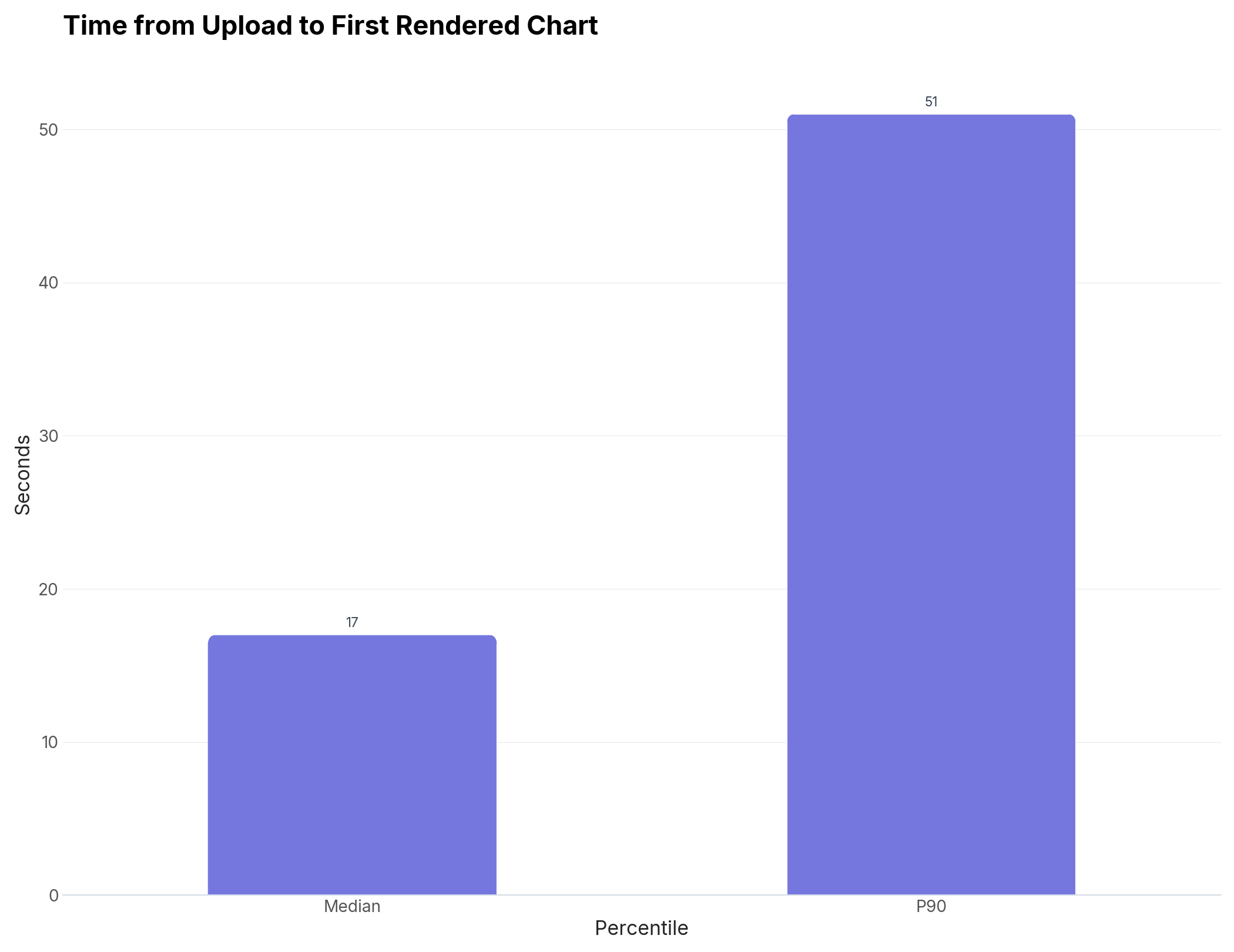
Source: CleanChart usage data, May–Oct 2026, n = 1,164.Download the underlying data (CSV).
Radar Chart Best Practices
1. Keep Axes to 4–7 Variables
Below 4 axes, the polygon looks like a triangle or quadrilateral with little visual impact. Above 7 axes, the chart becomes cluttered and hard to read. If you have 10+ dimensions, use a heatmap instead — it scales much better.
2. Use the Same Scale for All Axes
Every axis must share the same measurement scale. If one axis is 0–10 and another is 0–100, the polygon will be distorted and misleading. Normalize your data to a common scale (e.g., percentages of maximum) before plotting.
3. Order Axes Thoughtfully
Adjacent axes on a radar chart appear related. Group conceptually similar dimensions together — "Quality" dimensions near each other, "Performance" dimensions near each other. The ordering affects how the resulting polygon is interpreted.
4. Limit to 2–3 Datasets
Each additional dataset adds another overlapping polygon. More than 3 datasets creates a visual tangle where polygons obscure each other. If you need more comparisons, create multiple smaller radar charts or switch to a grouped bar chart.
5. Label Data Points When Space Allows
Add value labels at each axis point when chart size allows. This helps readers extract exact values without squinting at the scale. If the chart is too small, provide a data table below it.
6. Choose High-Contrast Colors
Use colors that contrast clearly with each other and with the chart background. Semi-transparent fills (30–50% opacity) let overlapping polygons remain visible. Apply professional color palettes for polished results.
Common Radar Chart Mistakes
Mistake 1: Too Many Axes
Squeezing 10+ dimensions onto a radar chart makes every axis tiny and unreadable. If you need to show more than 7 variables, use a heatmap matrix or a parallel coordinates plot instead.
Mistake 2: Mixed Scales
Plotting a 0–10 rating next to a 0–100 percentage makes the polygon shape meaningless. A dimension measured out of 100 will always appear much larger than one measured out of 10, even if the underlying performance is identical. Always normalize to a single scale.
Mistake 3: Too Many Overlapping Polygons
Four or more polygons overlap so heavily that individual shapes become unrecognizable. Stick to 2–3 datasets per chart. If you need more comparisons, create a small multiple grid of radar charts.
Mistake 4: Ignoring the Order Effect
Dimensions that are adjacent on the chart appear visually correlated. Randomly ordering axes can make unrelated dimensions look linked. Think carefully about which dimensions belong next to each other.
Mistake 5: Using a Radar Chart When a Bar Chart Is Clearer
Radar charts look sophisticated but aren't always the best choice. If your audience isn't familiar with them, or if precise comparisons matter, a grouped bar chart communicates more directly. Use radar charts when the shape or "profile" itself is the message. For guidance on choosing the right chart, see our data visualization for beginners guide.
Frequently Asked Questions
What is the difference between a radar chart and a spider chart?
They are the same chart type with different names. "Radar chart," "spider chart," "spider graph," "web chart," and "star chart" all refer to the same visualization: a multivariate chart with axes radiating from a central point connected to form a polygon. The different names reflect usage in different fields (military radar displays vs. sports analytics vs. product design).
How many variables should a radar chart have?
The optimal range is 4–7 variables. Fewer than 4 variables don't benefit from the radar format — a bar chart is clearer. More than 7 variables make the chart too cluttered. If you have 8–15 variables, consider a heatmap. For 16+, use a table.
Can you have a radar chart with just one dataset?
Yes. A single-dataset radar chart shows the "profile" of one item — which dimensions are strong and which are weak. It's commonly used for employee self-assessments, skill gap analysis, and single-product quality reviews. The polygon's irregular shape makes strengths and weaknesses immediately obvious.
What's the best free radar chart maker?
CleanChart's Radar Chart Maker is free and requires no account. Upload your CSV or JSON file, customize colors and labels, and export high-resolution charts. For Excel data, use the Excel to Radar Chart converter.
How do I create a radar chart from a CSV file?
Structure your CSV with dimension names in the first column and one column per dataset. Upload to CleanChart's CSV to Radar Chart converter. The tool automatically maps rows to axes and columns to polygons. See Step 2 above for the exact format.
When should I use a radar chart instead of a heatmap?
Use a radar chart when comparing 2–3 items across 4–7 dimensions and you want to show their overall profiles. Use a heatmap when comparing many items across many dimensions — heatmaps scale to 10x10 or larger matrices without becoming unreadable.
Can I create a radar chart in Excel?
Yes — Excel calls it a "Radar chart" under Insert > Charts > Other Charts. Select your data range, insert the chart, and customize. However, for sharing-ready charts without Excel, CleanChart exports publication-quality PNG, SVG, and PDF formats directly. For a broader Excel comparison, see our Excel vs. online chart makers guide.
What is a Kiviat chart, and is it the same as a radar chart?
Yes. "Kiviat chart" is the name for a radar/spider chart used in software engineering and systems performance analysis, after Philip Kiviat, who introduced the format in a 1970s IBM report for visualizing multiple system-performance metrics at once (CPU load, memory use, I/O wait, and similar). A Kiviat chart example looks identical to any other radar chart: the same axes-radiating-from-a-center construction described in this guide, just applied to performance or quality metrics instead of products or surveys.
What does "angular spider chart" mean?
It's another way of describing a standard spider/radar chart. "Angular" refers to the axes being spaced at equal angles around the center point rather than laid out on a straight line, which is what makes the shape possible. There's no separate "angular spider chart" type to learn: it's the same chart built with the steps above.
Create a Radar Chart Free
Upload your data file and get a professional radar chart in under 2 minutes. No account required.
Open Radar Chart MakerRelated CleanChart Resources
Radar Chart Tools
- Radar Chart Maker – Free online radar chart creator
- CSV to Radar Chart – Upload a CSV and get a radar chart instantly
- JSON to Radar Chart – Convert JSON data to radar charts
- Excel to Radar Chart – Convert Excel data to radar charts
- Google Sheets to Radar Chart – Download the sheet as CSV, then upload it
Related Blog Posts
- Chart Types Explained – Complete guide to choosing the right chart for your data
- Charts for Survey Data – Multi-attribute survey visualization including radar charts
- Likert Scale Data Visualization – Stacked bar as the alternative to radar for Likert-scale ratings
- Data Visualization for Beginners – Foundations for new chart creators
- Stacked vs. Grouped Bar Charts – When bar charts beat radar charts for multi-series data
- Accessible Charts for Colorblind Users – Color-safe palettes for multi-polygon radar charts
- Best Color Palettes for Charts – Choose colors that make polygons distinct
- Export Charts for PowerPoint – Share radar charts in presentations
- Publication-Ready Charts – Academic standards for radar chart formatting
- How to Create a Donut Chart – Another CleanChart usage-data-backed guide, for part-to-whole data instead of multi-dimension profiles
- How to Create a Line Chart – For tracking one of these variables over time instead of comparing several at once
Alternative Chart Types
- Heatmap Maker – Best for many variables across many items
- Bar Chart Maker – Clearer for precise comparisons
- Bubble Chart Maker – Three-variable comparison with size encoding
- Scatter Plot Maker – Two-variable correlation analysis
External Resources
- Wikipedia: Radar Chart – History, uses, and technical background
- Data Visualisation Catalogue: Radar Chart – Functions, anatomy, and when to avoid
- Storytelling with Data: Spider Charts – Critique and best-use guidance from a leading data viz authority
- StatsBomb – Real-world sports analytics using radar charts at scale
- From Data to Viz: Radar Chart Caveats – When to use and when to avoid spider charts
- NerdSip – Micro-learning on data visualization and chart selection
Last updated: October 1, 2026