A line chart plots values along a continuous x-axis, usually time, and connects them with straight lines, making trends and turning points visible at a glance. Build one in CleanChart by uploading a CSV, Excel, or JSON file with a time column and at least one numeric column: the steps below take under two minutes, and the data section further down shows how many lines real CleanChart users actually plot.
Updated October 1, 2026 (usage data refreshed): added a data section from CleanChart's own usage numbers and app screenshots of a real multi-line chart.
Whether you're tracking monthly sales, website traffic, stock prices, or temperature data, a well-designed line chart communicates change over time better than any table of numbers ever could.
This guide covers everything you need to know: what line charts are, when to use them, how to create one in minutes using CleanChart, and the design principles that separate good line charts from great ones.
What Is a Line Chart?
A line chart (also called a line graph) plots data points along a continuous x-axis — usually time — and connects them with straight lines. The x-axis typically represents time intervals (days, months, years), while the y-axis represents the measured value (sales revenue, temperature, active users, etc.).
Line charts are especially effective because the slope of the line between two points immediately communicates the rate of change — steep lines mean rapid change, flat lines mean stability, and downward slopes mean decline.
Line chart vs. area chart
A line chart and an area chart are nearly identical — the difference is that area charts fill the space below the line with color. Use a line chart when comparing multiple series; use an area chart when emphasizing cumulative volume or a single trend. Our area charts guide covers this in detail.
Line chart vs. scatter plot
A scatter plot shows individual data points without connecting lines, which is better for showing correlations between two variables. A line chart implies continuity between points — it's ideal for time series where each point follows logically from the last.
When Should You Use a Line Chart?
Use a line chart when:
- Your x-axis is time-based — days, weeks, months, quarters, years
- You want to show trends — is the metric going up, down, or staying flat?
- You're comparing multiple series — e.g., sales in Region A vs. Region B over 12 months
- You have continuous data — values that change gradually, not in discrete jumps
- You have enough data points — at least 4-5 points; fewer works better as a bar chart
Avoid a line chart when:
- Your x-axis represents categories, not time (use a bar chart instead)
- You have only 2-3 data points (a bar chart communicates the comparison more clearly)
- Your data is not continuous — e.g., survey responses by country
- You need to show part-to-whole relationships (use a pie chart or stacked bar chart)
For a broader comparison of all chart types, see our complete chart types guide.
How to Create a Line Chart with CleanChart
CleanChart's Line Chart Maker lets you build a professional line chart from CSV, Excel, JSON, or Google Sheets data in under 2 minutes — no coding required.
Step 1: Prepare your data
Your data needs at minimum two columns: one for the x-axis (usually dates or time periods) and one for the y-axis (the value you're measuring). Here's a simple example:
| Month | Revenue ($) |
|---|---|
| Jan 2026 | 42000 |
| Feb 2026 | 47500 |
| Mar 2026 | 51200 |
| Apr 2026 | 48900 |
| May 2026 | 55300 |
| Jun 2026 | 61100 |
For multiple lines, add more numeric columns — each column becomes a separate line in the chart.
If your data is in a different format, use our free converters first: Excel to CSV or CSV to JSON.
Step 2: Upload your data
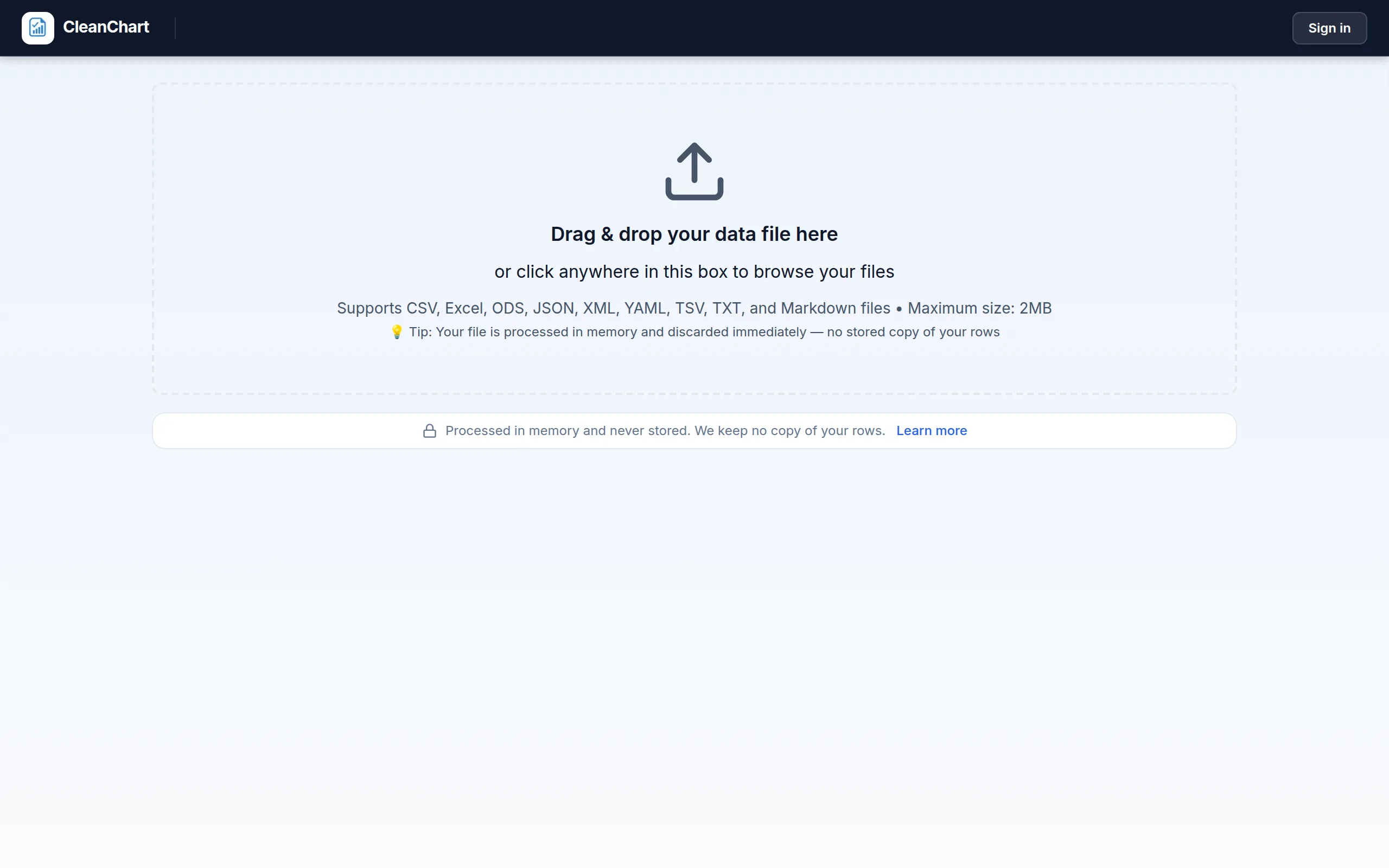
Go to the CleanChart Line Chart Maker. Drag and drop your CSV or Excel file, paste a URL to a Google Sheet, or use the built-in sample data to try the tool immediately.
Step 3: Select your columns
In the Data tab, set:
- X Column — the time or category axis (e.g., "Month")
- Y Column(s) — the value(s) to plot (e.g., "Revenue"). Add multiple Y columns for a multi-line chart.
Step 4: Customize the design
In the Settings panel:
- Title — give your chart a clear, descriptive title
- Colors — choose from a built-in color palette or set custom colors
- Line style — solid, dashed, or dotted; with or without markers at each data point
- Axes — label both axes with units (e.g., "Revenue (USD)" and "Month")
- Grid lines — horizontal grid lines help readers trace values accurately
Step 5: Export your chart
Click Export to download as PNG (for presentations and documents), SVG (for web and print), or PDF (for reports). All exports are high-resolution and watermark-free on the free tier.
For embedding in PowerPoint or Google Slides, see our guide on exporting charts for presentations.
Line Chart Design Best Practices
1. Use direct labeling instead of a legend
When comparing 2-3 lines, label the lines directly at the end of each line rather than relying on a separate legend. Direct labels reduce the eye movement required to interpret the chart and make it faster to read. If you have 4+ lines, a legend becomes necessary.
2. Start the y-axis at zero — or explain why you don't
Truncating the y-axis (starting it above zero) makes small differences look dramatic. This is one of the most common chart design mistakes. If the data range is very narrow (e.g., all values between 98.5% and 99.5%), truncating is acceptable — but add a clear note so readers aren't misled.
3. Limit to 4-5 lines maximum
More than 5 lines creates visual clutter and makes it hard to distinguish individual trends. If you have many series, consider using small multiples (separate charts side by side) or a heatmap to show the full picture.
4. Choose colors carefully
Use a distinct color for each line, with enough contrast between them. For presentations likely viewed by colorblind audiences, choose palettes that work in grayscale and avoid red-green combinations. Our colorblind-friendly chart guide has specific palette recommendations.
5. Smooth vs. straight lines
Straight lines between data points (the default) are more honest — they don't imply data between measurement points. Smoothed or curved lines look polished but can suggest patterns that aren't in the data. Use smoothing only for aesthetic purposes in non-analytical contexts.
6. Add reference lines for context
A horizontal reference line at a target value (e.g., "Budget: $50,000") immediately shows whether each data point is above or below target. CleanChart supports reference lines in the Annotations settings.
Line Chart Examples by Use Case
Sales trend analysis
Plot monthly revenue over 12-24 months. Add a reference line at the annual target. Use a second line to show the prior year for comparison. This is the most common business use of line charts and is explored in our sales data visualization guide.
Website traffic over time
Plot daily or weekly page views, sessions, or unique visitors. Multi-line charts work well here — compare organic vs. paid vs. direct traffic to spot channel-level trends.
Financial time series
For stock prices or financial metrics, line charts provide a clean, continuous view of price movements. For more sophisticated financial charts with open/high/low/close data, consider a candlestick chart. Our financial data visualization guide covers both in depth.
Project metrics over sprints
Track velocity, bug counts, or story points across agile sprints. A line chart visualizes the team's trajectory clearly. For project timeline visualization, pair with a Gantt chart. See our project management charts guide for a full breakdown.
Time series data with many data points
When you have high-frequency data (hourly, daily readings), consider a step chart if values change only at discrete intervals (e.g., policy rates, pricing tiers). Step charts make abrupt changes visually distinct from continuous trends. For a comparison, see our step chart guide.
How to Create a Multi-Line Chart
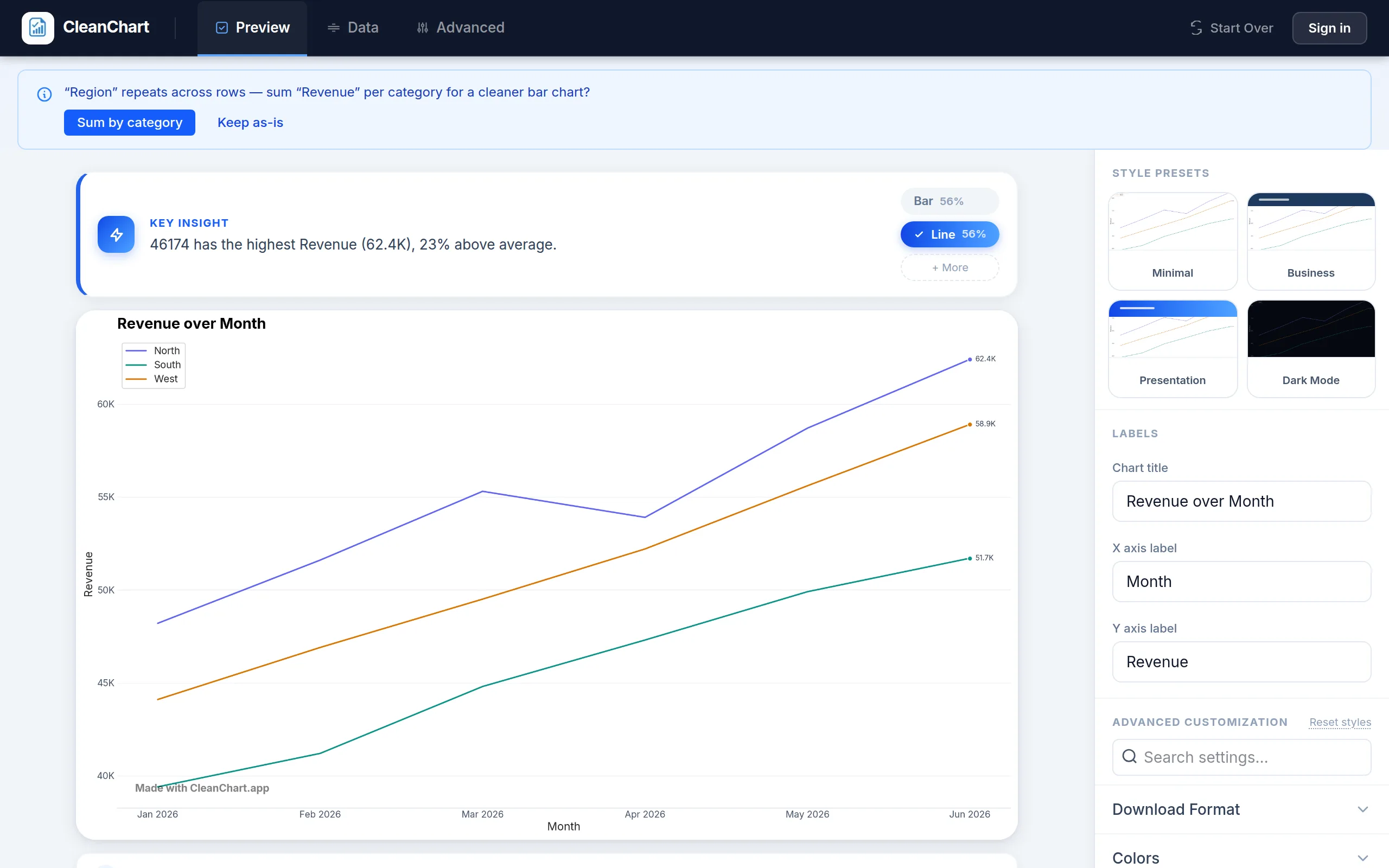
A multi-line chart compares the same metric across different groups or categories over time. The key is parallel structure: each line represents one comparable entity (one product, one region, one team).
To create a multi-line chart in CleanChart:
- Structure your data with one column per series (e.g., columns: Month, Product A, Product B, Product C)
- Upload to CleanChart and select "Line Chart"
- In the Data tab, select all numeric columns as Y columns
- Assign distinct colors to each line in the Colors settings
- Add a legend or use direct line labels for readability
For time series data with stacked values (e.g., total revenue split by product category), a stacked area chart is often more readable than multiple overlapping lines.
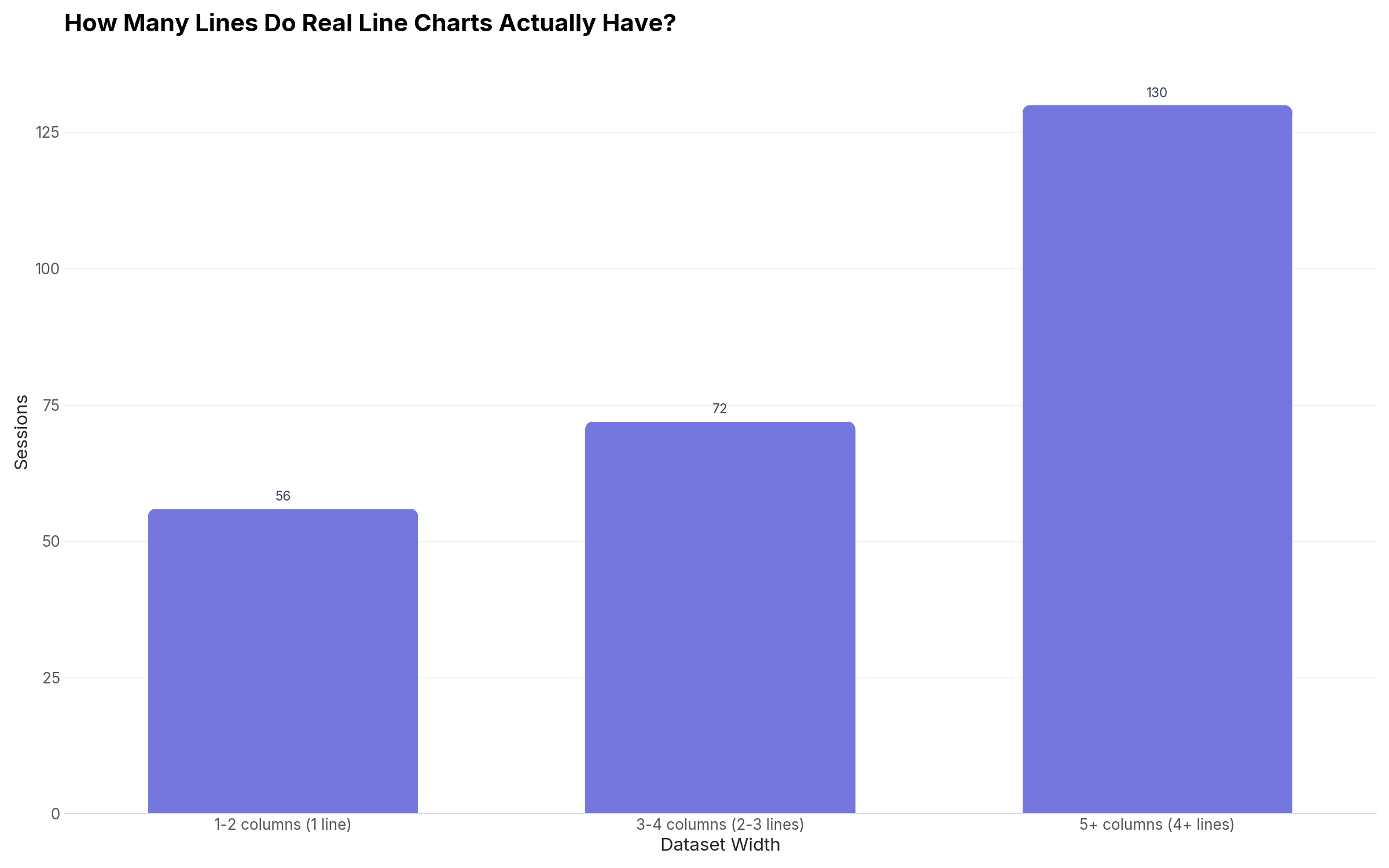
How Many Lines Do Real Line Charts Actually Have?
The "limit to 4-5 lines" rule above is standard advice, so we checked it against CleanChart's own session data: every line chart rendered on the platform between May and September 2026.
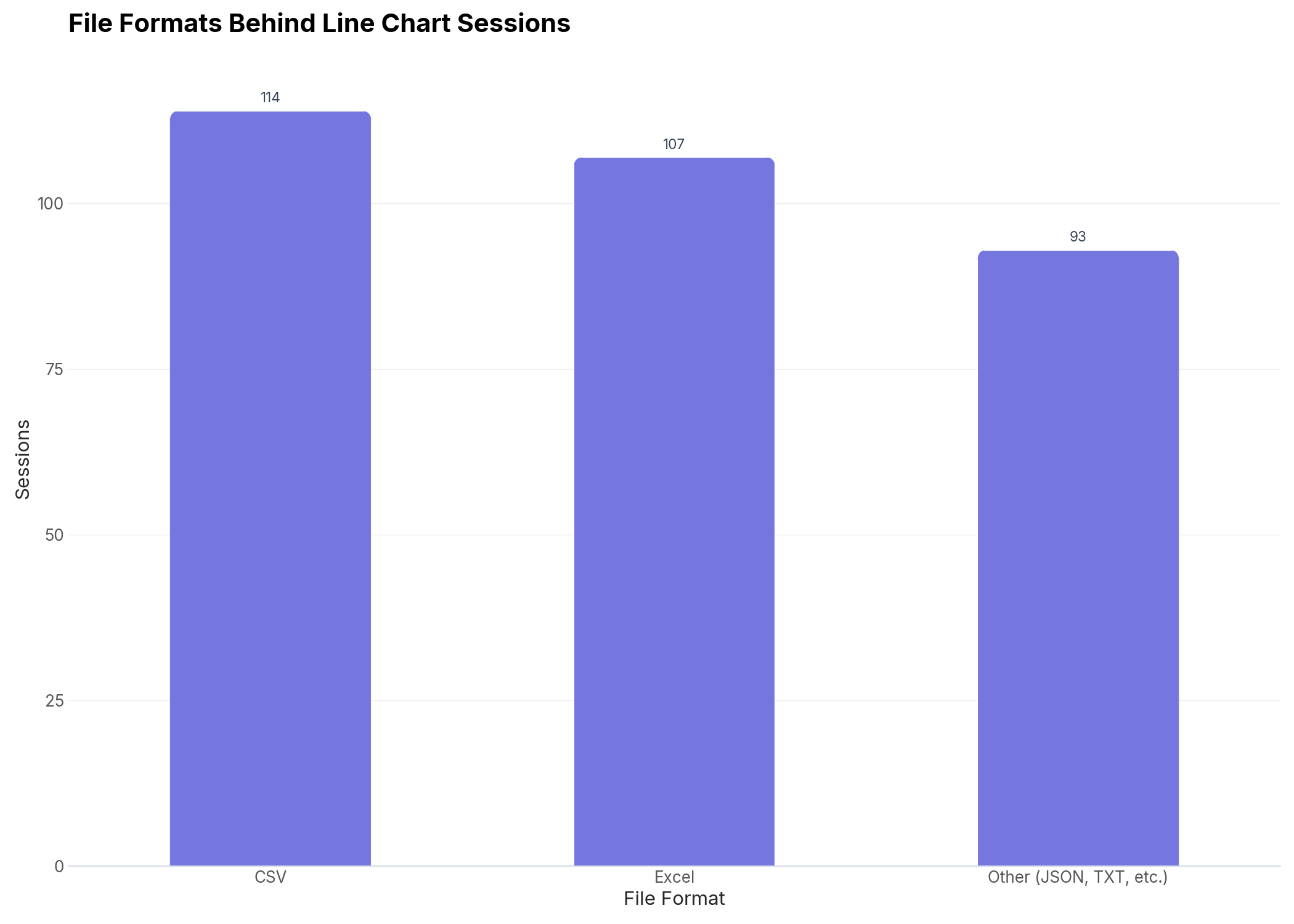
The file format breakdown also matches the converter list below:
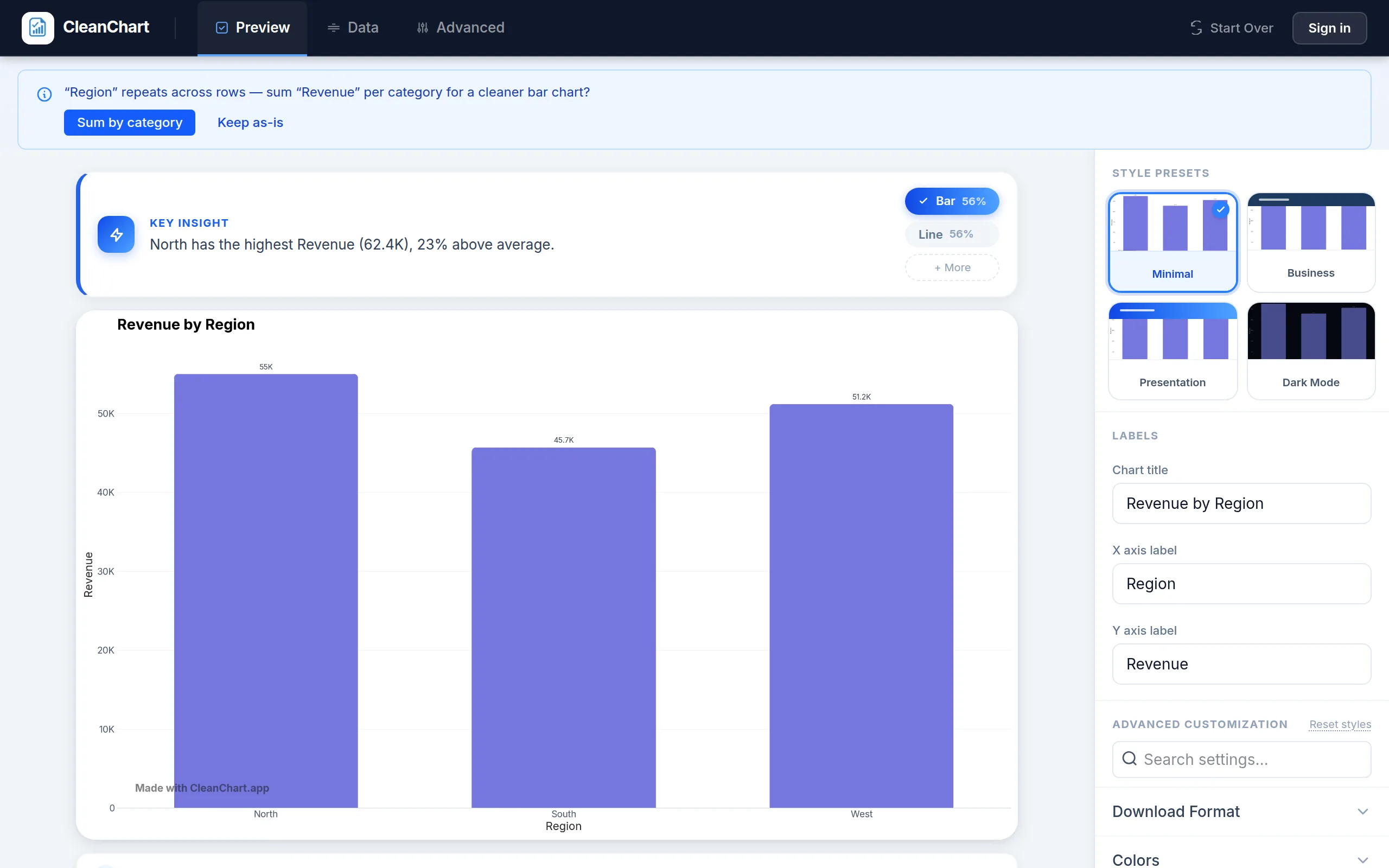
Here's a real multi-line chart built the way the section above describes, from a Month/Region/Revenue file:
Converting Data Files to Line Charts
CleanChart supports multiple input formats for line charts. Use the direct converter for your data source:
- CSV to Line Chart — most common format for exported data
- Excel to Line Chart — upload .xlsx or .xls files directly
- JSON to Line Chart — ideal for API and web application data
- Google Sheets to Line Chart — paste your sheet URL
If your data is currently in JSON format, use our JSON to CSV converter first, then upload to CleanChart. If your data has inconsistent date formats, the Date Format Converter standardizes them before charting.
Frequently Asked Questions
What data format do I need to create a line chart?
You need at minimum two columns: one for the x-axis (time or categories) and one numeric column for the y-axis values. CleanChart accepts CSV, Excel (.xlsx), JSON, and Google Sheets. Each row represents one data point on the line. For multiple lines, add more numeric columns — each becomes a separate line. Use the CSV to Line Chart converter to upload your data directly.
How many lines can I show on a single line chart?
Technically, CleanChart supports as many lines as you have data columns. Practically, readability drops significantly beyond 4-5 lines. With more series, consider using a heatmap or small multiples instead. If you must show many lines, use distinct colors, direct labels, and keep the chart large enough that lines don't overlap in the legend.
Should the y-axis start at zero on a line chart?
It depends on context. For absolute values like revenue or headcount, starting at zero is generally best practice because it prevents the line's slope from visually exaggerating small changes. For percentage metrics with a narrow range (e.g., 96%–99% uptime), truncating the y-axis is acceptable as long as you clearly label the axis minimum. Always check whether the visual impression matches the actual magnitude of change.
What is the difference between a line chart and a time series chart?
A time series chart is a line chart where the x-axis specifically represents time (dates, timestamps). All time series charts are line charts, but not all line charts are time series — a line chart can also use a sequential numeric x-axis (e.g., test run number, version number). For more detail on handling temporal data specifically, see our time series charts guide.
Can I add a trend line to a line chart?
Yes. CleanChart supports statistical overlays including mean lines and trend lines in the Settings panel. A trend line (linear regression line) smooths out noise and shows the underlying direction of the data. This is especially useful for sales data with seasonal fluctuations where the overall trend may not be obvious from the raw line.
How many lines does a typical line chart have?
Real CleanChart usage data shows a wide spread: about 22% of line-chart sessions plot a single line, 28% plot 2-3 lines, and 50% plot 4 or more. See the usage data above for the full breakdown and why the 4-5 line guideline is a starting point, not a hard cap.
Related CleanChart Resources
- Line Chart Maker — Build a line chart from your data instantly
- CSV to Line Chart — Convert CSV data to a line chart
- Excel to Line Chart — Convert Excel files to line charts
- JSON to Line Chart — Convert JSON data to line charts
- Area Charts Guide — When to use area charts instead of line charts
- Time Series Charts Guide — Deep dive on temporal data visualization
- Scatter Plot Guide — When scatter plots outperform line charts
- All Chart Types Explained — Full comparison of chart types
- Why Your Chart Looks Wrong — Common line chart design mistakes
- Color Palettes for Data Visualization — Choosing colors for multi-line charts
- Date Format Converter — Standardize dates before charting
- Excel to CSV Converter — Prepare Excel data for line charts
- CSV to JSON Converter — Transform data formats
External Resources
- Wikipedia: Line Chart — History, variants, and technical definition
- Storytelling with Data: Chart Selection — Cole Nussbaumer Knaflic on choosing effective chart types
- Fundamentals of Data Visualization: Time Series — Claus Wilke's open-source book on visualizing temporal data
- NerdSip — Micro-learning platform for data visualization and analytics
- Vega-Lite Line Chart Examples — Technical reference for line chart implementations
- From Data to Viz: Line Charts — Decision tree and pitfalls for line chart usage
Last updated: April 2, 2026